
Disk Drill for Windows Review – Full Test of Features, Performance & Pricing

Out of 5 Total Score
No. 1 Among all Windows solutions

Windows users have almost an overwhelming number of data recovery software applications to choose from, so it takes a lot for any single application to stand out from the crowd. Read this review to find out if Disk Drill for Windows deserves your attention (hint: it does).
Our ratings:
Disk Drill Quick Overview
Disk Drill shines as a data recovery software application in just about every way possible. With an annual or perpetual license, you can install this powerful tool on any Windows, or even Mac, computer you want, and you can count on its top-notch recovery performance to rescue your valuable data from the jaws of loss. Disk Drill supports nearly 400 file formats and all commonly encountered file systems, and it can even reconstruct RAID arrays.
The application doesn’t stop there; it can recover directly from Windows Storage Spaces as well as supported NAS devices and RAID configurations, pushing its capabilities further. As if that wasn’t enough, Disk Drill is a joy to use, coming loaded with extra data protection features to put your mind at ease. To get started and see its capabilities for yourself, you can take advantage of Disk Drill’s free trial, which lets you recover up to 100 MB of data for free before you commit to the lifetime license.
| Title | Result |
| Compatibility | Superb |
| Recovery Rate | Superb |
| Usability | Superb |
| File Type Support | Superb |
| Scan Speed | Superb |
| Free Trial | Yes |
| Starting Price | $89.00 / Annual |
| Money-Back Guarantee | Yes |

Reduced PRO version price for our readers.
Main Pros
Main Cons
What Is Disk Drill?
#Disk Drill is a capable data recovery software application for Windows and macOS that has been on the market for over a decade. It supports hundreds of file formats and includes built-in data management and backup tools alongside its core recovery engine. Over the years, its developers have steadily expanded its capabilities, and you can test the latest version yourself on any system running Windows 10 or Windows 11 (Disk Drill 5 and the newest version 6 both support Windows 10 and Windows 11; Disk Drill 4 supports Windows 7-Windows 11 21H2, while Disk Drill 2 supports Windows XP and Vista).
Disk Drill Factsheet
| Requirements | Windows 10-11 (64-bit)/11 (ARM) |
| Latest version | 6.3.1398 • Released 22nd Jul, 2026 |
| Download size | 51 MB |
| Category | Data Recovery Software |
| UI languages | Arabic, Chinese, Czech, Dutch, French, German, Hindi, Italian, English, Japanese, Korean, Malay, Norwegian, Polish, Portuguese, Russian, Spanish, Swedish, Turkish, Ukrainian |
Sibling version
Disk Drill for macOS
Disk Drill for Mac is the best data recovery solution for Mac we’ve tested so far. It has a similar user interface to the Windows version, and its capabilities are even more comprehensive. Read full review
No. 1 Among all macOS solutions

Developer — CleverFiles
The company responsible for Disk Drill for Windows, CleverFiles, was founded in 2009, so it’s been around for almost two decades. The company’s headquarters is located in the United States, Virginia.
18% 1486.8% than avg
Reflects the share of online traffic within the niche occupied by data recovery software, based on data taken from ahrefs.com (from Google US search engine).
38000 1401.4% than avg
Based on the number of brand-related search queries on Google US according to ahrefs.com.
CleverFiles is a highly reputable software company with an impressive BBB customer rating of 4.87 stars out of 5 at the time of writing this review.
| Developer website | cleverfiles.com |
| Support email | help@cleverfiles.com |
| Founded | 2009 • 17 years on market |
| HQ location | 122 Delaware St, Ste E2, New Castle, DE 19720, USA |
| Social media | LinkedIn Twitter Facebook YouTube |
If you’ve ever researched how to recover lost data on the web, it’s very likely that you’ve stumbled upon an in-depth guide published on the official website of Disk Drill for Windows. Indeed, CleverFiles spends a lot of effort on content marketing, trying to promote Disk Drill by showing how it (along with other tools and techniques) can help solve real data loss issues.
How Much Does Disk Drill Cost?
| Distributed as | Freemium Some features are provided free of charge, but money is required to unlock the rest |
| Trial version available | Trial version available |
| Trial version limitations | Trial version of Disk Drill Basic includes:
|
| Paid plans |
|
| Price range | $89.00...$149.00 |
| License model | Subscription + Lifetime |
| No credit card to try | No credit card to try |
| Money back guarantee | Money back guarantee |
While many data recovery tools have moved entirely to subscription models, Disk Drill offers more flexible licensing options. Users can choose between an annual subscription priced at $89 per year or a lifetime license available for $149. The PRO license includes both the Windows and macOS versions of Disk Drill, supports up to three device activations, and covers both personal and business use.
For companies that require premium technical support and unlimited activations, Disk Drill offers an Enterprise license. The cost of this license is calculated individually based on specific business requirements rather than being offered at a fixed, predefined price. Users can also choose to purchase lifetime upgrades if needed.
But if you’re just dipping your toes in, there’s a free trial version that lets you recover up to 100 MB of data and even offers backup and data protection features to help you avoid any data loss—that’s what we call great value.
All Disk Drill Pricing Options
| 1 | PRO (Annual) | $89.00 |
| 2 | PRO (Lifetime) | $149.00 |
| 3 | Details | Basic version plus:
|
| 1 | Details | Disk Drill does not publish fixed pricing for Enterprise users — all proposals for businesses and large organizations are formed individually based on specific requirements. |
Similar Tools to Disk Drill




Is Disk Drill safe and legitimate?
100%
Avg score While there are many reliable data recovery software applications available, Disk Drill certainly stands among the safest options
Disk Drill doesn't contain any malware.
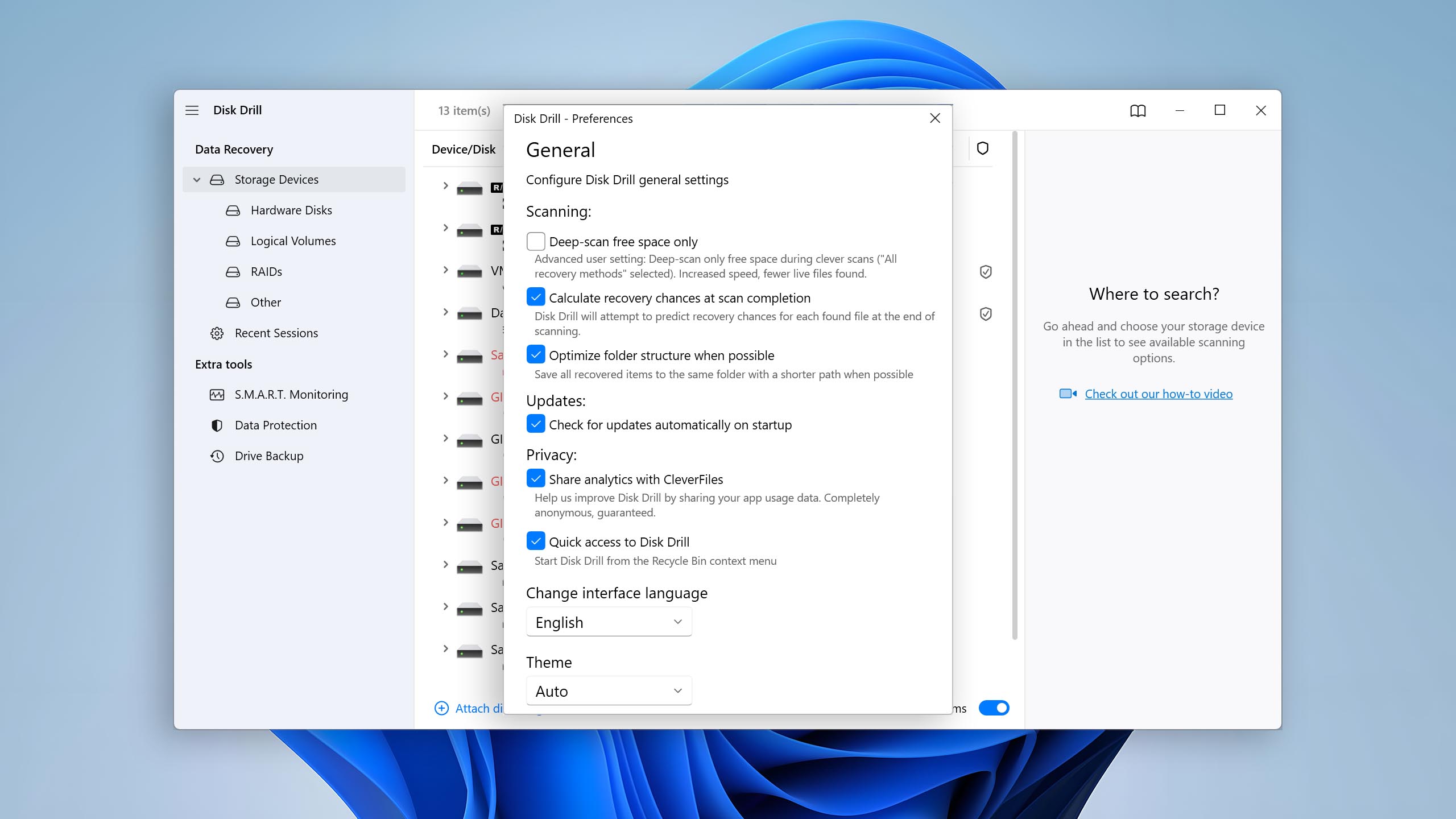
No data is shared with third parties, and there's an opt-out option for data collection.
The software relies entirely on non-destructive data recovery algorithms.
CleverFiles is a trustworthy US-based company.
When it comes to safety, Disk Drill leaves absolutely nothing to be desired. Considering that the data recovery software is developed by a trustworthy US-based company with a clear structure and a solid reputation, CleverFiles, it probably won't surprise you that it doesn't come with any malware. What may not be so obvious is Disk Drill's comprehensive commitment to data integrity and user privacy. The software operates in read-only mode during scanning, an important feature that ensures the original data always remains intact.
Furthermore, Disk Drill is privacy-forward, choosing not to share user data with third parties, and even provides the option for users to opt out of data collection. It's also worth mentioning that Disk Drill has an excellent Trustpilot rating, which shows the trust it has built among its user base.
If you're wondering whether Disk Drill is safe, you'll find a detailed test in our in-depth review.
How to Use Disk Drill
Tested on: Windows 11 (version 25H2)
Okay, enough with the facts. We know that you’re just as excited to see how well Disk Drill for Windows performs as we are. But before we describe our test results, let’s take a brief look at the process of using Disk Drill.
Installation
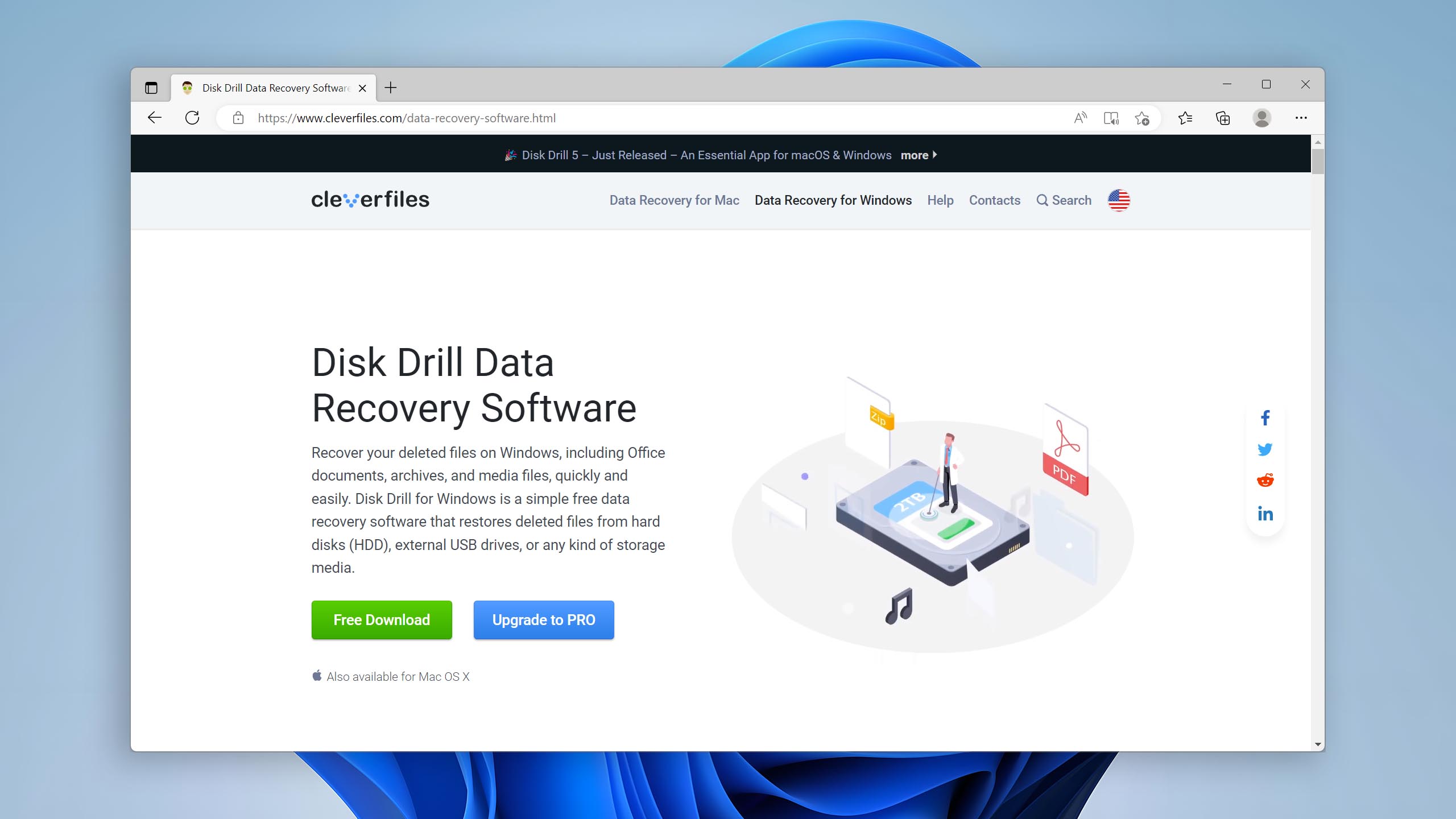
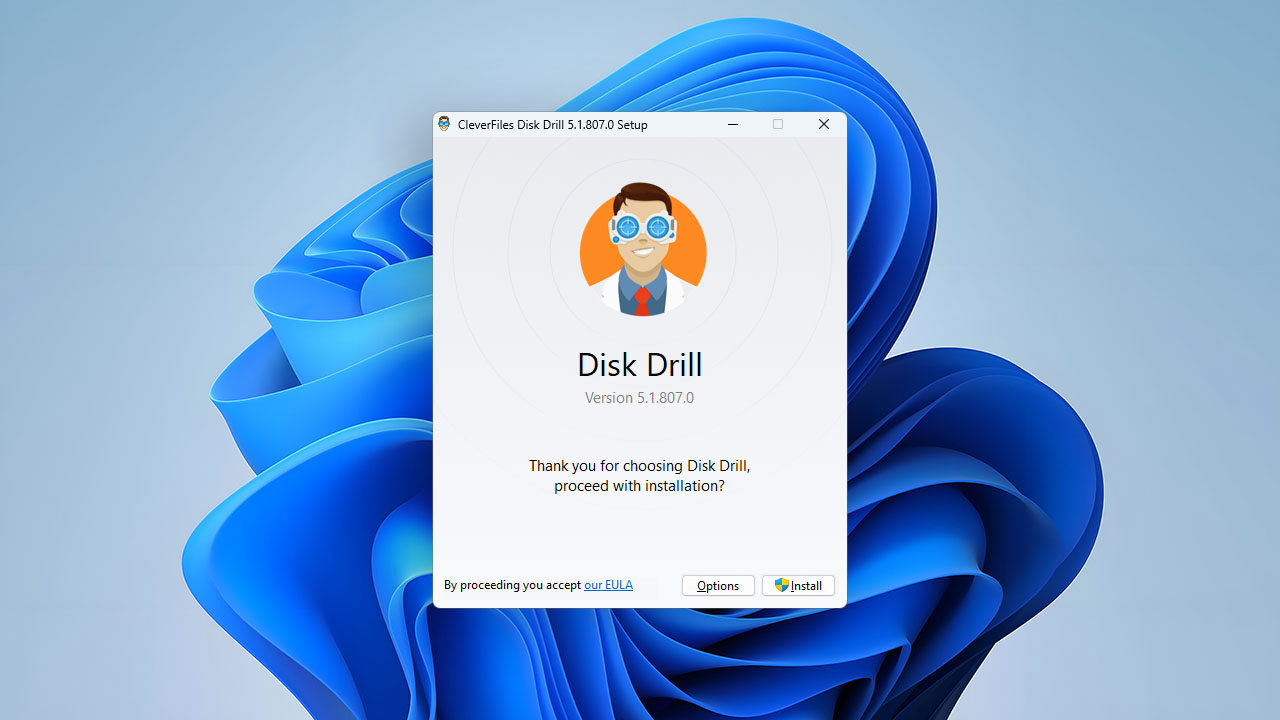
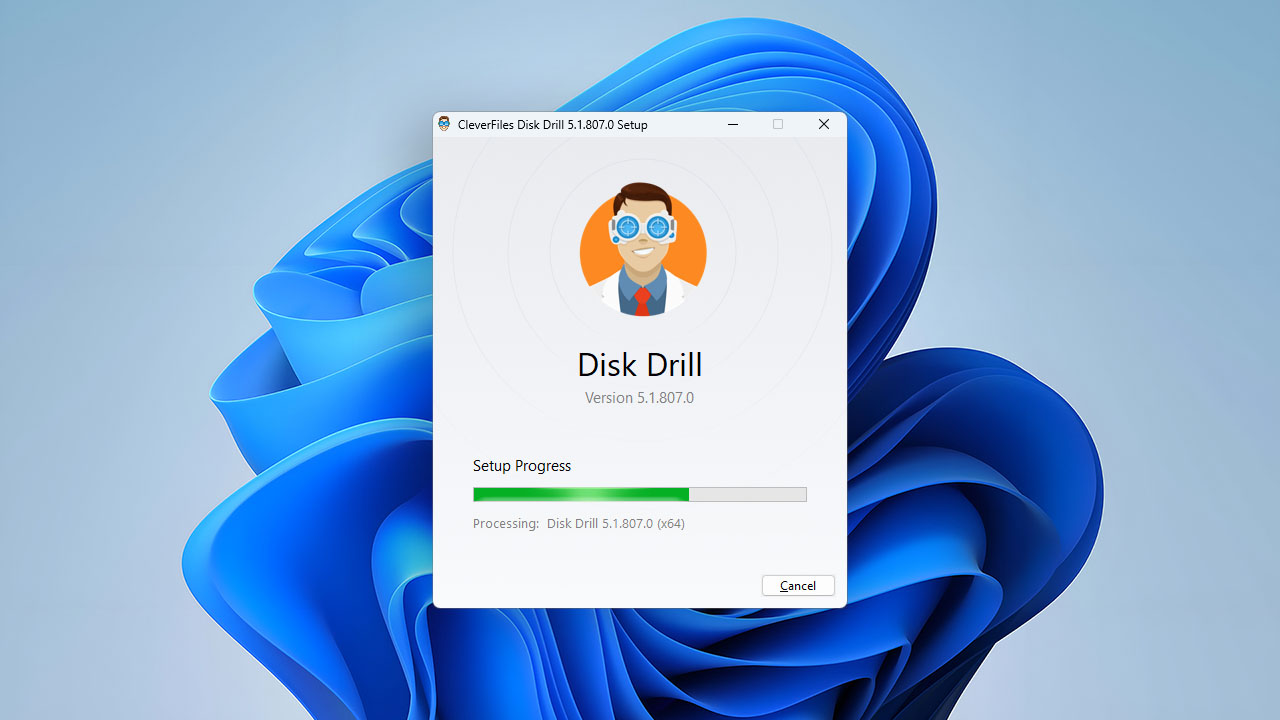
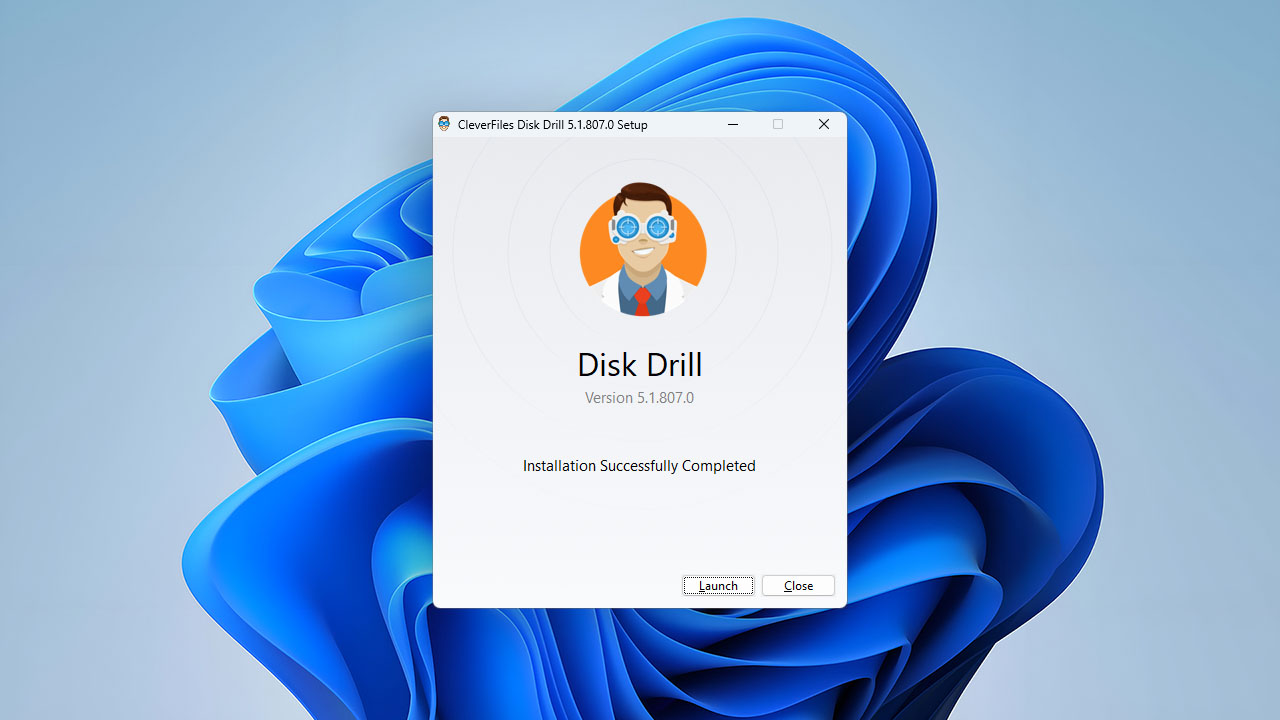
Disk Drill for Windows is a freemium software application, which means that you can download it from its website without paying any money and use it with certain limitations. In particular, you can recover only up to 100 MB of data. To remove any limits, you can purchase either the Pro or the Enterprise version of the software. The good news is that the free version can be upgraded easily - no need to reinstall the software.
The installation of Disk Drill for Windows is straightforward and shouldn't take you more than a minute or two. You just need to download the installer file from the official website, launch it, and then follow the instructions provided by the installation wizard. Once Disk Drill is installed on your computer, you can launch it and immediately tell it which device you want to scan.
Source selection
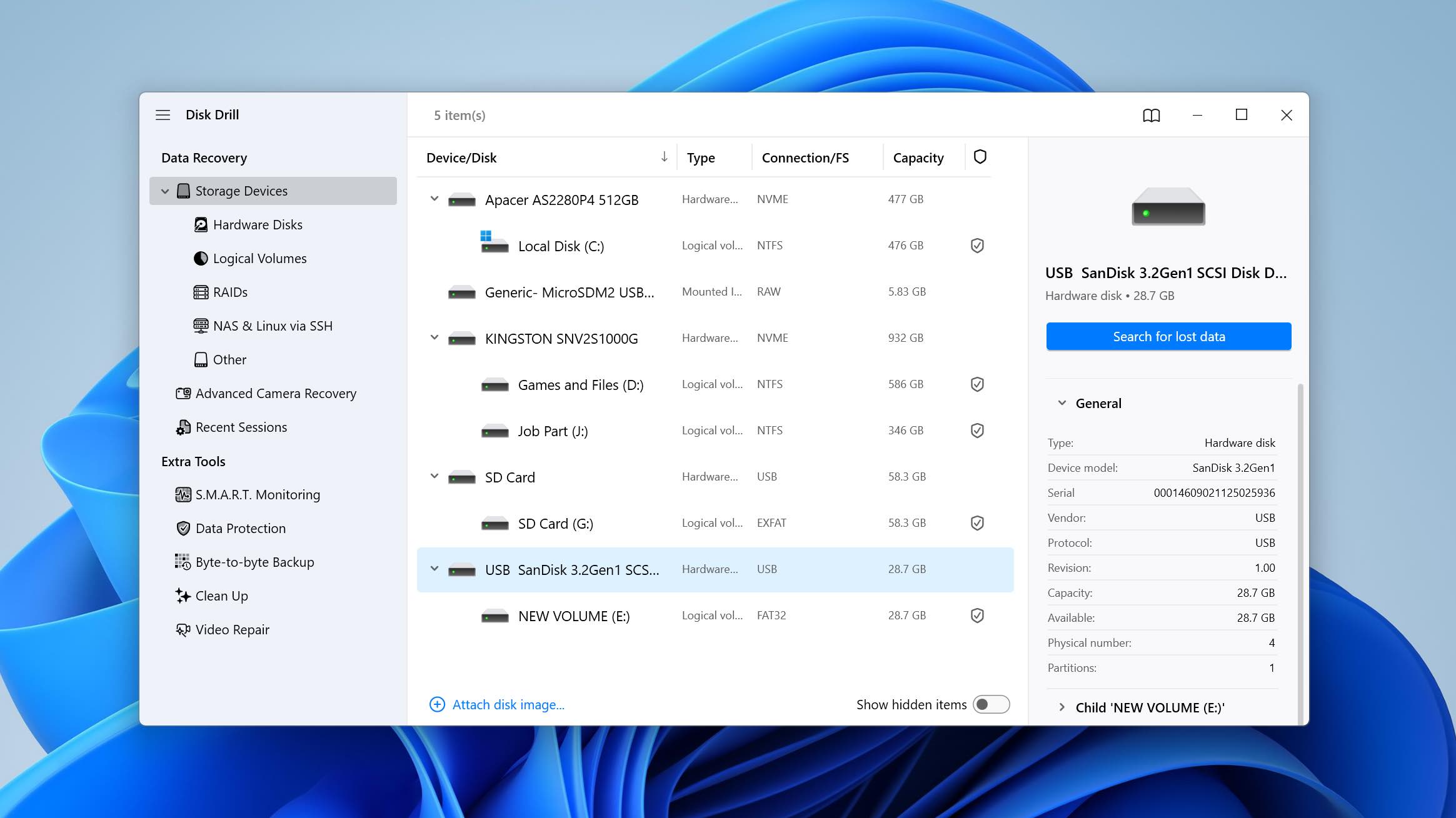
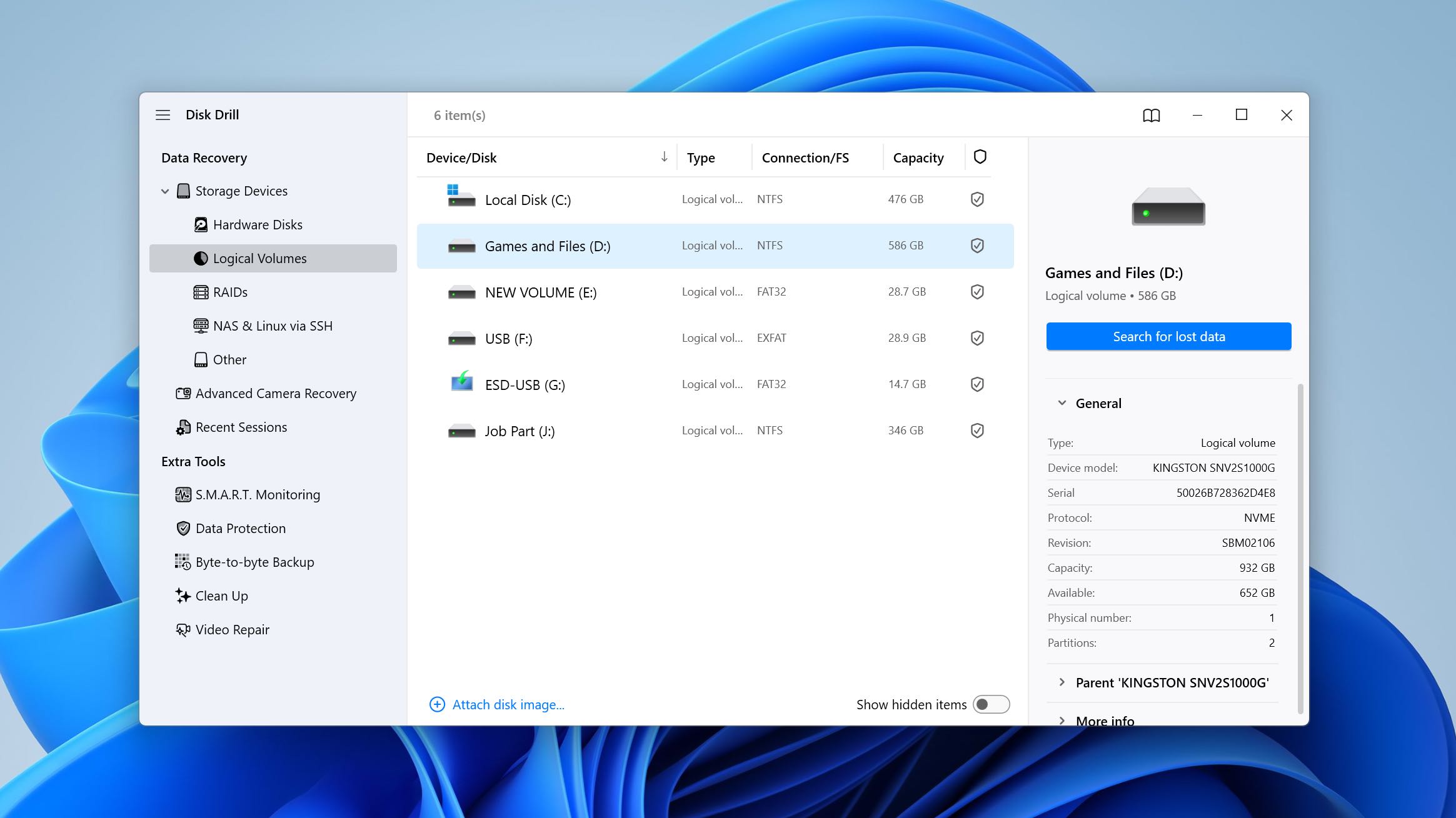
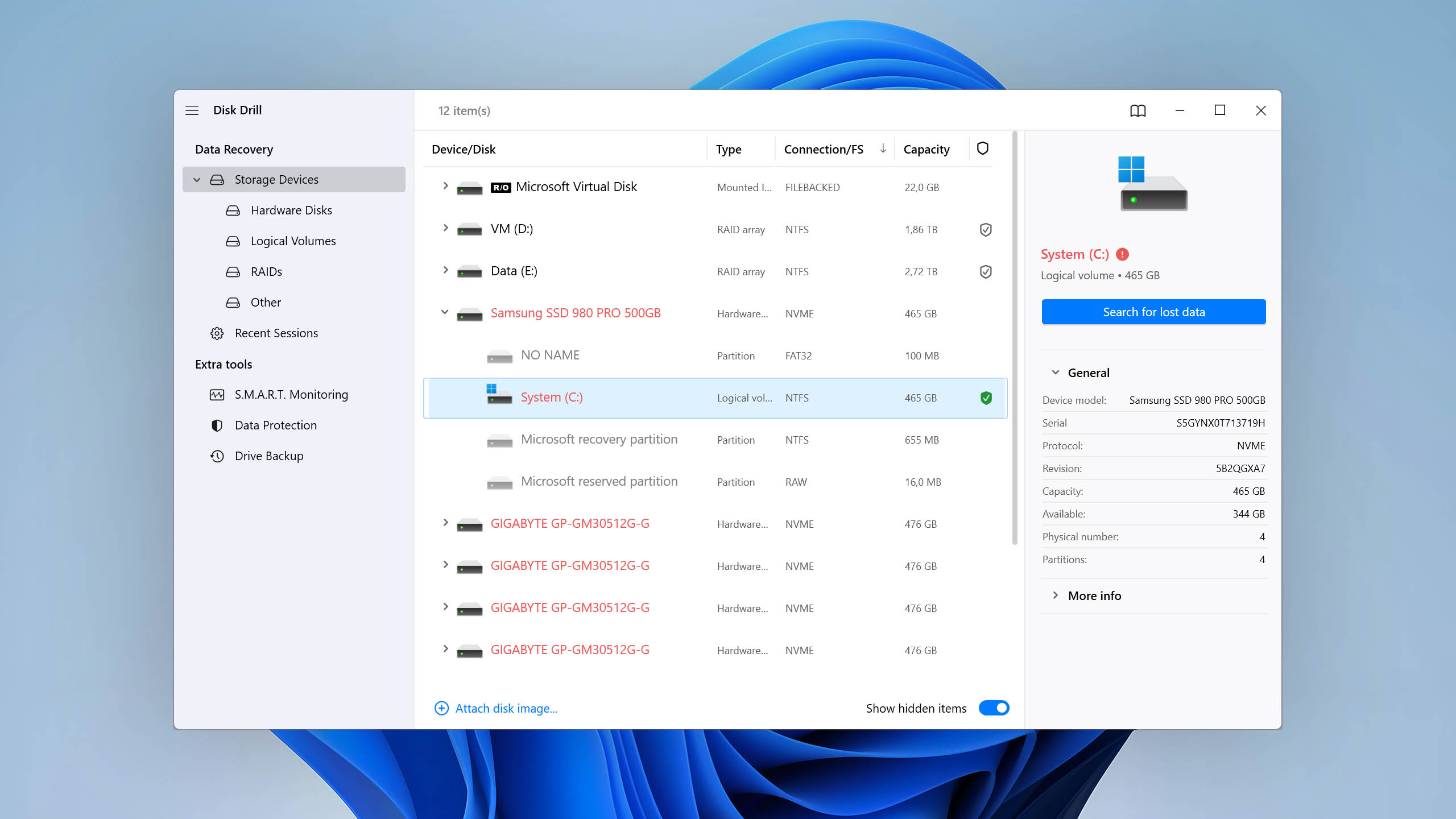
The source selection screen displays a comprehensive list of all connected storage devices. You can expand each device to see its partitions. For more information, you can switch to the General section, which is where Disk Drill for Windows displays things such as the device model, serial number, revision, or physical number. Storage devices that are not in good working order are marked with a clickable "!" symbol.
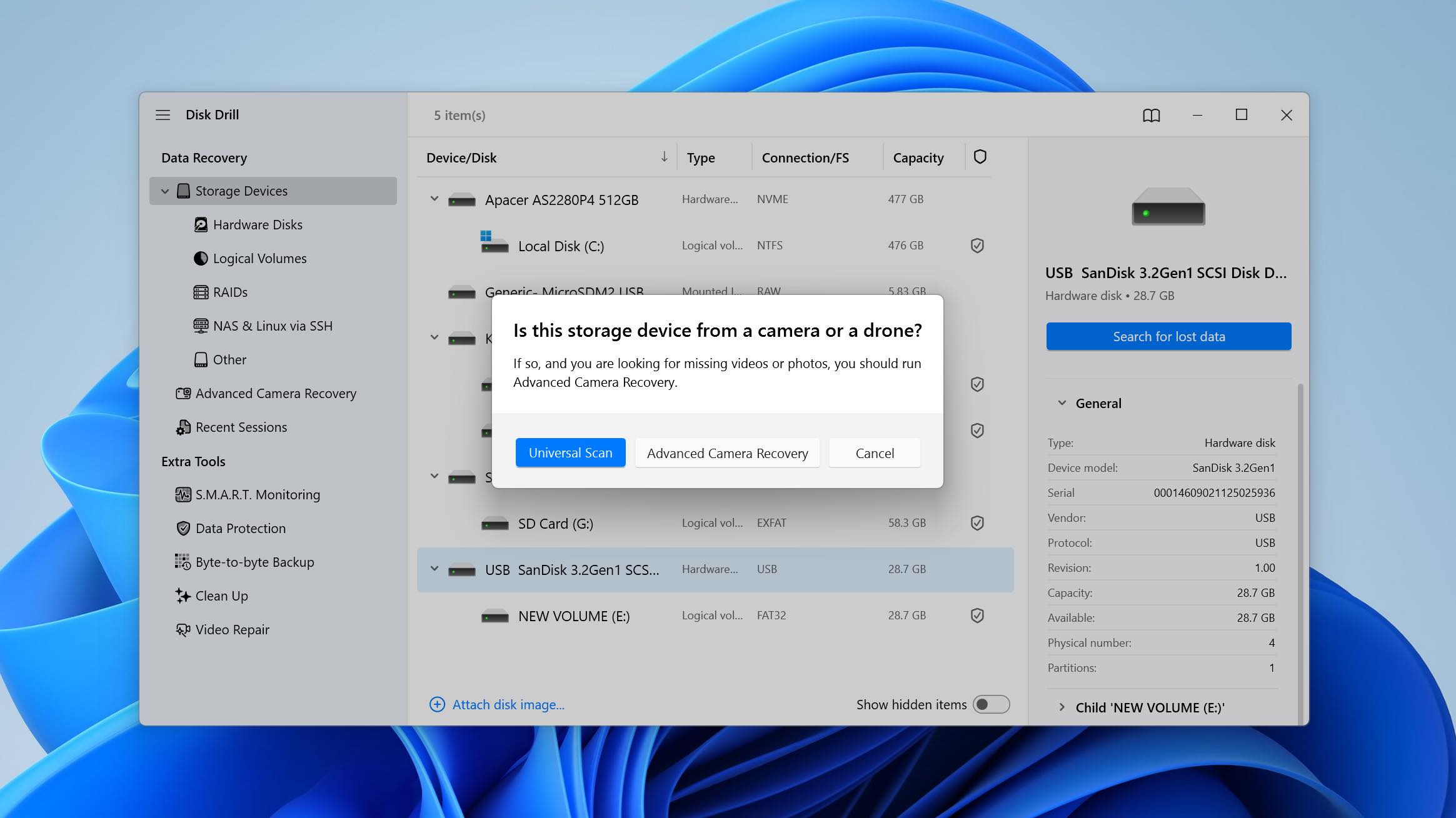
Disk Drill categorizes connected storage devices into four sub-groups: Hardware disks, Logical volumes, RAIDs (which can be reconstructed and recovered just as easily as regular storage devices), NAS & Linux via SSH, and a dedicated Advanced Camera Recovery section. You can display these subgroups individually or all at once.
We selected our storage device by clicking on it and initiated a scan using the Search for lost data button. When a non-system drive is selected, Disk Drill prompts you to choose between Universal Scan (the default all-in-one recovery method that combines multiple algorithms automatically) and Advanced Camera Recovery (ACR) mode.
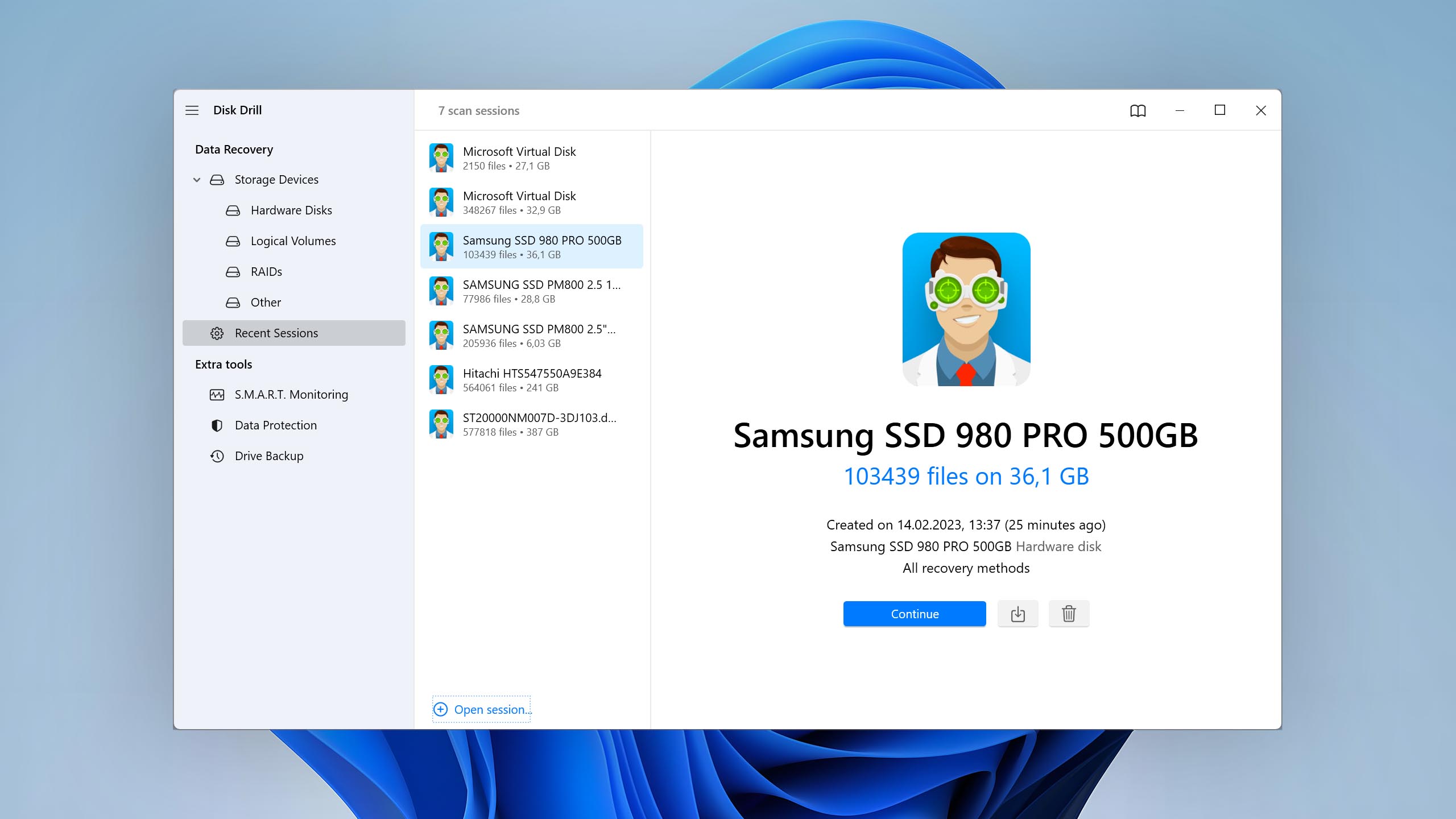
Thanks to Disk Drill's robust session management capabilities, there's no need to scan the same device again — you can simply load the last scan session and continue recovering your data.
Scanning process
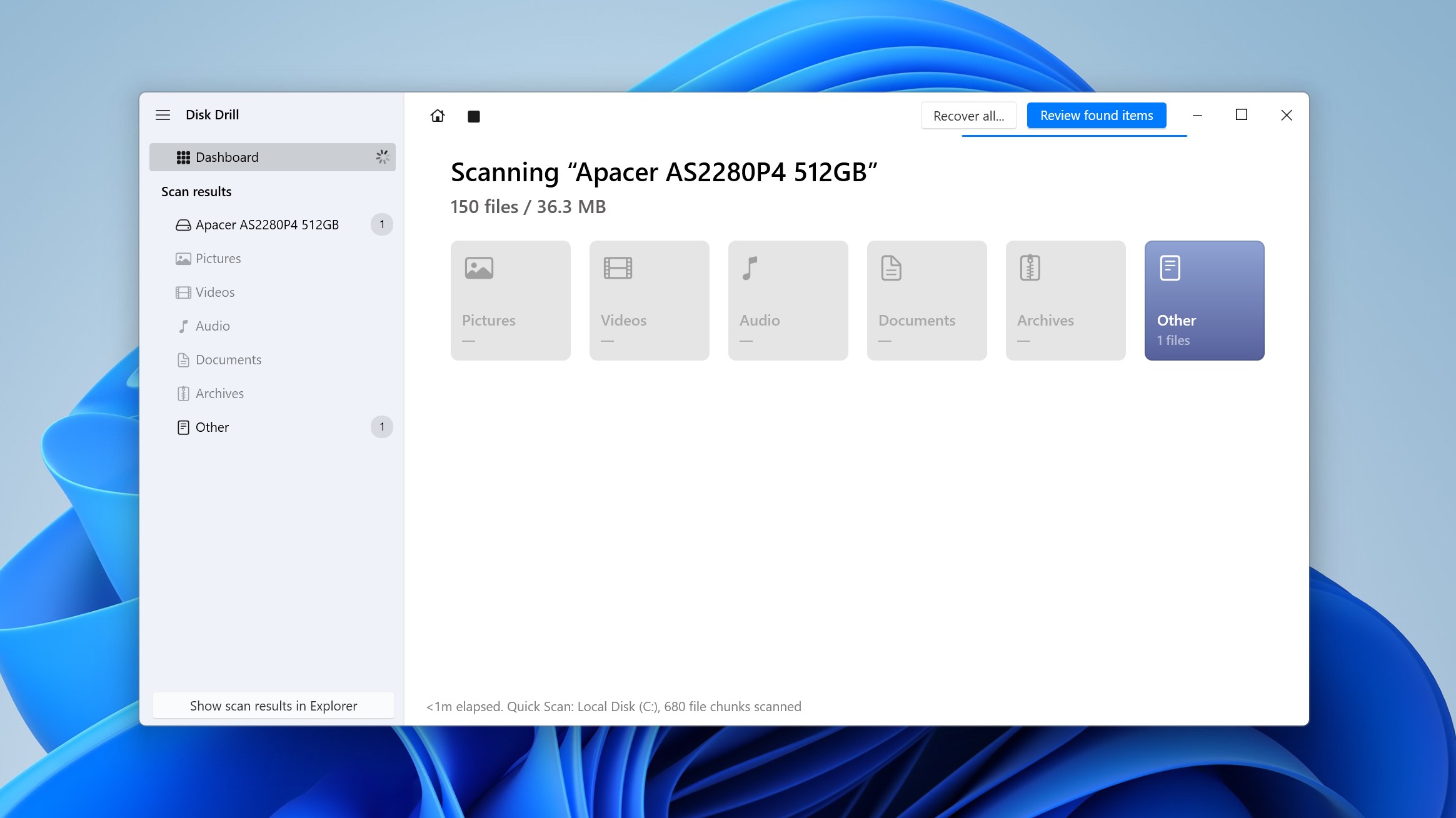
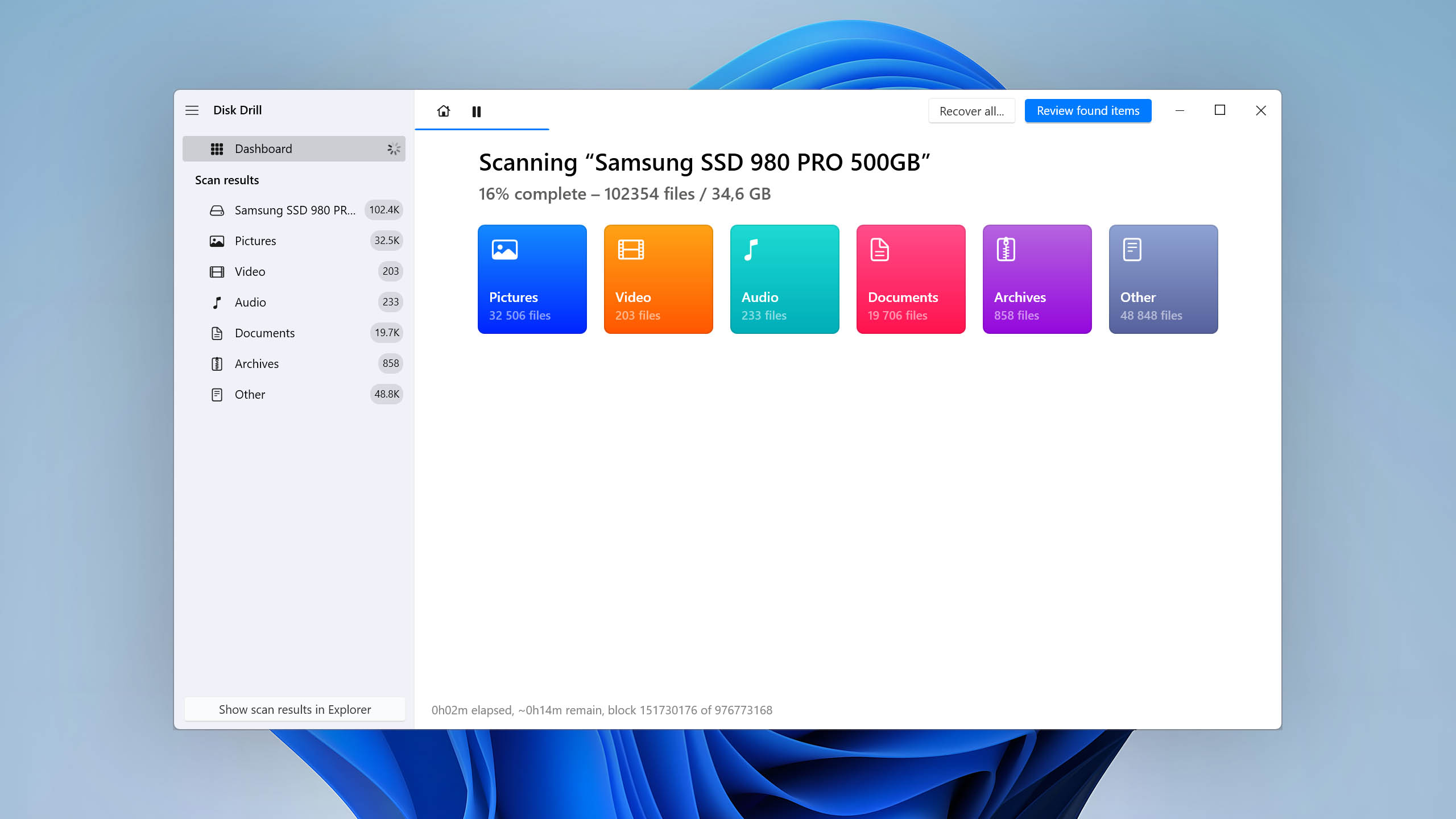
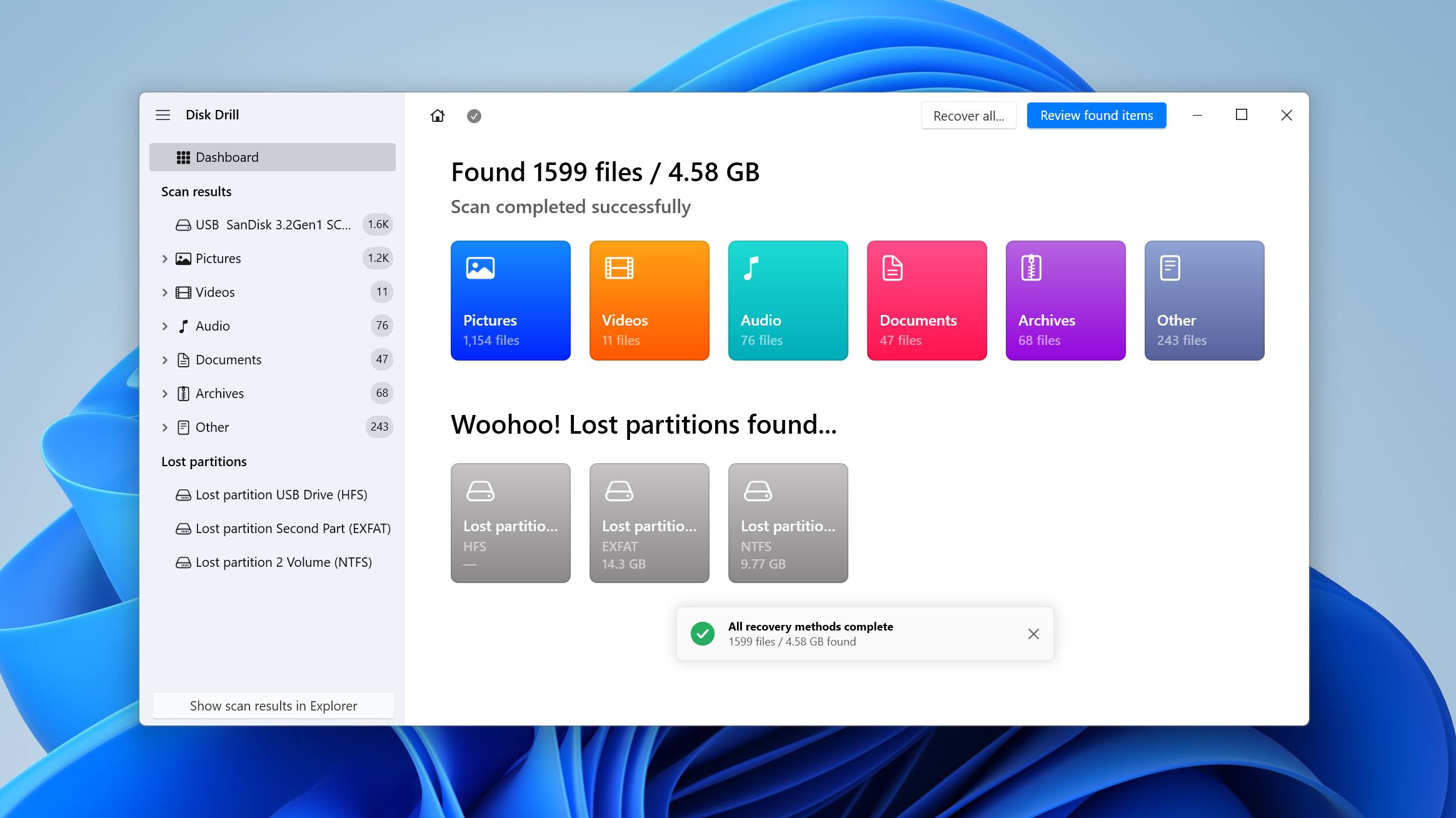
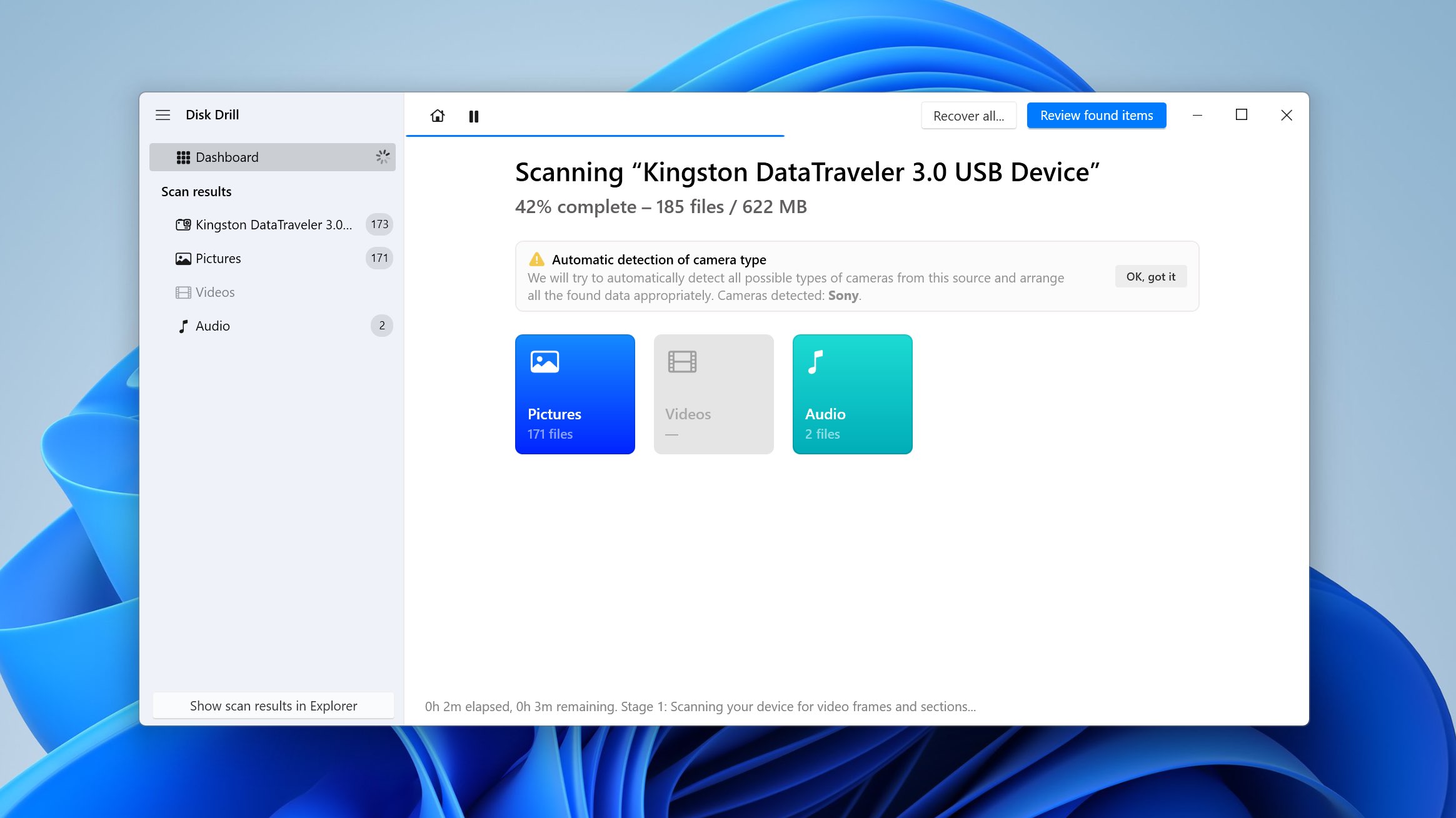
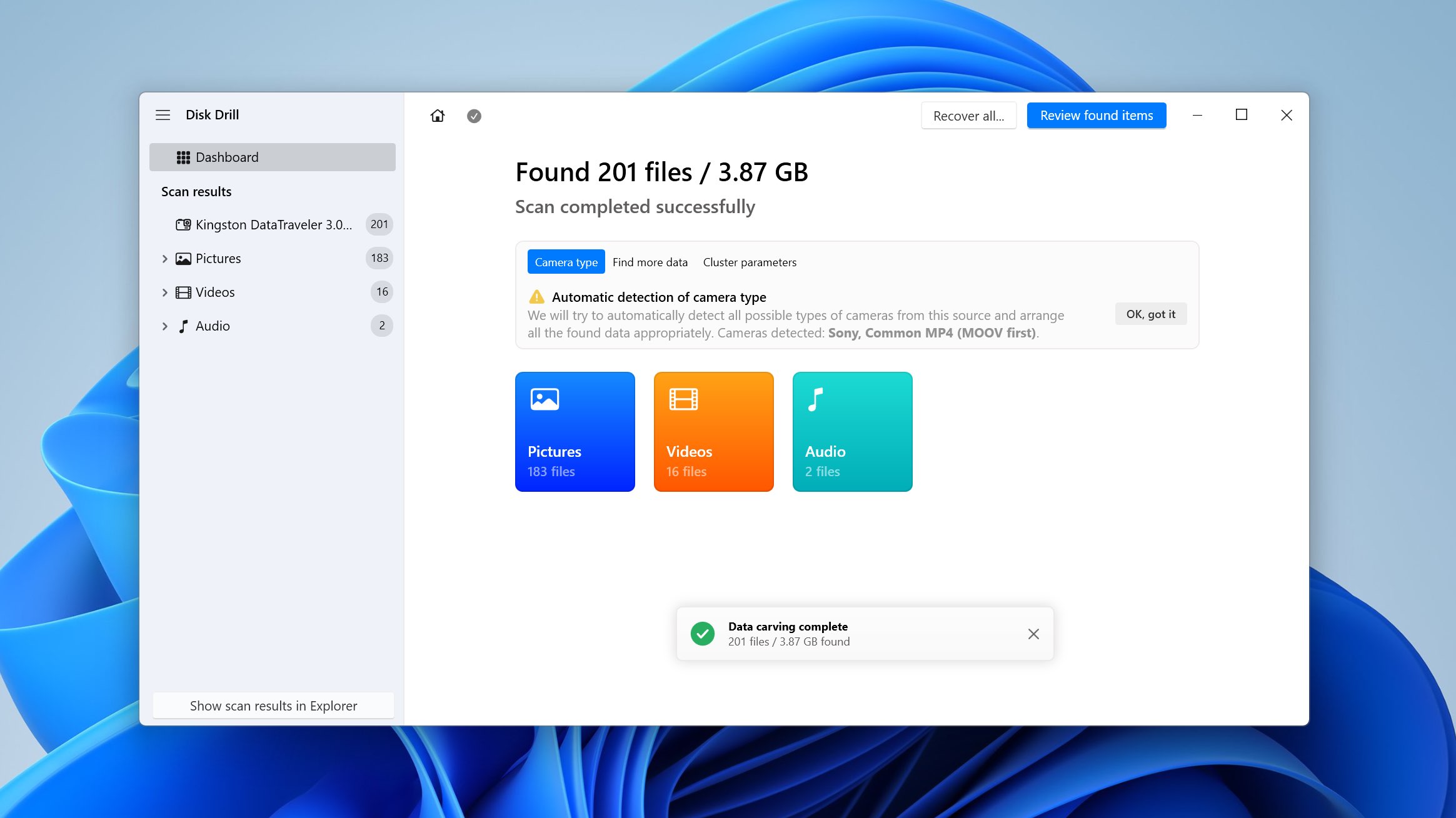
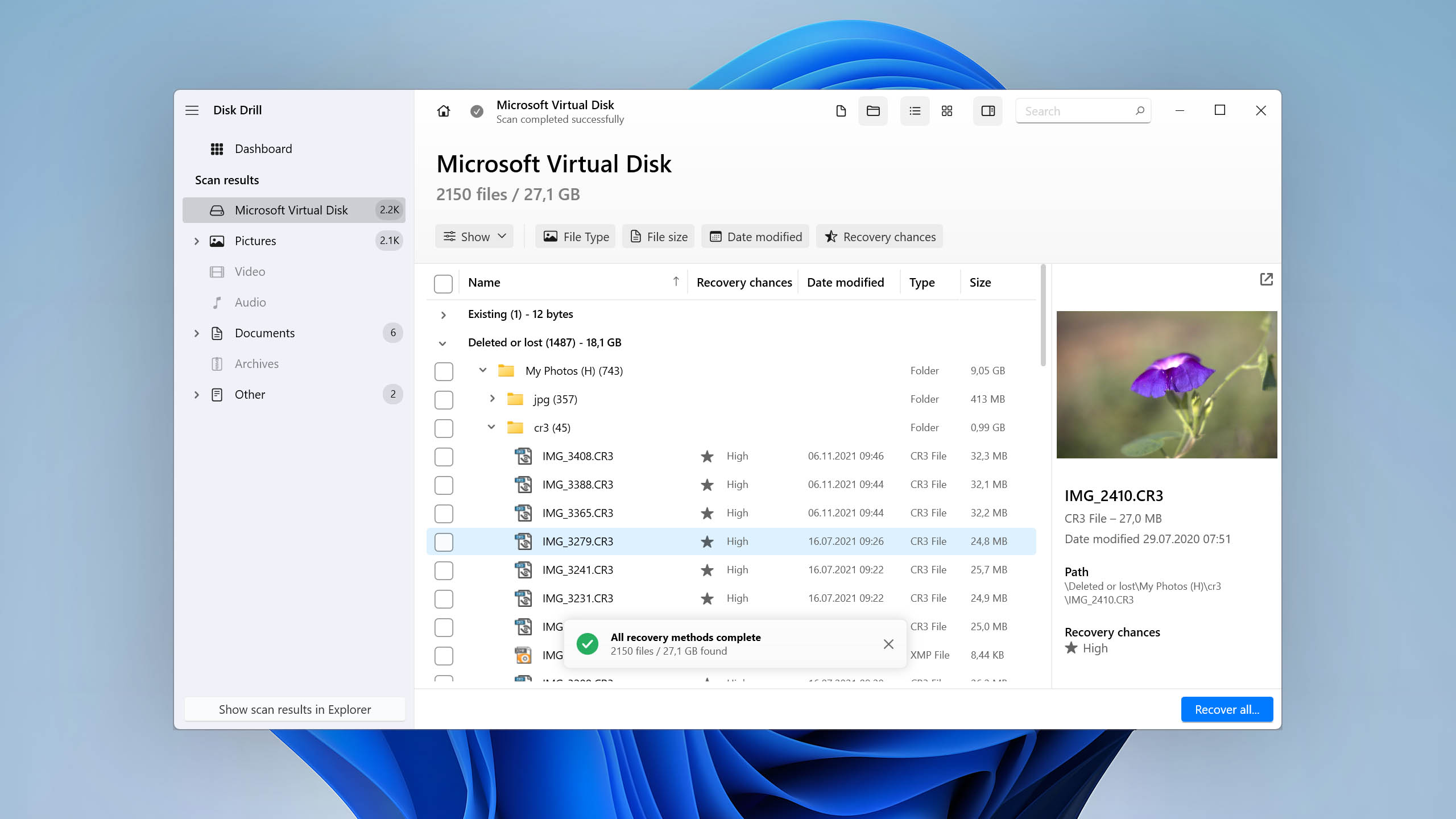
During scanning, Disk Drill for Windows kept us informed by displaying the number of found files across six different categories (Pictures, Video, Audio, Documents, Archives, and Other). If you choose Advanced Camera Recovery (ACR) mode, the interface switches to a layout with three media-focused categories: Photo, Video, and Audio, tailored specifically for camera and drone footage recovery.
We were pleasantly surprised with Disk Drill's scanning speed because the software managed to blaze through our storage device, discovering recoverable files at a truly impressive rate.
While we let Disk Drill finish its job before moving on to the next step, it's actually possible to restore files during the scan. This can be handy when you're pressed for time and just want to get back your lost files as quickly as possible.
Managing found files
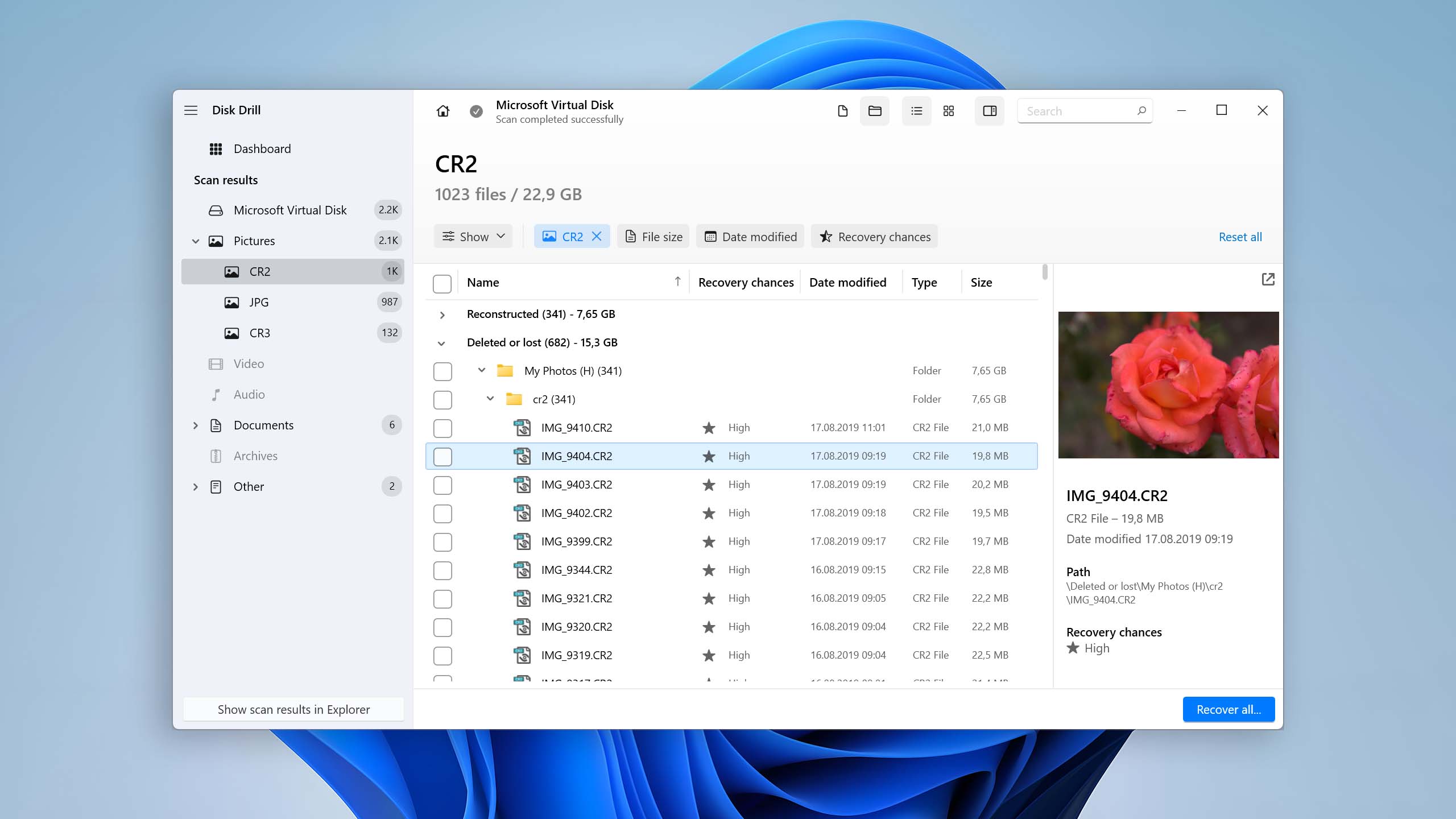
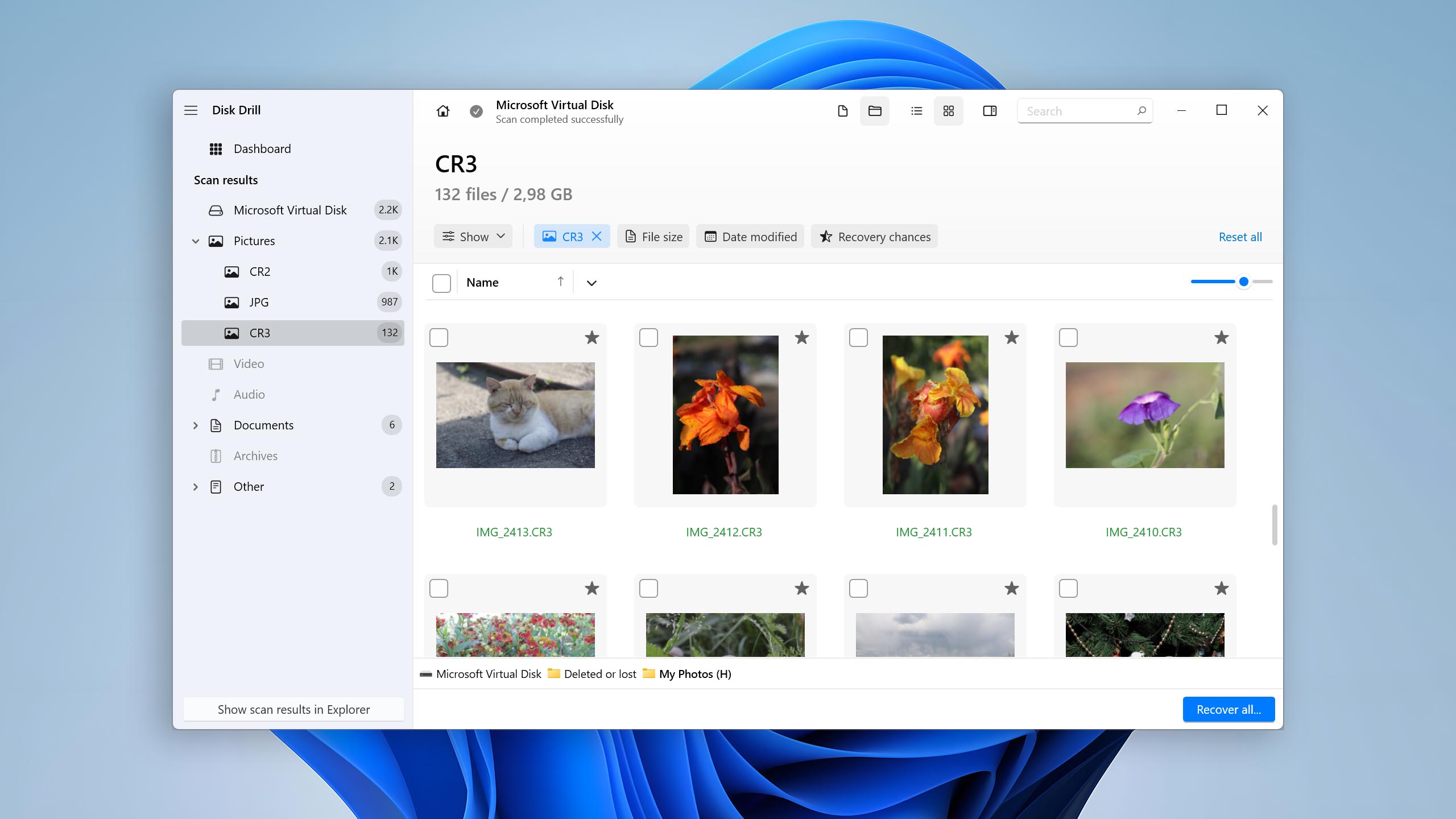
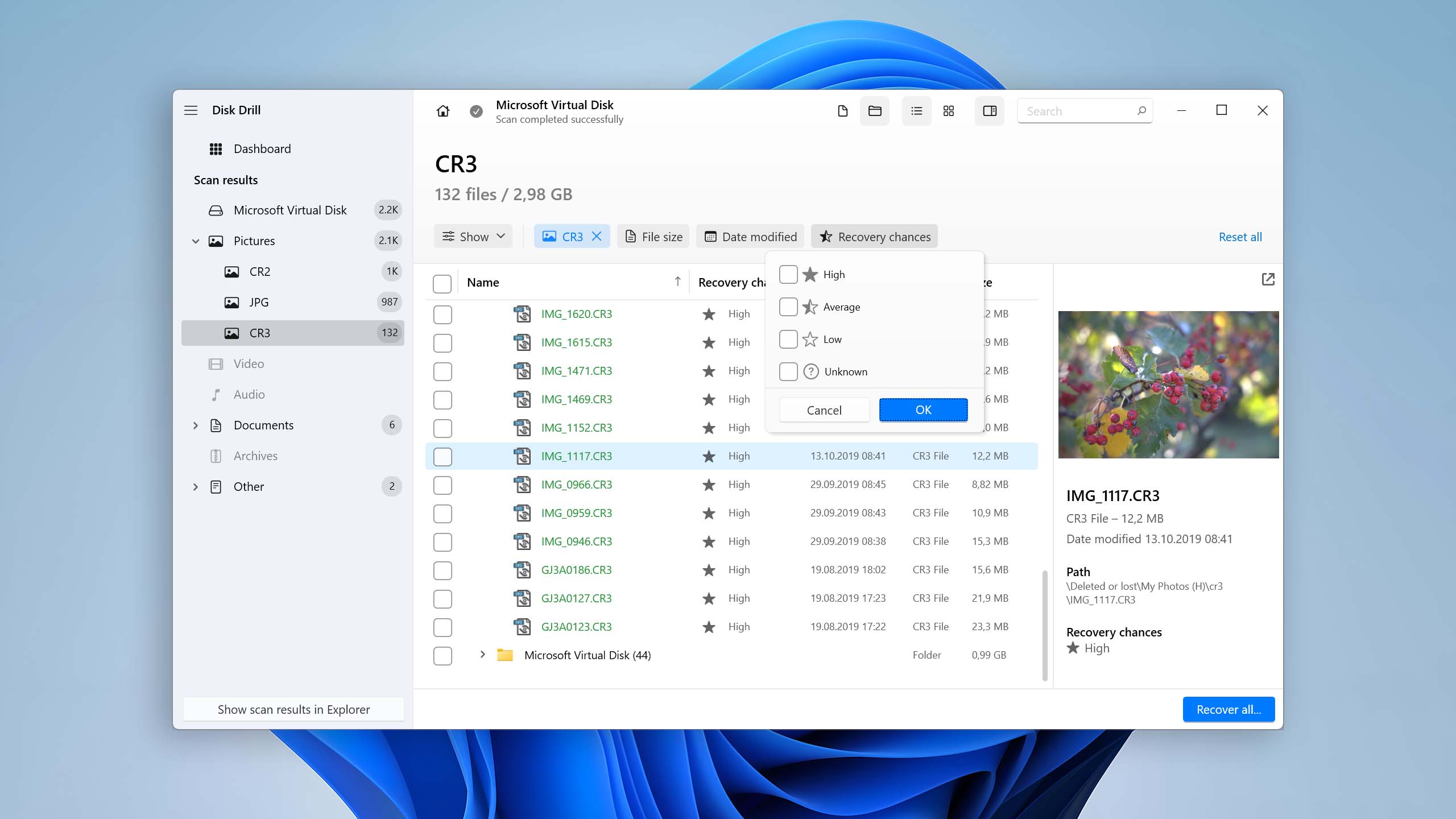
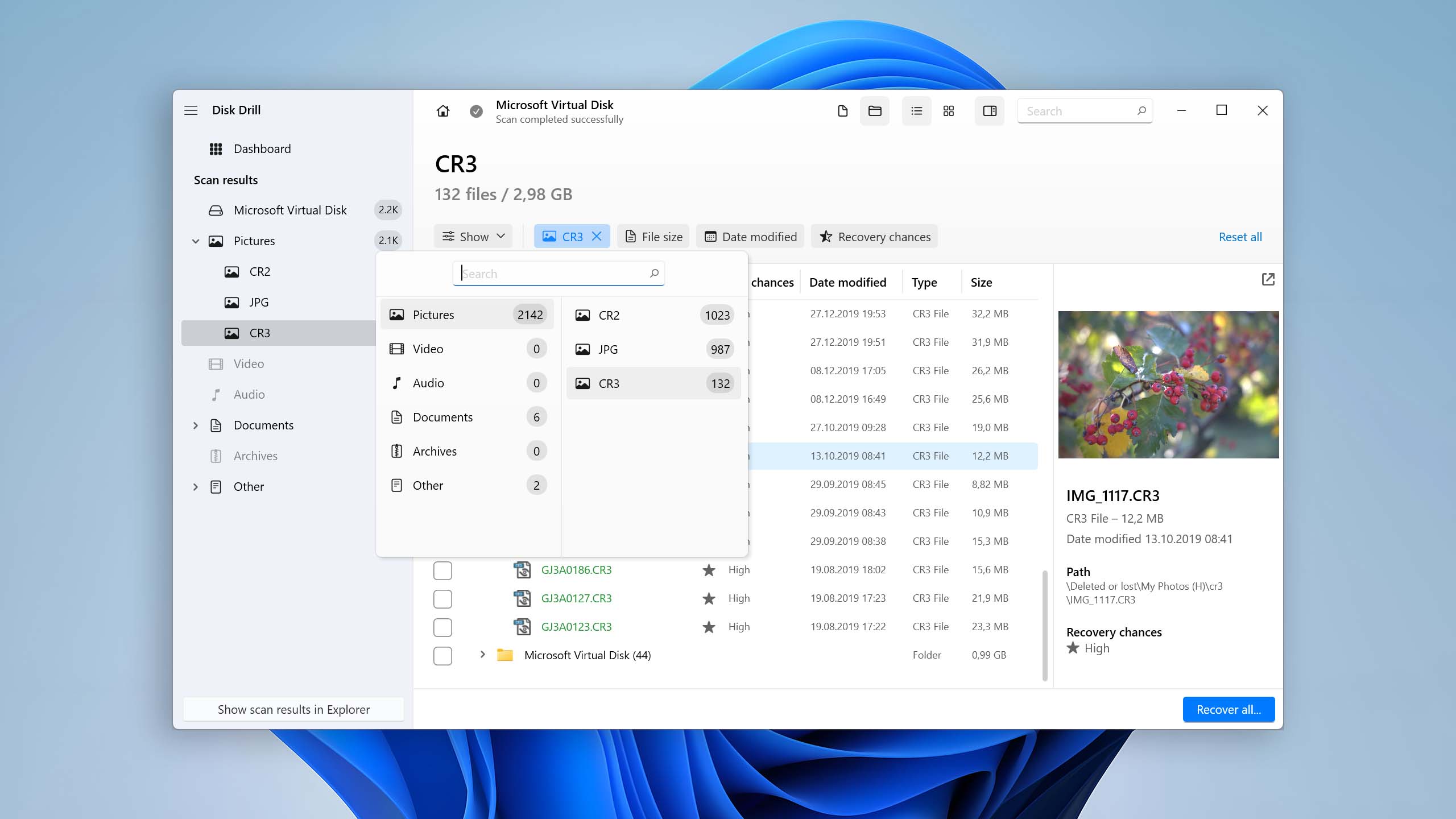
One area where Disk Drill for Windows excels is the management of found files. You can choose between several different views depending on if you want to see more information about each file or handy thumbnails, and there are multiple filters in the left pane and above the scan results to help you narrow down the scan results with a simple click. For example, you can display only certain file types or focus on a specific date.
Disk Drill's preview feature makes it easy to tell apart recoverable files that have been damaged beyond repair from those that can be recovered without any issues. But you don't even need to preview each and every file to know that it can be recovered because Disk Drill for Windows automatically displays the recovery chances of each file.
Disk Drill organizes recoverable files into three categories: Deleted or Lost, Reconstructed, and Existing. The Deleted or Lost category is opened by default because it contains deleted files with their original names and paths (If Disk Drill detects lost or deleted partitions during the scan, their recoverable contents are also displayed within this section). Files in the Reconstructed category are restored by file signatures, and there's no folder structure associated with them. Finally, the Existing category is reserved for files that are currently located on the storage device.
Recovery and post-processing
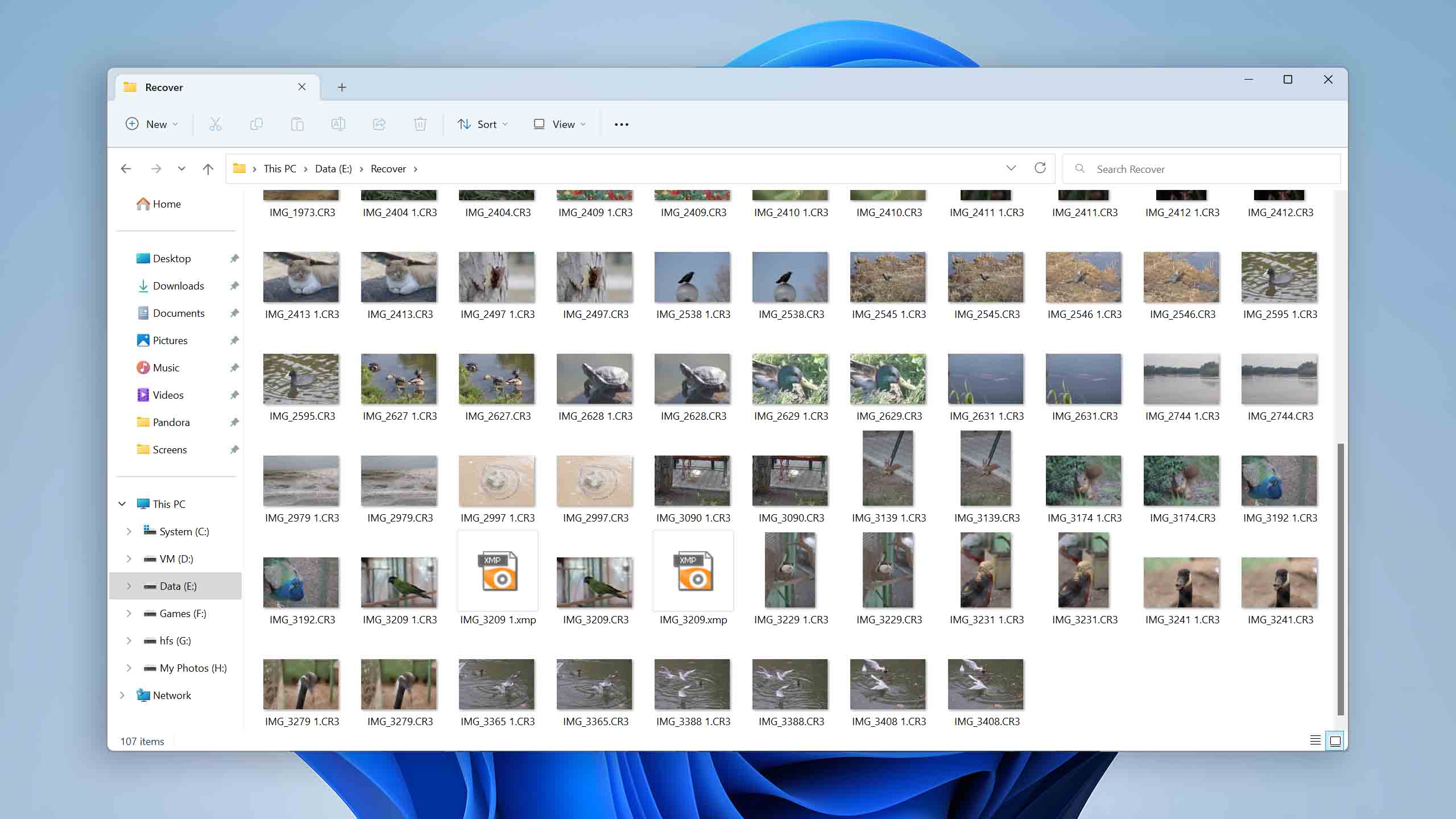
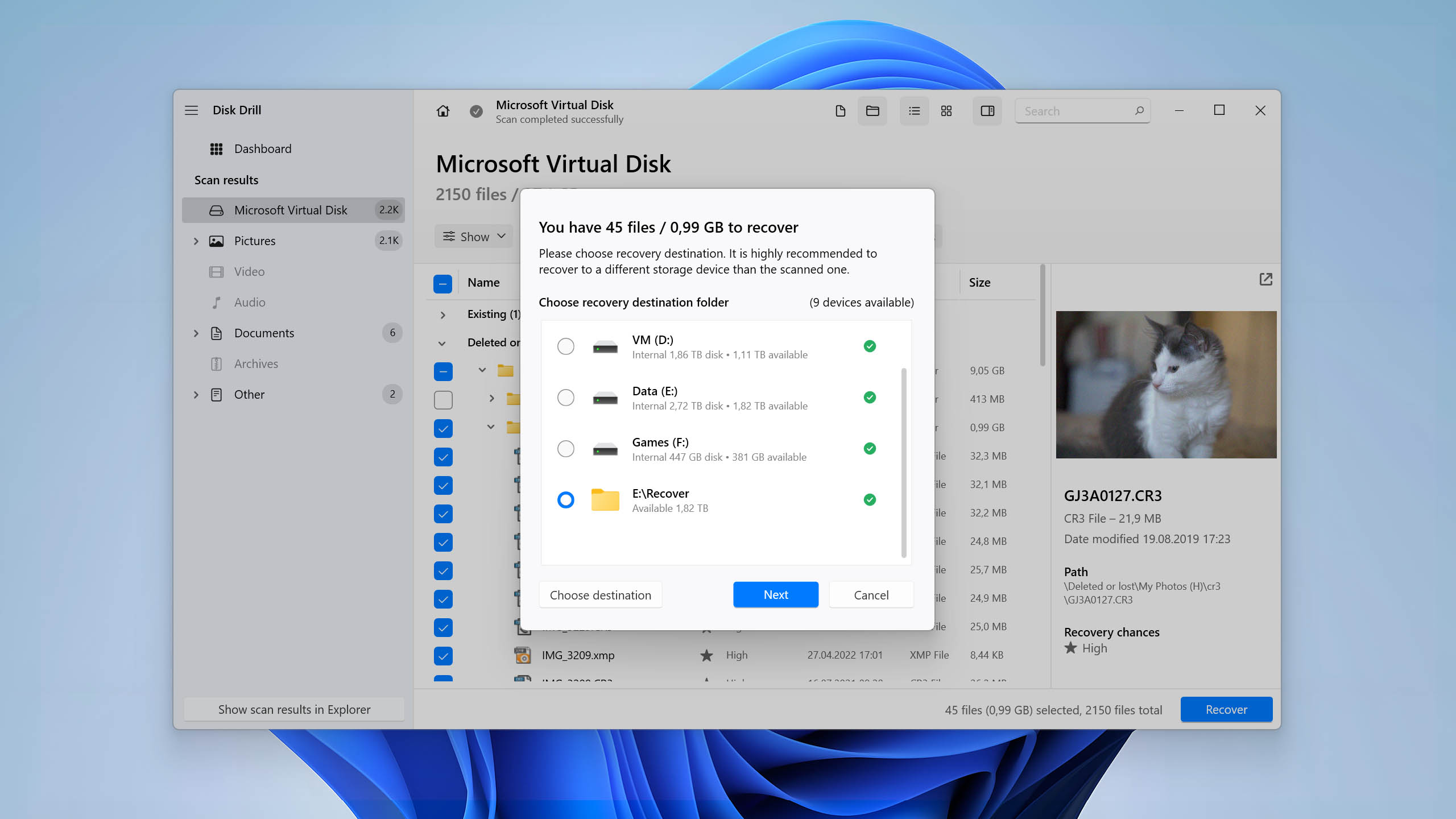
Thanks to Disk Drill's preview feature and file filters, it took us just a short while to find the missing files and add them to the recovery queue. From there, we just had to click the Recover button and select the desired recovery destination.
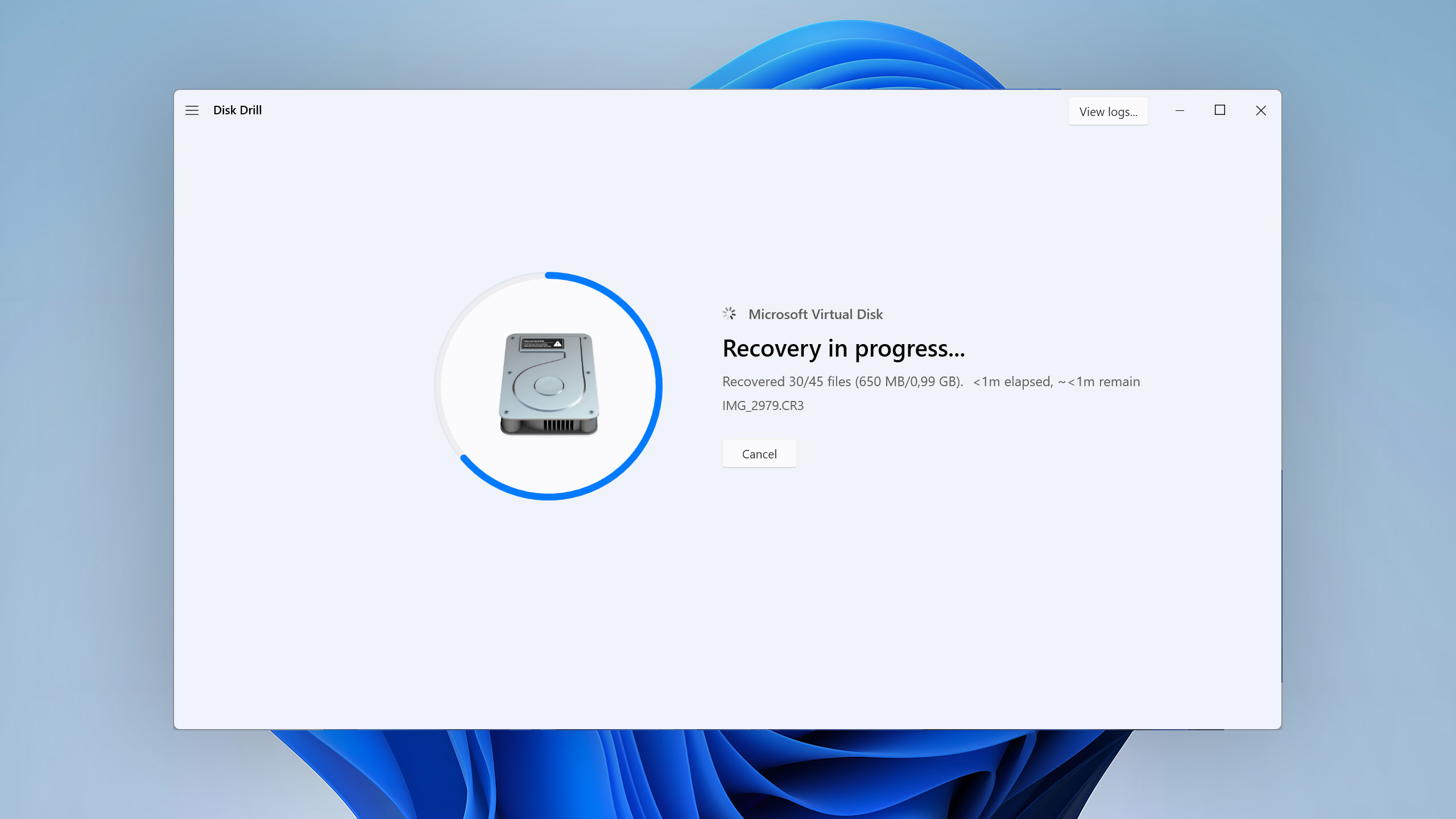
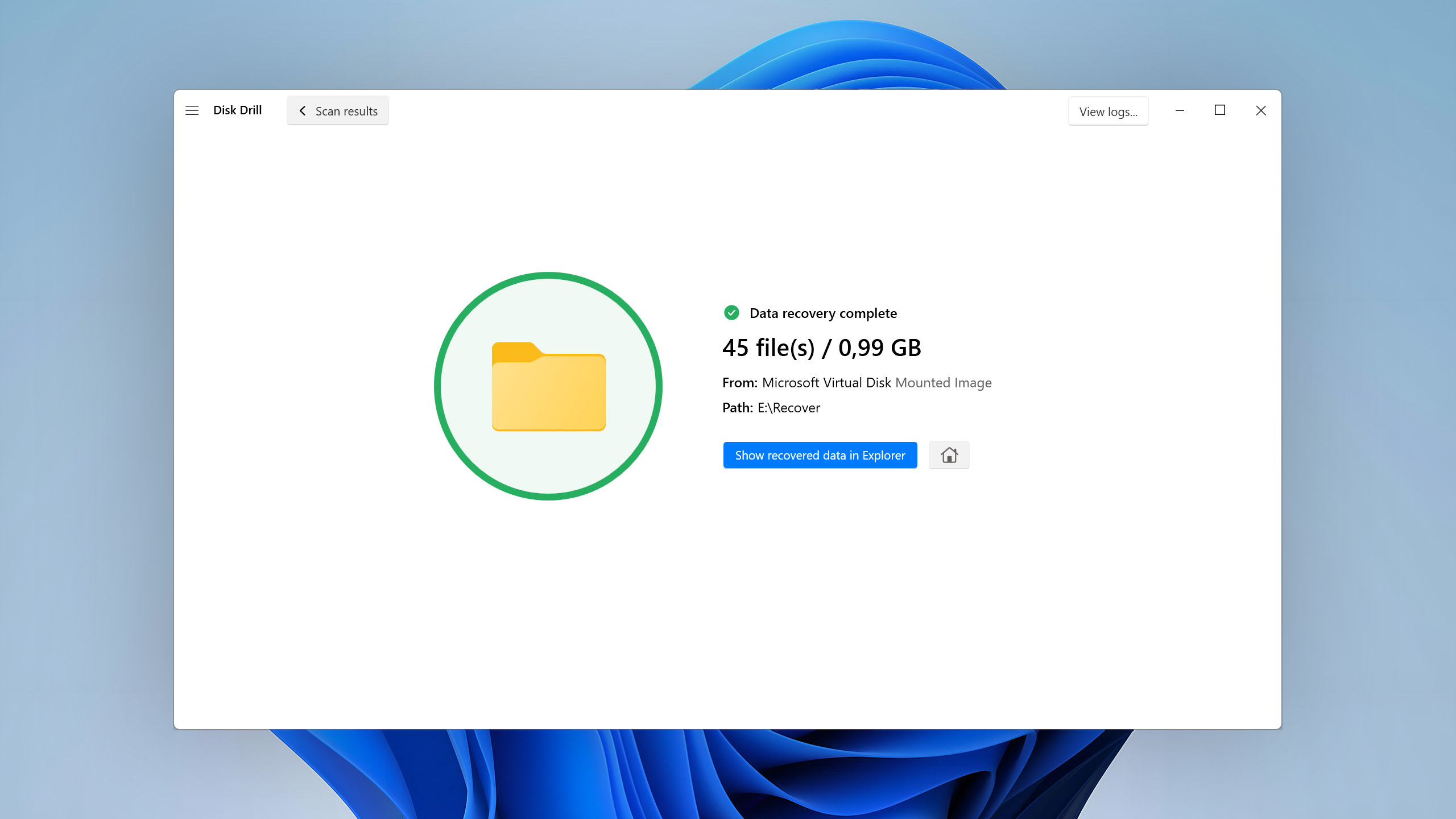
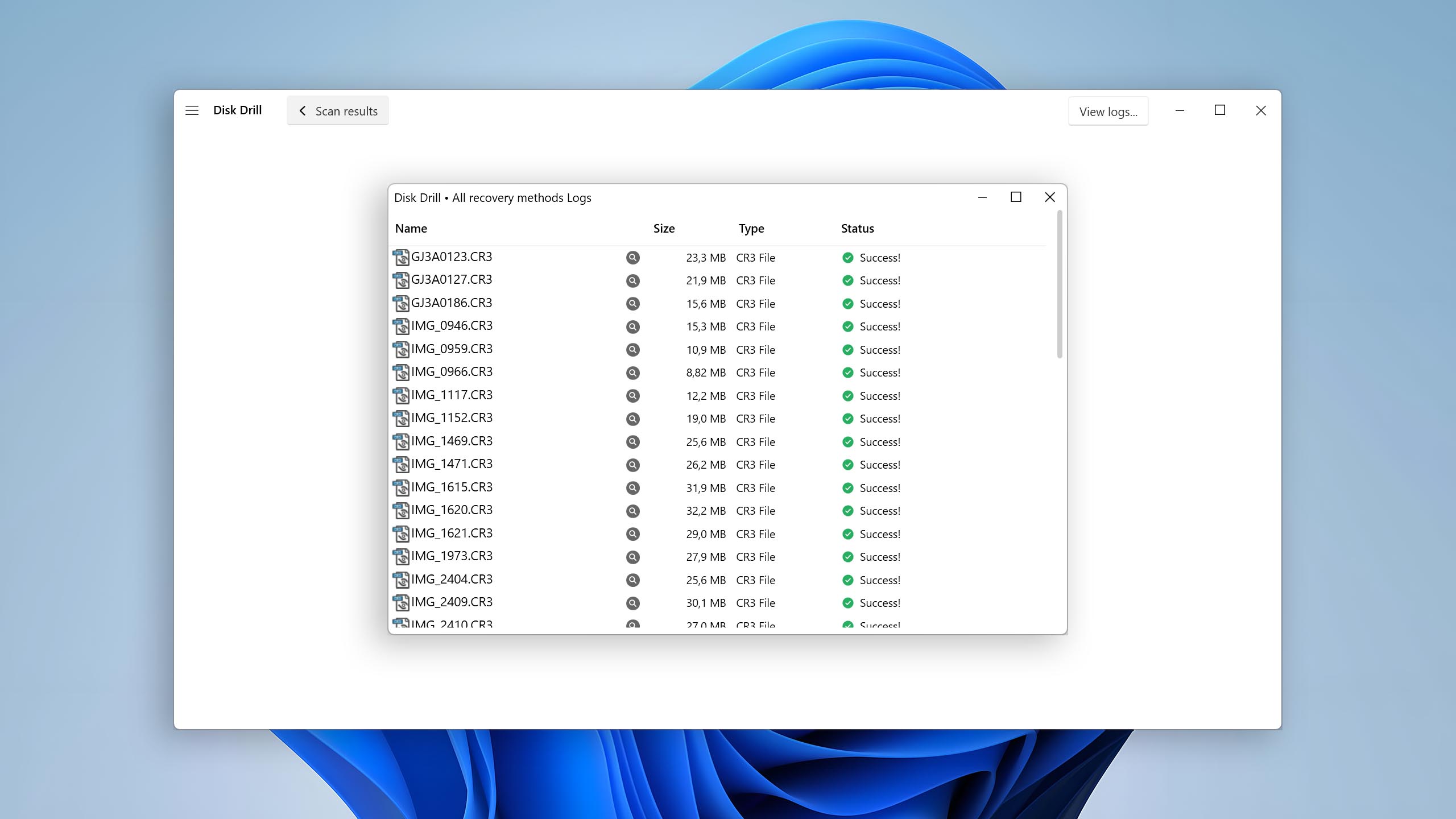
The data recovery software confirmed that the selected destination was suitable before recovering all files. It then displayed a concise summary of the recovery process, letting us know how many files were recovered and providing a button to view them in File Explorer. We clicked the button and confirmed that all files were successfully recovered.
Disk Drill - Full Review and Performance
We don’t always look forward to reviewing data recovery software because some applications are a pain to use. Fortunately, Disk Drill for Windows is among the most polished solutions of its kind currently available, so reviewing it was a pleasure.
Karma
12 rating criteria
Disk Drill for Windows is an authentic data recovery software application that receives updates on a regular basis to maintain support with the latest version of the Windows operating system.
Disk Drill users and potential customers can ask questions with live chat and email, but they often don’t have to because of the extensive knowledge base and numerous step-by-step data recovery tutorials that are published on the official blog.
| # | Feature | Result |
|---|---|---|
| 1 | Update frequency | Every 3 months |
| 2 | Updated recently | Yes |
| 3 | Changelog available | Available (View full update history) |
| 4 | Latest Windows release supported | Yes, all good |
| 5 | Genuine or clone? | Genuine |
| 6 | Brand name popularity | Popular |
| 7 | Online market share | Excellent |
| 8 | Maturity | Mature |
| 9 | Extensive knowledge base | Available |
| 10 | Helpdesk support | Available |
| 11 | Live chat | Available |
| 12 | Phone support | No |
Bang for the buck
8 rating criteria
Disk Drill for Windows offers great value for money because the free version can preview an unlimited number of files and recover up to 100 MB for free. To go beyond the limit and unlock all features of this data recovery software, you can choose between two paid versions with optional lifetime upgrades.
| # | Feature | Result |
|---|---|---|
| 1 | Competitive pricing | Yes |
| 2 | Price-quality ratio | Good |
| 3 | Free trial | Yes (unlimited time but limited features and data) |
| 4 | Is it free? | Trial version can recover 100 MB for free |
| 5 | Pricing policy | Subscription or lifetime (including updates) |
| 6 | Unlimited recovery in full version | Yes |
| 7 | Free upgrades | Only with Lifetime license |
| 8 | Commercial rights in the cheapest license | No |
Usability
18 rating criteria
Disk Drill is packed with useful features designed to make your life easier, and its modular user interface is so well-thought-out that it makes recovering lost data almost fun.
Because it takes just a single click to scan a storage device, even inexperienced users can achieve great results with confidence. With each new version, Disk Drill introduces additional usability enhancements, such as dark mode support and granular scan result filters, that further improve its already excellent usability.
We appreciate that Disk Drill for Windows speaks many different languages. When users can configure data recovery software to use their native language, they feel much less intimidated by the task ahead.
| # | Feature | Result |
|---|---|---|
| 1 | Modern user-friendly interface | Yes |
| 2 | Dark mode | Yes |
| 3 | Easy-to-locate features | Yes |
| 4 | Automatic implementation of multiple appropriate scanning methods without user interaction | Yes |
| 5 | Auto-resuming scans of failing drives | Yes |
| 6 | Auto-resuming backups of failing drives | Yes |
| 7 | Convenient source selection on start | Yes |
| 8 | Convenient file-by-file preview of recoverable items | Yes |
| 9 | Convenient thumbnail preview of recoverable items | Yes |
| 10 | Mount recoverable items as disk | Yes |
| 11 | Built-in updater | Yes |
| 12 | Multiple view modes in scan results | Yes |
| 13 | Hex view for recoverable items | Yes |
| 14 | Filter recoverable items by type | Yes |
| 15 | Search recoverable items by file names | Yes |
| 16 | Sort results | Yes |
| 17 | Multilingual UI | Yes |
| 18 | Simple deployment | Yes |
Recovery performance
123 rating criteria
We test many great-looking data recovery software applications that don’t actually perform all that well when put to the test. We’re very happy that Disk Drill for Windows isn’t among them.
The application’s data recovery performance is decisively above average thanks to its support for hundreds of different file formats and powerful algorithms capable of restoring data even from encrypted drives (as long as you know the password, of course) and lost partitions.
Disk Drill for Windows should be the first choice of professional photographers and videographers who rely on raw photo and video file formats because of how well it recovers them.
| # | Feature | Result | Description |
|---|---|---|---|
| 1 | Quick scan | Good | Disk Drill for Windows can reliably find recently deleted files by performing a Quick scan. |
| 2 | Deep scan | Good | When scanning Windows file systems, the Deep scan feature works well, but HFS+ file systems are not supported. |
| 3 | Signature scan | Good | Disk Drill for Windows passed our signature-based recovery challenges with flying colors, performing exceptionally well when recovering raw photos and videos. |
| 4 | Additional scan features | Good | Even encrypted storage devices and lost partitions don't stop this data recovery software from finding recoverable files. It also includes a dedicated Advanced Camera Recovery (ACR) mode designed specifically for fragmented photo and video recovery from cameras, drones, and action cams. |
| 5 | Device support | Good | All internal and external storage devices are supported. |
| 6 | Other notable recovery features | Good | The software can read S.M.A.R.T. data, and it also has useful data protection and backup features. |
Scan results
This table presents a quick summary of the scan results we gathered when testing the data recovery software
| # | Feature | Quick ScanRecovery of recently deleted files | Deep ScanThe ability to restore data upon file system reformatting or loss |
|---|---|---|---|
| 1 | FAT32 partitions | 5 | 5 |
| 2 | exFAT partitions | 5 | 5 |
| 3 | NTFS partitions | 5 | 5 |
| 4 | EXT4 partitions | 5 | 5 |
| 5 | HFS+ partitions | 0 | 0 |
| 6 | APFS partitions | 5 | 5 |
91% Quick Scan is designed to find recently deleted files on a device. This score reflects the overall software's effectiveness of recovering permanently deleted files across various file systems Average Score | 91% Deep Scan is primarily designed to recover data from formatted devices, and lost partitions. This score reflects the overall software's effectiveness of recovering data from various file systems after reformatting Average Score |
| # | Signature | Description | Scan Score |
|---|---|---|---|
| 1 | 3FR | Hasselblad 3F RAW Image File | 5 |
| 2 | ARW | Sony Alpha RAW File | 5 |
| 3 | BMP | Bitmap Image File | 5 |
| 4 | CR2 | Canon RAW Version 2 File | 5 |
| 5 | CR3 | Canon RAW Version 3 File | 5 |
| 6 | CRW | Canon RAW CIFF Image File | 5 |
| 7 | DCR | Kodak Digital Camera RAW File | 5 |
| 8 | DNG | Digital Negative Lossless RAW Image File | 5 |
| 9 | CinemaDNG | Adobe Industry-wide Standard File Format for Digital Video Files | 5 |
| 10 | ERF | Epson RAW File | 5 |
| 11 | EXR | High Dynamic-range File Format | 5 |
| 12 | FFF | Hasselblad RAW Image File | 5 |
| 13 | GPR | GoPro RAW Format File | 5 |
| 14 | HEIC | High Efficiency Image File Format | 5 |
| 15 | IIQ | Intelligent Image Quality RAW File | 5 |
| 16 | INSP | Panoramic Image Insta360 File | 5 |
| 17 | JP2 | Bitmap Image Format JPEG 2000 File | 5 |
| 18 | JPG | Joint Photographic Experts Group Compressed Image File | 5 |
| 19 | KDC | Kodak Digital Camera RAW Image File | 5 |
| 20 | MEF | Mamiya RAW Image File | 5 |
| 21 | MOS | Leaf and Mamiya RAW Image File | 5 |
| 22 | MPO | Multi Picture Stereoscopic Object File | 5 |
| 23 | MRW | Konica Minolta RAW Image Format File | 5 |
| 24 | NEF | Nikon RAW Image File | 5 |
| 25 | NRW | Nikon RAW Image File | 5 |
| 26 | ORF | Olympus RAW Format File | 5 |
| 27 | PEF | Pentax RAW Image File | 5 |
| 28 | RAF | Fujifilm RAW Image File | 5 |
| 29 | RAW | Native Digital Camera File | 5 |
| 30 | RW2 | Panasonic Lumix RAW Image File | 5 |
| 31 | RWL | Leica RAW Image Format File | 5 |
| 32 | SR2 | Sony RAW 2 Image File | 5 |
| 33 | SRF | Sony RAW File | 5 |
| 34 | SRW | Samsung RAW Image File | 5 |
| 35 | TIFF | Tag Image File Format | 5 |
| 36 | X3F | Sigma Camera RAW Picture File | 5 |
| 37 | X3I | Sigma Super Fine Detail Picture File | 5 |
100% Most modern digital cameras and an increasing number of mobile devices allow their users to capture raw image data in a variety of raw file formats. This score reflects the software's ability to recover photos in these formats using their unique signatures Average Score |
| # | Signature | Description | Scan Score |
|---|---|---|---|
| 1 | 360 | GoPRO 360 Degree Video File | 5 |
| 2 | ARI | ARRI Professional Digital Video Camera File | 5 |
| 3 | ARX | ARRI Professional Digital Video Camera File | 5 |
| 4 | AVI | Audio Video Interleave Multimedia Container with GoPRO CineForm Intermediate Codec | 4 |
| 5 | AVI | Audio Video Interleave Multimedia Container with MJPG, H.264, MSMPEG4 v2 Codecs | 5 |
| 6 | BRAW | Blackmagic RAW Video File | 5 |
| 7 | INSV | Insta360 Panoramic H.264 Video File | 5 |
| 8 | INSV | Insta360 Panoramic HEVC or HVC1 Video File | 5 |
| 9 | MOV | QuickTime File Format with Apple ProRes 422 Proxy, LT or HQ Codec | 5 |
| 10 | MOV | QuickTime File Format with Apple ProRes 4444 Raw or HQ Codec | 5 |
| 11 | MOV | QuickTime File Format with H.264 Codec | 5 |
| 12 | MOV | QuickTime File Format with CineForm HD Codec | 5 |
| 13 | MOV | QuickTime File Format with HEVC or HVC1 Codec | 5 |
| 14 | MP4 | Digital Multimedia Container Format with H.264 Codec | 5 |
| 15 | MP4 | Digital Multimedia Container Format with HEVC, HVC1 or Apple ProRes Codec | 5 |
| 16 | MXF | Material Exchange Format for Professional Digital Video and Audio Media with H.264 Codec | 5 |
| 17 | MXF | Material Exchange Format for Professional Digital Video and Audio Media with DVCPRO HD Codec | 5 |
| 18 | MXF | Material Exchange Format for Professional Digital Video and Audio Media with ARRI RAW or Apple ProRes Codec | 5 |
| 19 | MXF | Material Exchange Format for Professional Digital Video and Audio Media with XDCAM HD422 or HD35 MPEG2 Codec | 5 |
| 20 | R3D | Red Digital Camera Company RAW Video File | 5 |
| 21 | WMV | Windows Media Video Image with Pro RAW 9 Codec | 5 |
99% Video file formats have undergone significant evolution during the past decade. This rating assesses the software's effectiveness in recovering various video files using its signature scanner Average Score |
| # | Signature | Description | Scan Score |
|---|---|---|---|
| 1 | ACCDB | Microsoft Access 2007+ Database File | 0 |
| 2 | DJVU | Scanned Document File Format Intended For Scanned Images | 5 |
| 3 | DOC | Microsoft Word 97 – 2003 Document File | 5 |
| 4 | DOCX | Microsoft Word 2007+ Document File | 5 |
| 5 | FB2 | FictionBook 2.0 eBook File | 5 |
| 6 | KEY | Apple Keynote Office Application File | 3 |
| 7 | MDB | Microsoft Access 97 - 2003 Database File | 5 |
| 8 | NUMBERS | Apple Numbers Office Application File | 3 |
| 9 | ODP | OpenDocument Presentation File Format | 5 |
| 10 | ODS | OpenDocument Spreadsheet File Format | 5 |
| 11 | ODT | OpenDocument Text Document File Format | 3 |
| 12 | PAGES | Apple Pages Office Application File | 3 |
| 13 | Portable Document Format File | 5 | |
| 14 | PPT | Microsoft Powerpoint 97 - 2003 Presentation File | 5 |
| 15 | PPTX | Microsoft Powerpoint 2007+ Presentation File | 5 |
| 16 | RTF | Rich Text Format File | 5 |
| 17 | XLS | Microsoft Excel 97 - 2003 Spreadsheet File | 5 |
| 18 | XLSX | Microsoft Excel 2007+ Spreadsheet File | 5 |
84% Documents are among the most commonly recovered file formats because their importance can be tremendous, especially when they're related to work or school. This score indicates the software's proficiency in recovering different document types based on their signatures Average Score |
Feeling puzzled by terms like "Quick scan" and "Deep scan"? There we explain the different scan modes and their specific purposes.
Disk Drill for Windows is a powerhouse when it comes to file recovery. The most popular Windows and Linux file systems are all supported, and the latest versions also add direct support for Apple file systems on Windows. APFS now receives full recovery support, while HFS/HFS+ is supported with the same capabilities introduced in Disk Drill 5. This means users can scan and recover data from Apple-formatted drives directly in Windows without relying on macOS.
Several other software programs, though not as successfully, can also recover data if it’s still recorded in the file system. However, Disk Drill truly shines with its exceptional signature scanning performance. This software masterfully recovers a wide range of RAW photo formats – from CR2/CR3 and NEF/NRW to ARW, RAF, ORF, RW2, DNG, and dozens more. Disk Drill consistently delivers strong results when metadata is unavailable and recovery must rely on file signatures alone.
Its capabilities go even further with the introduction of the Advanced Camera Recovery (ACR) mode in Disk Drill 6. Unlike traditional recovery methods that assume video files are stored in a continuous block, ACR is specifically engineered to reconstruct heavily fragmented video recordings created by action cameras, drones, 360° cameras, dashcams, and body cams. Modern devices often record multiple streams simultaneously (high-resolution + low-resolution, GPS metadata, preview frames, etc.), which leads to thousands of scattered fragments across the memory card. Standard tools may detect these fragments but fail to assemble them correctly, resulting in corrupted or unplayable footage.
ACR addresses this by analyzing individual video frames, audio streams, and container metadata (such as MP4/MOV atoms like ftyp, mdat, and moov) and intelligently rebuilding the file structure piece by piece. In our testing, this specialized mode significantly improved recovery of fragmented MP4, MOV, LRV/LRF, INSV, and other camera-specific formats, especially from GoPro, DJI, Insta360, Sony, Canon, Nikon, Panasonic, Fujifilm, Tesla dashcams, Uniden dashcams, and similar devices.
Document file formats are also supported very well, with only a few notable exceptions bringing the average score down, such as the Microsoft Access 2007+ database file format or some of the file formats used by iWork, an office suite of applications created by Apple.
Additional scan features
| # | Feature | Score |
|---|---|---|
| 1 | The number of file types supported by signature scan | 4 |
| 2 | BitLocker support | 5 |
| 3 | Windows shadow copies scanning | 5 |
| 4 | Scan for lost partitions | 5 |
| 5 | Recovered files' labeling | 5 |
| 6 | Partial file recovery | 5 |
| 7 | Disk images: scan and recovery | 5 |
Underneath Disk Drill’s intuitive user interface are powerful data recovery algorithms that can recover data from BitLocker-encrypted storage devices (provided the decryption key or password is available), find lost partitions, restore file names, and more.
In hex view, Disk Drill displays the exact byte-level content of a drive as hexadecimal values (0–9, A–F) alongside their ASCII representation. This makes it possible to verify file signatures, examine structural damage, and analyze data that standard file explorers simply can’t access.
Device Support
| # | Feature | Score | |
|---|---|---|---|
| 1 | Internal and external HDD | 5 | |
| 2 | Internal and external SSD | 5 | |
| 3 | USB thumb drives / Classic iPods (non-iOS) / FireWire devices | 5 | |
| 4 | Memory cards | 5 | |
| 5 | Advanced Camera Recovery (ACR) | 5 | |
| 6 | NAS (Network-attached storage) RAID devices | 5 | |
| 7 | Remote SSH (secure shell protocol) Linux based devices recovery | 5 | |
| 8 | iOS devices | 5 | Beta feature |
| 9 | Android devices | 0 | |
| 10 | Recovery from RAID arrays | 5 | |
| 11 | Unmountable partitions | 5 |
The Windows version of Disk Drill supports recovery from a wide range of internal and external storage devices. iOS device recovery is currently available as a beta feature under active development, while Android devices are not supported.
Especially worth highlighting are Disk Drill’s RAID recovery capabilities, which include support for RAID 0, 1, 5, 6, 10, 1E, JBOD arrays, and Windows Storage Spaces, making it one of the best RAID recovery software. Disk Drill can automatically reconstruct RAID arrays, and its developers have promised to introduce manual RAID reconstruction functionality for advanced users in the future.
Other notable recovery features
| # | Feature | Score |
|---|---|---|
| 1 | Scan speed | 5 |
| 2 | Overall non-intrusive read-only algorithms | 5 |
| 3 | Network recovery | 5 |
| 4 | Effectively filters out corrupted scan results | 3 |
| 5 | Byte-to-byte device backups | 5 |
| 6 | Bootable recovery drive creation | 0 |
| 7 | Convenient scan session management | 5 |
| 8 | Bad sector management | 0 |
| 9 | Recovery chance prediction | 5 |
| 10 | RAID reconstructor | 3 |
| 11 | Disk vitals monitoring and tracking during scan | 3 |
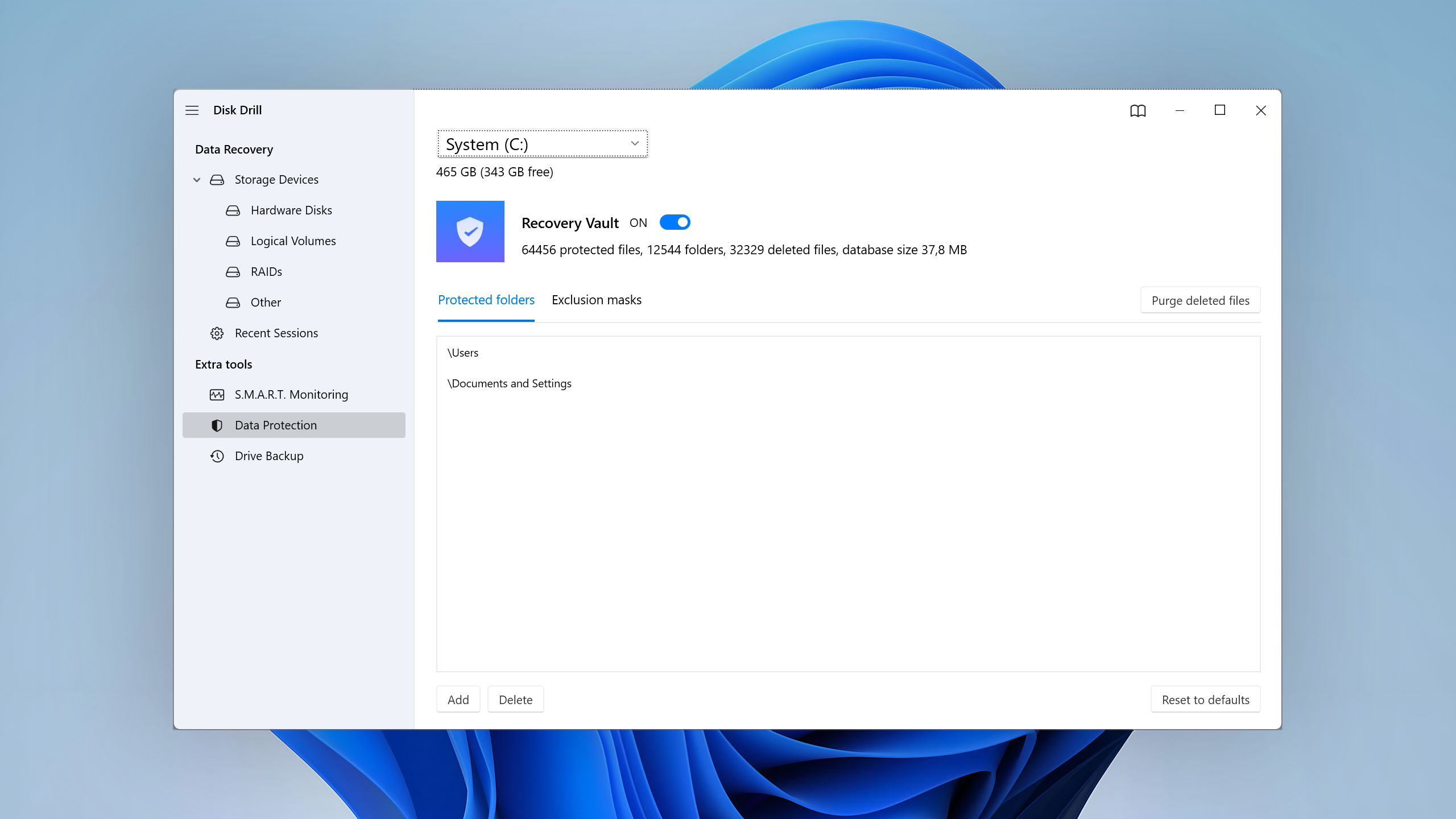
| 12 | Data protection | 5 |
| 13 | Links to in-lab recovery service for physically damaged devices | 5 |
| 14 | Scan free space only | 5 |
| 15 | Start file recovery without interrupting the scan | 5 |
| 16 | Preview recoverable items without interrupting the scan | 5 |
| 17 | Forensic features | 0 |
Disk Drill for Windows includes built-in data protection features that preserve file metadata, which can improve recovery results if data loss occurs later. The software makes scanning easy with its non-intrusive read-only algorithms, real-time indication of scan progress, and a built-in scan session manager, among other things.
We’ve already mentioned its RAID recovery capabilities several times in this review, but we think they’re worth highlighting one more time because Disk Drill’s RAID auto-reconstructor can piece back together arrays that have become corrupted and unusable.
A scan session can be exported from Disk Drill for Windows and imported using Disk Drill for Mac, so those who use both Windows and Mac can save a lot of time.
The speed of scanning has improved significantly with the release of Disk Drill 6, but it, of course, still depends largely on the performance of the scanned storage device. At any point during a scan, the user can choose to see the recoverable files that have been found so far and get them back without waiting for the recovery process to finish.
Extras
10 rating criteria
Because we’re familiar with the Mac version of Disk Drill, which we’ve reviewed in the past, we were surprised to find out that Disk Drill for Windows offers only a handful of extra features. Still, some extra features are better than no extra features at all.
| # | Feature | Result | Description |
|---|---|---|---|
| 1 | Disk space mapping | Yes | Disk Drill for Windows can map disk space usage on your drives to help you quickly see which files and folders take up the most space. |
| 2 | Disk clean up | Yes | Disk Drill for Windows can help you clean up disk space by finding files and folders and letting you remove them to free up storage. |
| 3 | Corrupted video repair tool | Yes | Disk Drill for Windows can repair corrupted video files (for supported formats) to help restore proper playback. |
| 4 | Corrupted photo repair tool | No | Not supported. |
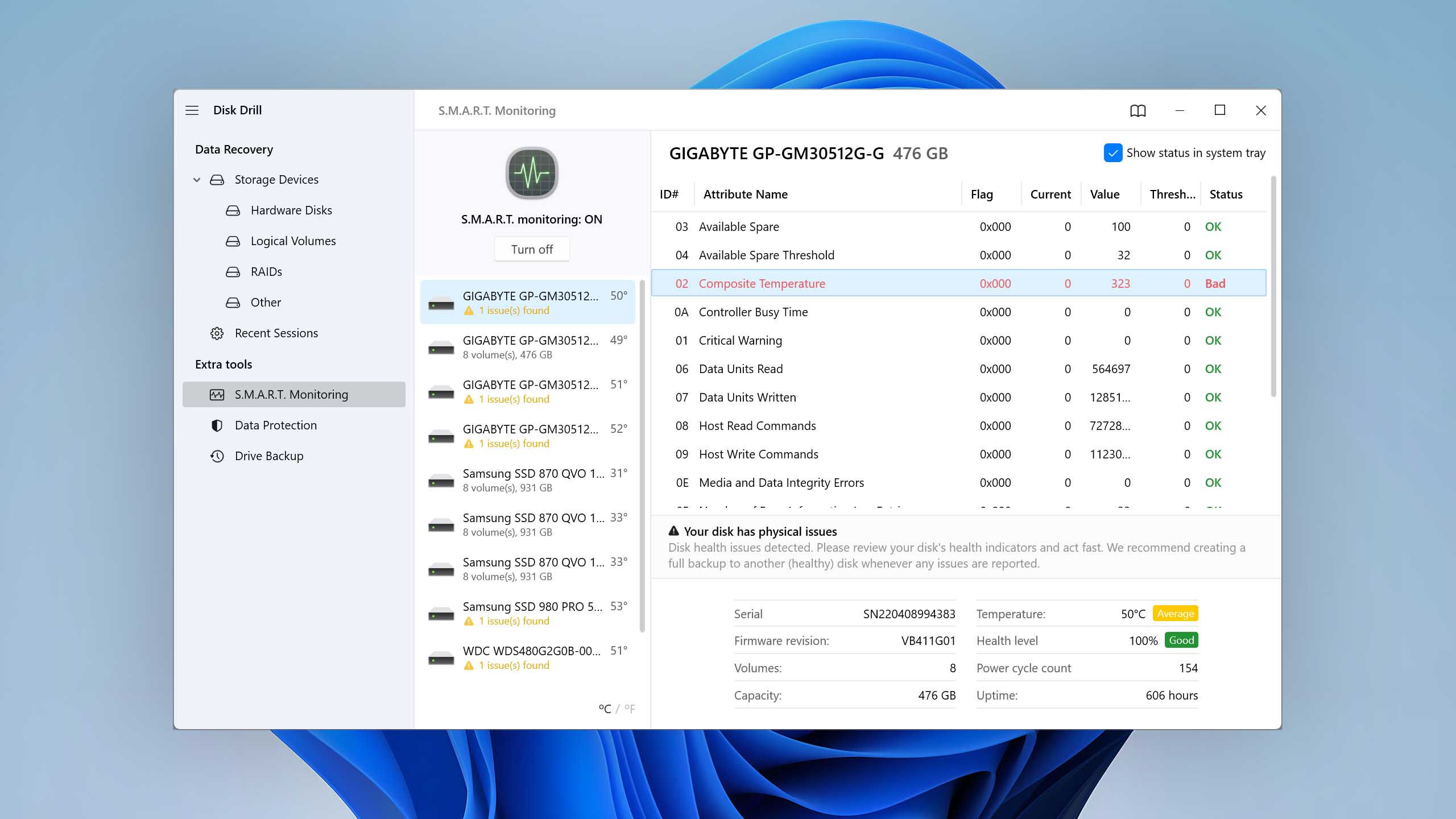
| 5 | S.M.A.R.T. | Yes | Disk Drill for Windows can read S.M.A.R.T. data of all connected storage devices that support the feature. |
| 6 | Duplicate finder | No | Not supported. |
| 7 | Built-in disk space secure eraser | No | Not supported. |
| 8 | Disk cloning | No | Not supported. |
| 9 | Disk surface test | No | Not supported. |
| 10 | Secure data shredding | No | Not supported. |
The ability to read S.M.A.R.T. data is an essential capability that can help avoid data loss incidents by revealing disk issues in a timely manner, so it’s great that Disk Drill for Windows supports it.
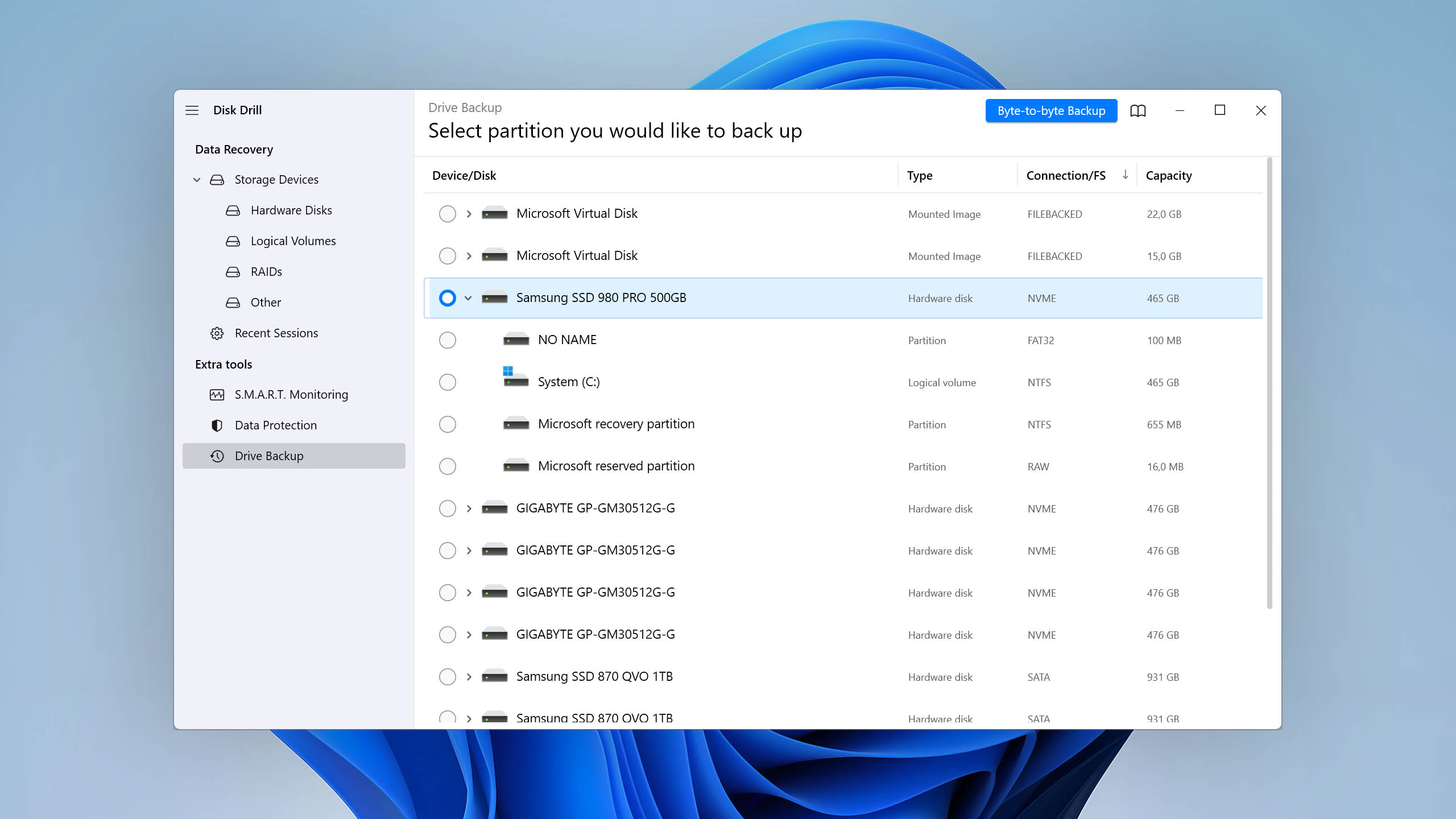
Beyond recovery, the software provides practical maintenance tools, including disk cleanup utilities and a powerful byte-to-byte backup module. It first creates a fast initial image by skipping unreadable sectors, then performs additional targeted read attempts to extract as much remaining data as possible. This improves overall imaging success rates compared to earlier versions and reduces stress on failing hardware.
A complete disk recovery solution presented with a clear, intuitive UI. Disk Drill's PRO option might seem expensive, but the 2-for-1 deal on the macOS version and various discounts make up for this.
Christian Cawley (techradar.com)
I hired a drone with a card that was not empty. I asked the leaser of the drone about the content in the card. "OMG, that card failed and was I was to erase it. I need the footage on it. Can you save it?"
Of course, I said. I have this tool ... DISK DRILL. I started using the software and I am still amazed. Recovered over 100GB from a 64GB card.
Thank you CleverFiles. Thank you.
Jimmy Gitonga (trustpilot.com)
Disk Drill was able to turn a moment of panic (realizing I'd erased a full set of job site pics from a card) into a sigh of relief in less than 20 minutes. The app did everything it said it would, did it easily, and did it quickly. It was well worth the purchase and impressed me enough to commit to the lifetime upgrades in case I ever do a bonehead thing like that again. Kudos to Disk Drill on an outstanding solution!
Larry T (trustpilot.com)
Final Verdict
Disk Drill for Windows is one of the best data recovery software applications for Microsoft’s operating system.
With its easy-to-use interface and advanced data recovery algorithms, it makes it easy to recover almost 400 file formats from all kinds of storage devices that use Windows- and Linux-supported file systems, such as NTFS, FAT32, exFAT, and ext3/ext4.
The few extra features included with Disk Drill for Windows can go a long way toward preventing data loss incidents, significantly increasing the value of the already affordable application.
Video Tutorials and Setup Guides for Disk Drill
To help you better understand how Disk Drill for Windows works, we’ve put together a collection of useful tutorials and other video resources.
Frequently Asked Questions
Here are answers to several frequently asked questions about Disk Drill for Windows.
What does Disk Drill do?
Disk Drill analyzes storage devices to locate and recover permanently deleted or lost files. It also has a number of extra features to help users better manage their data and protect themselves against data loss.
How does Disk Drill recover lost files?
Disk Drill combines multiple recovery algorithms that analyze both file system metadata and raw disk data. It uses Quick Scan to read existing file system records (such as NTFS, exFAT, FAT32, EXT3/4, APFS, HFS+, and others) and quickly locate deleted files whose metadata entries are still intact. When file system structures are damaged, reformatted, or partially lost, Deep Scan takes over. This method searches the entire storage surface sector by sector for known file headers and internal patterns to identify recoverable files even without directory information.
The software is file system-aware, which means it understands how different file systems organize data, allocate clusters, and store metadata. This awareness allows Disk Drill to reconstruct original file names, folder structures, and even detect lost partitions when possible. For complex cases (such as fragmented camera footage) specialized algorithms (like Advanced Camera Recovery) analyze frame-level structures and container metadata to rebuild files piece by piece.
All scanning is performed in read-only mode to prevent further damage, and found files can be previewed before recovery.
Where can Disk Drill recover files to?
Disk Drill allows you to recover lost files to different storage devices, including internal and external drives. Still, it’s highly recommended to never recover to the same storage device on which the lost files are located. Doing this can overwrite sectors you’re trying to restore, permanently destroying recoverable data. Always choose a separate storage device with enough free space before starting the recovery process.
Is Disk Drill really free?
Yes, Disk Drill offers a free version for Windows that lets you scan storage devices, preview recoverable files, and recover up to 100 MB of data. If you need to recover more than that, you’ll need to upgrade to Disk Drill PRO.
Does Disk Drill offer a lifetime license?
Yes. Disk Drill offers a lifetime license option that allows you to use the software indefinitely and receive all future updates included in that plan. This license is currently priced at $149.
How long does Disk Drill take to scan?
Disk Drill is reasonably fast data recovery software, but its scan time depends on the size, condition, and type of the storage device. A small SSD can complete a scan in just a few minutes, while a multi-terabyte hard drive may require several hours.
Quick Scan usually finishes much faster because it analyzes existing file system records. Deep Scan takes longer since it examines the entire storage surface sector by sector to locate file signatures.
As a general rule, the larger and slower the drive, the longer the scan will take.
Why does Disk Drill recovery take so long?
If Disk Drill takes a long time to finish scanning, the most common reason is the performance and condition of the storage device itself. Scan time depends not only on drive size, but also on its health – drives with bad sectors, read instability, or reallocated sectors (which can often be detected through S.M.A.R.T. monitoring) may slow down significantly.
Connection type also plays a major role. An internal NVMe SSD will scan much faster than a mechanical HDD connected through an older USB 2.0 adapter. Using USB 3.x, Thunderbolt, or a direct SATA connection can noticeably improve scanning speed compared to slower interfaces but may affect overall stability.
Can Disk Drill recover original file names and folder structures?
During a scan, Disk Drill can restore the original names of files and folders, but only if the file system metadata is still intact. This metadata contains information about file names, locations in folders, timestamps, and other attributes. Disk Drill might still be able to get the files back even if the metadata is broken or overwritten, but they will appear with generic names and no original folder structure.
Can Disk Drill restore corrupted files?
Yes, Disk Drill can recover even corrupted files, but whether they will open or play correctly depends on how severely the data was damaged or overwritten. For media recorded by cameras, drones, GoPro, dashcams, and similar devices, Disk Drill 6 also includes a dedicated Advanced Camera Recovery (ACR) mode. This specialized module is designed to reconstruct fragmented video and photo files directly from camera storage media, which significantly improves the chances of restoring playable footage compared to standard recovery methods.
Why can’t Disk Drill recover my file?
If the data has already been overwritten, the file system is heavily damaged, or the device has physical problems that make scanning impossible, Disk Drill might not be able to restore files. In some cases, the file may still be there but partially corrupted.
In addition, the trial version of Disk Drill for Windows allows recovery of up to 100 MB for free. To recover larger files, you need to upgrade to Disk Drill PRO.
Does Disk Drill actually work?
Yes. Disk Drill is a reliable data recovery tool that can recover many types of lost files, including documents, photos, videos, audio files, and archives, from storage devices recognized by Windows. Its success depends on factors such as how the data was lost and whether the underlying file system metadata or file data has been overwritten.
How to uninstall Disk Drill?
To uninstall Disk Drill:
- Open Windows Settings by pressing Windows + I on your keyboard.
- Click “Apps” in the sidebar and then select “Apps & Features.”
- Locate Disk Drill and click on it.
- Finally, select “Uninstall” in the menu that appears.
🏅 Highly recommended
Out of 5 Total score
No. 1 Among all Windows solutions
Disk Drill for Windows is among the best data recovery software applications available to Windows users.
The Windows version of Disk Drill empowers regular users to reliably recover all kinds of lost data with a few simple clicks.

Despite its usability concerns, UFS Explorer demonstrates a proficient ability to recover data with great success.
R-Studio for Windows is a powerful data recovery software application, but regular home users may struggle to master it and put its capabilities to good use.

Easy to use and capable of delivering solid results, EaseUS Data Recovery Wizard is good at what it does.

Cisdem Data Recovery is well-suited for recovering data from a multitude of data loss scenarios, but it won’t satisfy professionals and technicians.

David Morelo is a professional content writer with a specialization in data recovery. He spends his days helping users from around the world recover from data loss and address the numerous issues associated with it.
When not writing about data recovery techniques and solutions, he enjoys tinkering with new technology, working on personal projects, exploring the world on his bike, and, above all else, spending time with his family.
- Klennet Recovery Review (Formerly Zero Assumption Recovery)
- iBeesoft Data Recovery Review – A Likable Clone With Limited Features
- DMDE Review – A Data Recovery Powerhouse or a Usability Nightmare?
- Cisdem Data Recovery for Mac Review – A Clone in Disguise
- Tenorshare 4DDiG Review – All That Glitters Is Not Gold

- Houston, Texas, United States
Nikolay Lankevich has over 15 years of strong experience in various fields and platform includes Disaster Recovery, Windows XP/7. System analysis, design, application (Inter/Intranet) development, and testing. Provided technical supports on desktop and laptops on Win-XP and Macintosh for about 2000 employees.
What Users Say about Disk Drill for Windows