
Disk Drill for Mac Review – Is v6 Worth It?

Out of 5 Total Score
No. 1 Among all macOS solutions

With its modern user interface and a wealth of extra features, Disk Drill for Mac looks like a perfect data recovery application. But do its data recovery capabilities match the polished exterior? Our own tests of the software have convinced us that they do.
Our ratings:
Disk Drill for Mac Quick Overview
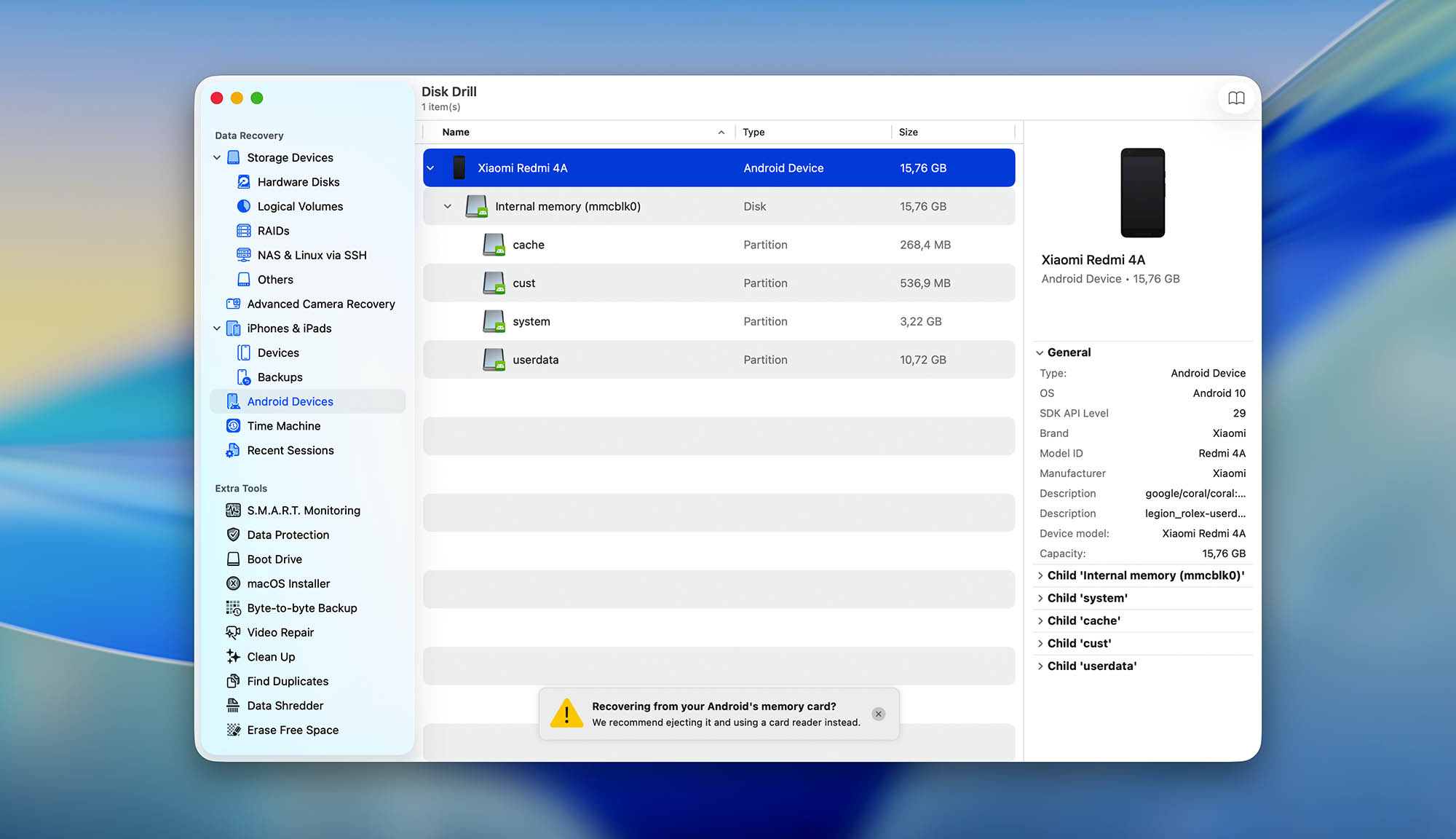
We believe the Mac version of Disk Drill is the best data recovery software for Apple computers. What makes it so great is how it blends simplicity with power. In our data recovery tests, the software has achieved nearly perfect results both with Apple’s APFS and HFS+ file systems but also when scanning NTFS, FAT32, exFAT, and EXT4 partitions. You can even recover lost data from Android and iOS devices, which is something only a few other applications can do.
Disk Drill for Mac is the only software that has recovered all photo file formats in our tests. Even modern RAW photo formats used by professional and amateur photographers were easily found by the software. Best of all, Disk Drill for Mac performs almost as well when recovering video file formats, and its ability to recognize document file formats also rivals other top-rated solutions.
Disk Drill’s intuitive UI allows users to navigate and manage scan results effortlessly, thanks to structured scan result categories and multiple view options. It also provides convenient access to a bunch of extra tools that are included with the software for free and greatly increase its overall value, like S.M.A.R.T. monitoring and advanced backup capabilities. The value is further increased by the fact that purchasing Disk Drill for Mac also unlocks Disk Drill for Windows.
| Title | Result |
| Compatibility | Superb |
| Recovery Rate | Superb |
| Usability | Superb |
| File Type Support | Superb |
| Scan Speed | Superb |
| Free Trial | Yes |
| Starting Price | $89.00 / Annual |
| Money-Back Guarantee | Yes |
MAIN PROS
MAIN CONS
What is Disk Drill for Mac?
#Disk Drill for Mac is a data recovery application developed by CleverFiles, a US-based software company that first released the tool back in 2010.
It started as a Mac-only app that quickly stood out thanks to its Recovery Vault feature, which tracked metadata of deleted files in the background so they could be restored with their original names and folder paths.
Over the following decade, Disk Drill went through several major versions:
- Version 2 (2014) brought a redesigned interface and deeper scanning methods.
- Version 3 (2016) introduced macOS Sierra compatibility and iOS data recovery. CleverFiles also shipped a Windows edition in 2015, turning Disk Drill into a true cross-platform product.
- Version 4 (2020) arrived with native support for Apple’s T2 security chip and RAW photo recovery.
- Version 5 (2022) focused heavily on recovery accuracy, adding RAID reconstruction, a modern UI overhaul, and support for macOS Ventura.
The current generation, version 6 (June 2025), introduced Advanced Camera Recovery (ACR) for reconstructing fragmented video files from action cameras and drones, a hex viewer for forensic-level disk inspection, an overhauled byte-to-byte backup module with intelligent multi-pass technology, BitLocker partition recovery on Mac, and support for Microsoft’s ReFS file system. Scans became about 25% faster with 20% lower memory consumption, and the entire interface got a visual refresh.
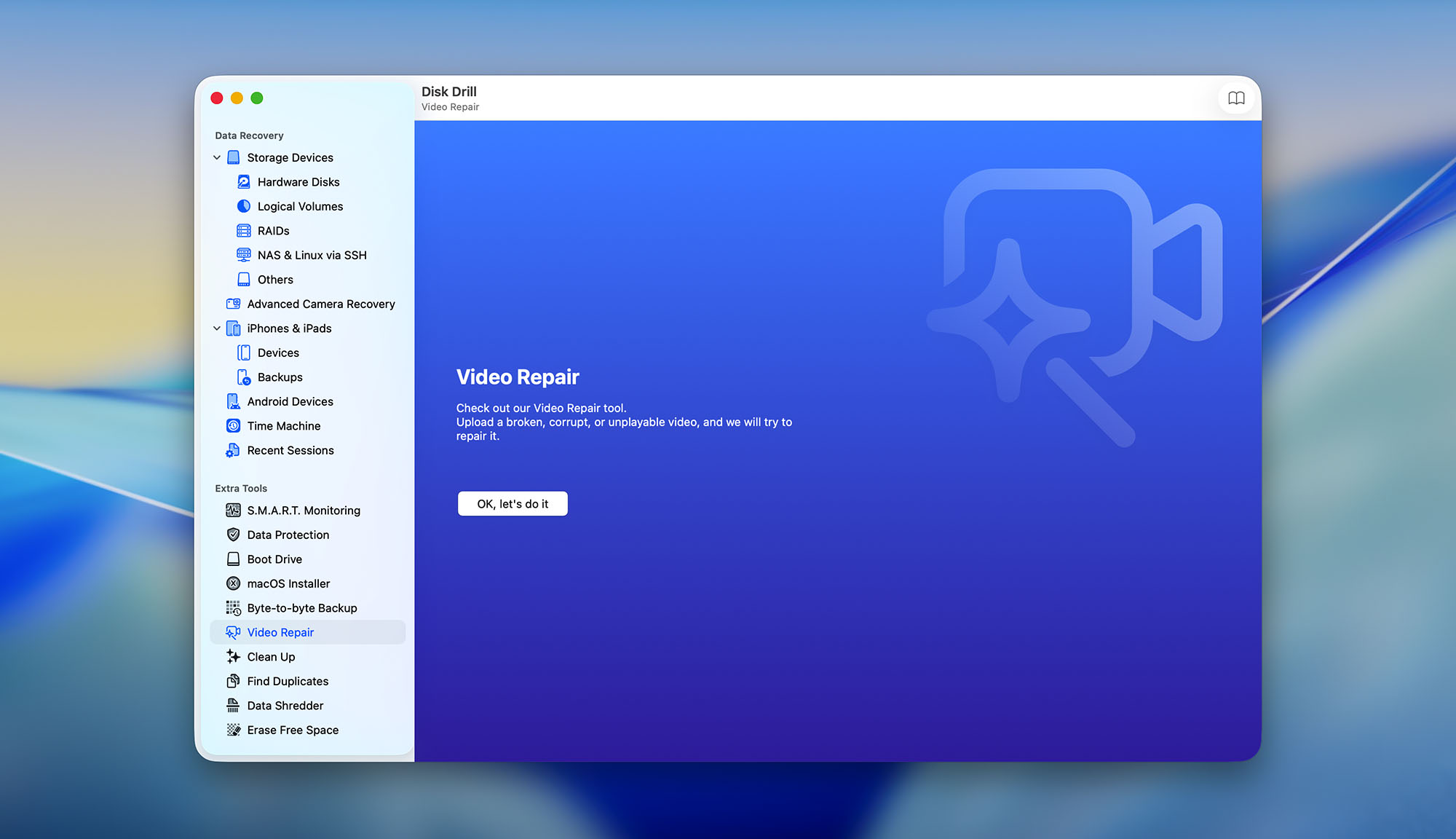
The latest update, version 6.2 (March 2026), added an integrated video repair service right in the sidebar for cases where standard recovery isn’t enough, along with hex view for partitions and improved ACR algorithms for Sony, Insta360, Leica, and Panasonic cameras. NTFS and FAT32 scanning speeds were also optimized further.
At the time of writing this review, Disk Drill supports around 400 file formats and can recover data from internal and external drives, RAID arrays, NAS systems over SSH, and iOS and Android devices.
Disk Drill for Mac Factsheet
| Requirements | macOS 10.15-26.x |
| Supported file systems | APFS, HFS/HFS+, FAT16/FAT32, exFAT, NTFS, EXT2/EXT3/EXT4, ReFS, BTRFS |
| Supported devices | Internal SSDs and HDDs, external drives (USB, Thunderbolt, FireWire), USB flash drives, SD/microSD/CF/CFexpress memory cards, Time Machine backup drives, RAID arrays (0, 1, 5, 6, 10, 1E, JBOD), NAS devices via SSH, action cameras and drones (GoPro, DJI, Insta360, etc.), iOS devices (iPhone, iPad), Android devices |
| Latest version | 6.3.2326 • Released 22nd Jul, 2026 |
| Download size | 69.7 MB |
| Category | Data Recovery Software |
| UI languages | Arabic, Chinese, Czech, Dutch, French, German, Hindi, Italian, English, Japanese, Korean, Malay, Norwegian, Polish, Portuguese, Portuguese (Brazil), Russian, Spanish, Swedish, Turkish, Ukrainian |
Sibling version
Disk Drill for Windows
The Windows version of Disk Drill has the same user interface as the Mac version, and its capabilities are similar as well, making it an excellent choice for all Windows users. Read full review
No. 1 Among all Windows solutions

Developer — CleverFiles
Disk Drill for Mac is developed by a company called CleverFiles, which is headquartered in 122 Delaware St, Ste E2, New Castle, DE 19720, USA. The company was founded in 2009 and has been perfecting its data recovery products ever since.
16% 1431.9% than avg
Reflects the share of online traffic within the niche occupied by data recovery software, based on data taken from ahrefs.com (from Google US search engine).
3400 751.9% than avg
Based on the number of brand-related search queries on Google US according to ahrefs.com.
| Developer website | cleverfiles.com |
| Support email | help@cleverfiles.com |
| Founded | 2009 • 17 years on market |
| HQ location | 122 Delaware St, Ste E2, New Castle, DE 19720, USA |
| Social media | LinkedIn Twitter Facebook YouTube |
Disk Drill developers are active on multiple major social media websites, where they post news about their product and publish helpful data recovery tutorials. The best way to reach CleverFiles is via email, but you can also get in touch with its employees on sites like LinkedIn and Facebook.
How Much Does Disk Drill for Mac Cost?
| Distributed as | Freemium Some features are provided free of charge, but money is required to unlock the rest |
| Trial version available | Trial version available |
| Trial version limitations | Trial version of Disk Drill Basic includes:
|
| Paid plans | PRO License |
| Price range | $89.00...$149.00 |
| License model | Subscription + Lifetime |
| No credit card to try | No credit card to try |
| Money-back guarantee | Money-back guarantee |
Disk Drill for Mac comes in three editions: Basic (free), PRO, and Enterprise.
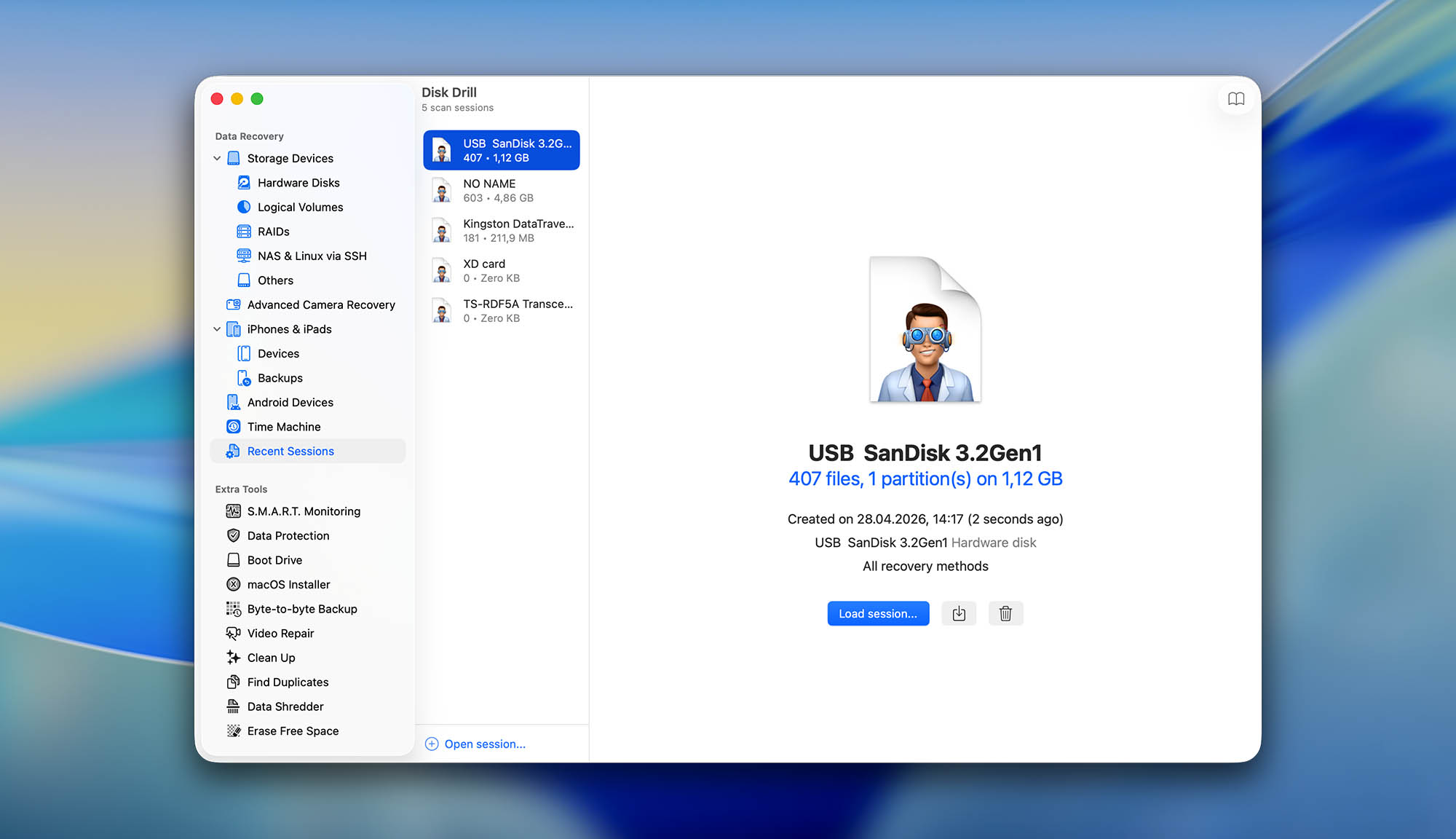
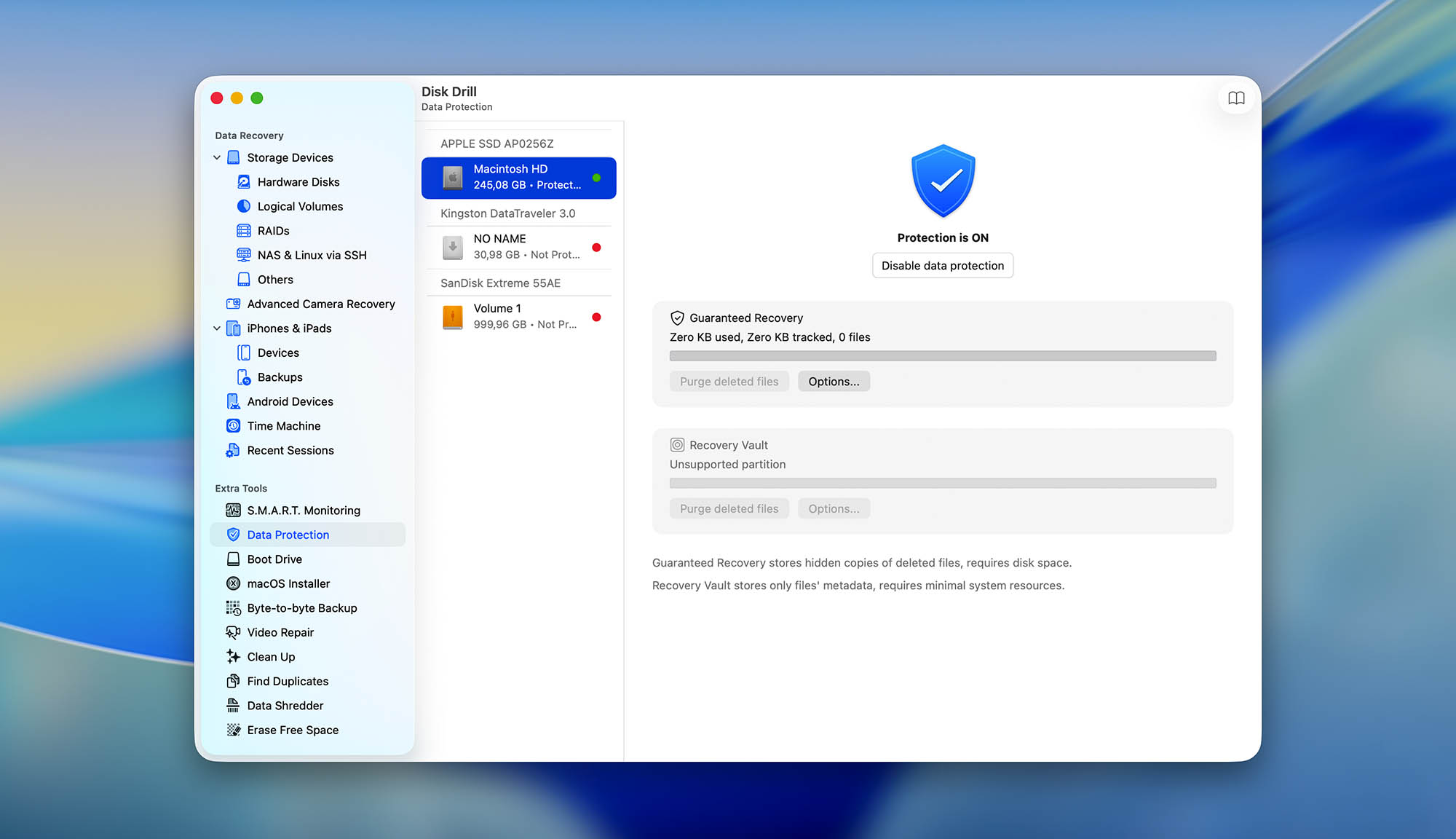
The Basic version is worth downloading even if you’re not sure you need the paid upgrade yet. It lets you run a full scan of any storage device or file system and preview all recoverable files, so you can verify that your lost data is actually there before spending a dollar. You also get access to several built-in utilities for free, including Recovery Vault and Guaranteed Recovery (Disk Drill’s data protection features), byte-to-byte backups, disk cleanup, a duplicate finder, and a data shredder. The one thing the free version won’t do is recover files beyond those already protected by Recovery Vault or Guaranteed Recovery.
To actually get your files back, you’ll need Disk Drill PRO. It’s available as an annual subscription at $89 per year or a one-time lifetime license at $149. Both options cover 1 user with up to 3 simultaneous activations, and every PRO license works on both macOS and Windows, so you don’t have to buy the software twice if you use both platforms.
The Enterprise edition is built for teams and businesses. Pricing isn’t published on the website since CleverFiles puts together custom proposals based on each organization’s needs. Enterprise includes everything in PRO, with additional features geared toward commercial use.
All Disk Drill for Mac Pricing Options
| 1 | PRO (Annual) | $89.00 |
| 2 | PRO (Lifetime) | $149.00 |
| 3 | Details | Basic version plus:
|
Similar Tools to Disk Drill for Mac





Is Disk Drill for Mac safe and legitimate?
100%
Avg score Disk Drill for Mac is completely safe in every way.
We've thoroughly tested Disk Drill for Mac using multiple leading anti-malware products and verified it to be completely free of malware.
Disk Drill for Mac takes user privacy very seriously. The software does not collect any personal data without the user's consent, and any data collected is used solely for the purpose of improving the software.
The software uses read-only access to scan and recover files, so the original data is never modified or corrupted in any way. Additionally, Disk Drill for Mac provides users with the option to create a backup of their data before attempting any recovery.
The developer of Disk Drill, CleverFiles, is a reputable US-based software company with a long history.
Disk Drill for Mac is a completely safe and legitimate data recovery application. We ran a detailed safety evaluation on the Windows version of Disk Drill, which you can read in full at the link above, and the macOS version is built to the same standards. It is free of malware, respects user privacy, uses read-only algorithms that never modify your original data, and comes from CleverFiles, a well-established US-based company with over 15 years on the market. On top of that, Disk Drill for Mac is notarized by Apple, which means it has passed Apple's automated security checks and is cleared for installation on macOS without triggering Gatekeeper warnings.
How to Use Disk Drill for Mac
Tested on: 26.4 (25E246)
Disk Drill for Mac is designed to be user-friendly and intuitive, making it easy for anyone to use, regardless of their technical expertise. Here’s a comprehensive overview of our firsthand experience with Disk Drill for Mac, detailing the installation process and initial use of the software for data recovery.
Installation
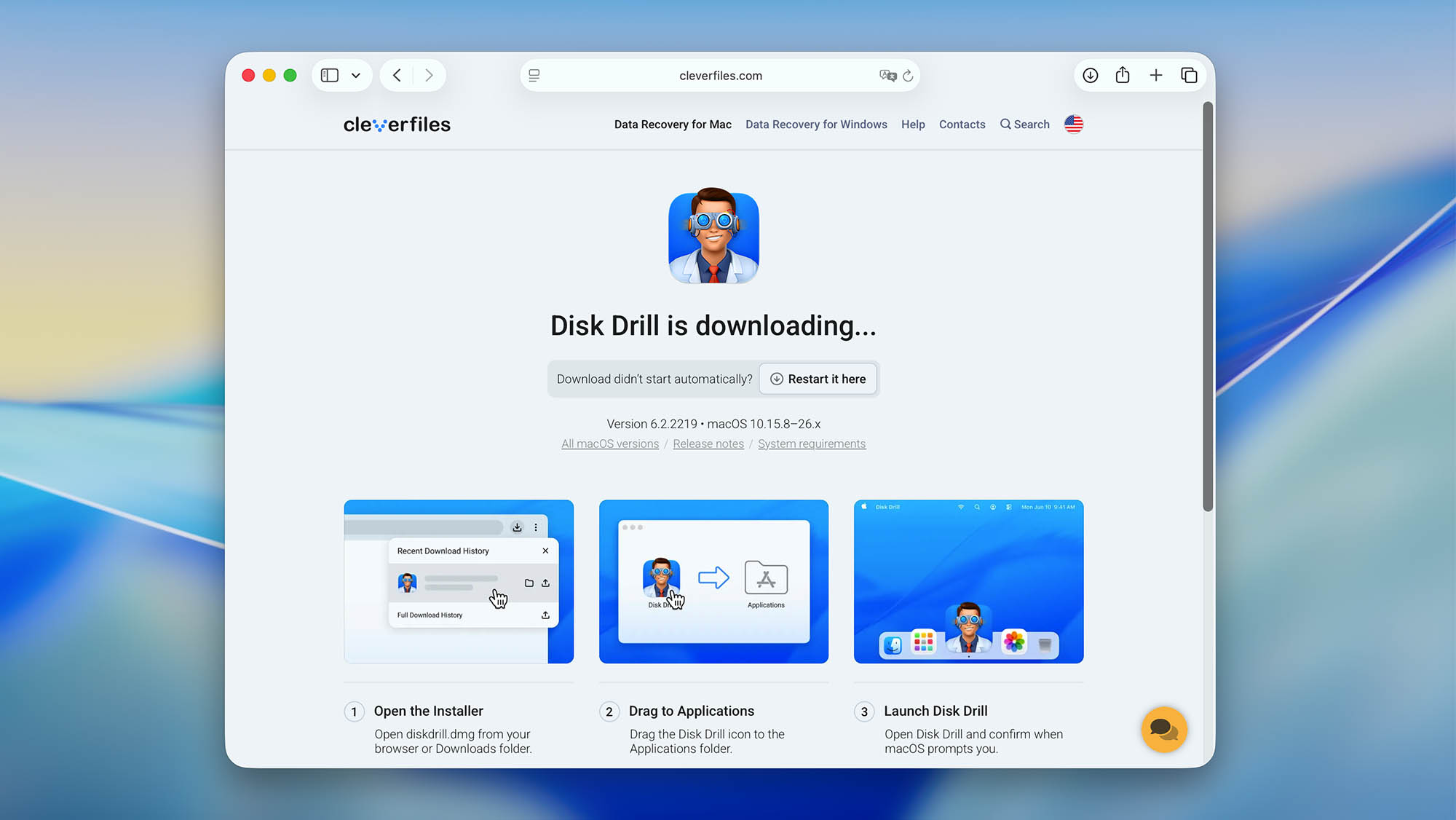
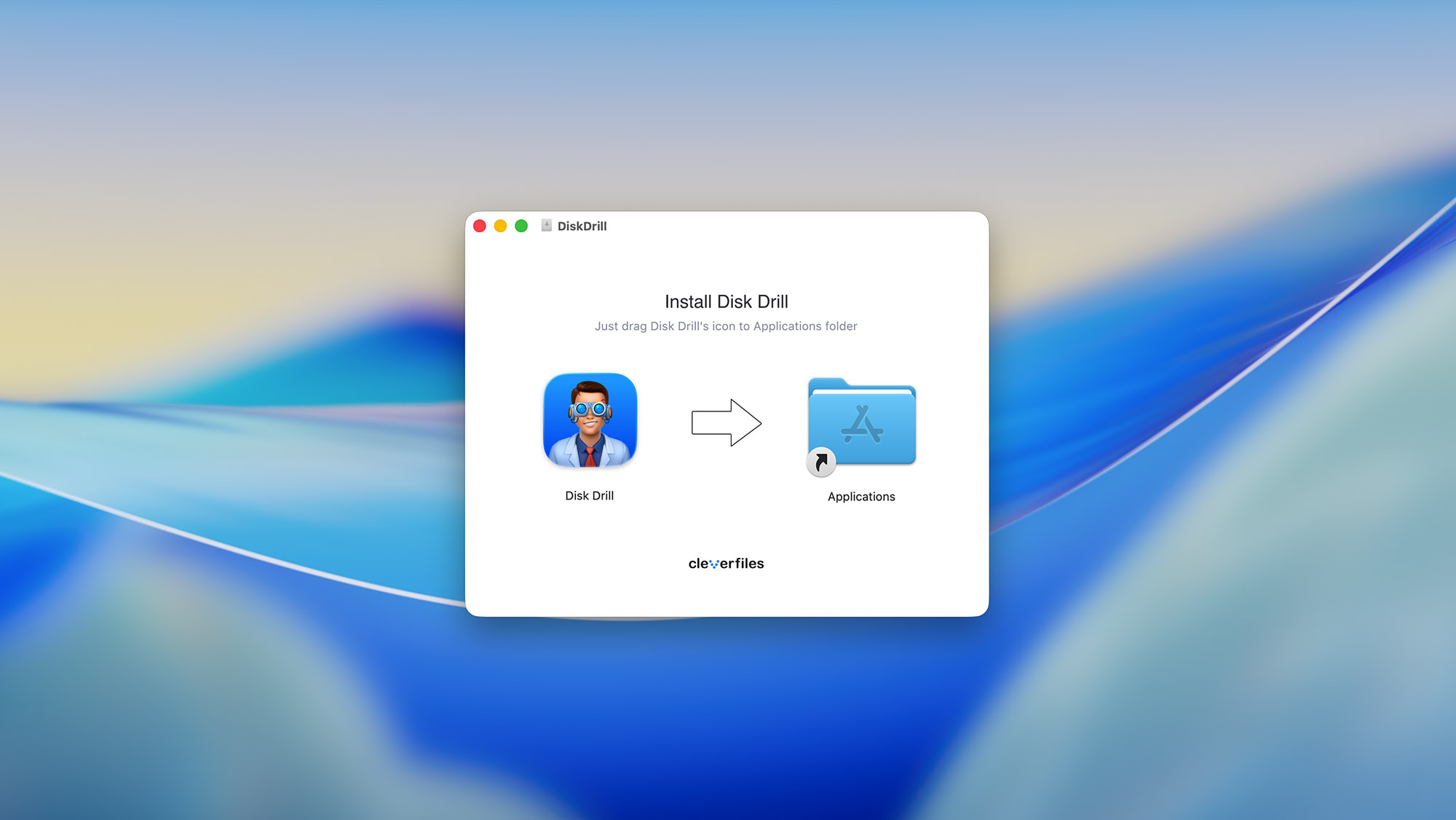
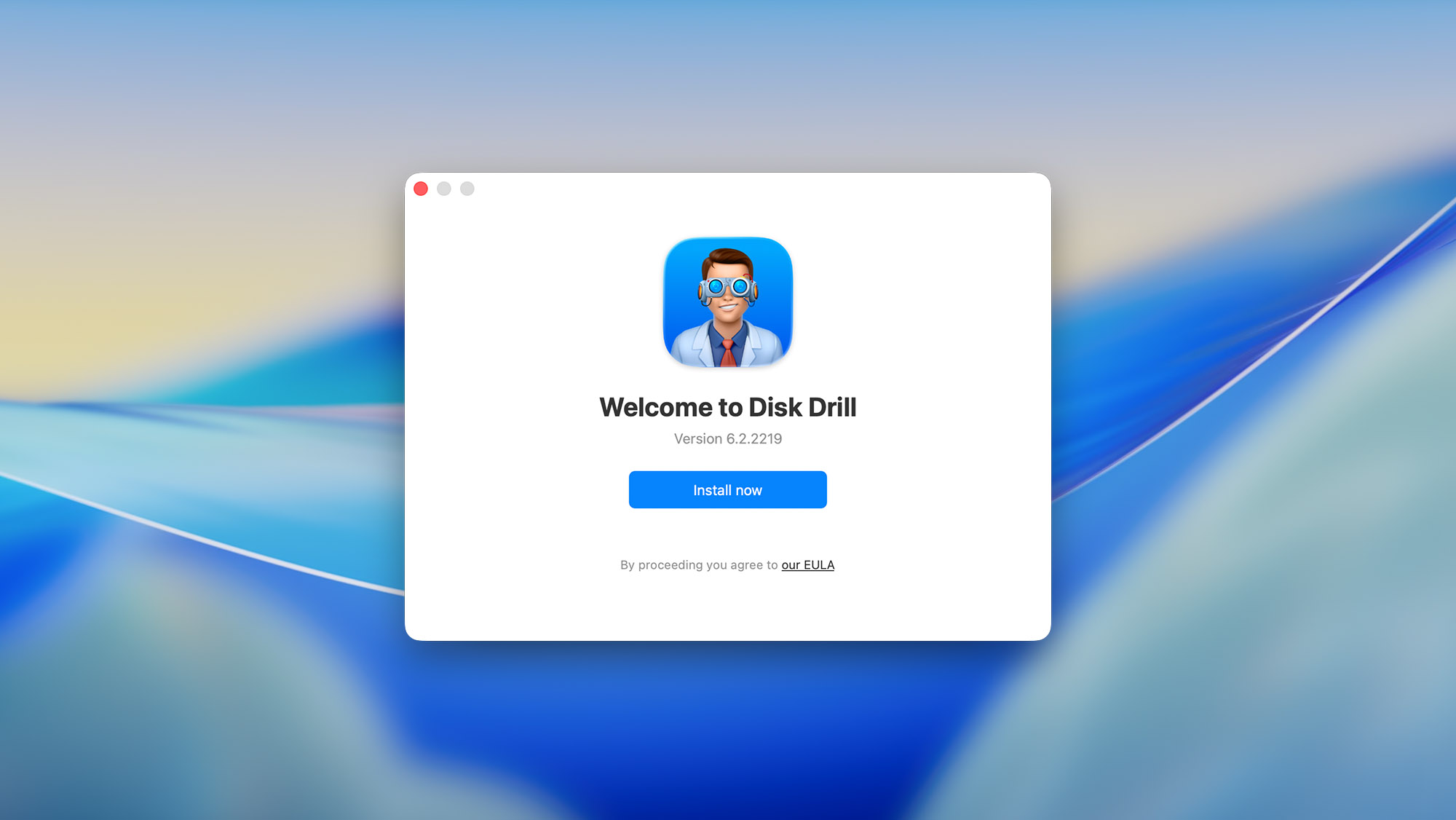
In order to install Disk Drill for Mac, we headed over to its official website and downloaded the free version of the software. What's great about the free version is that it lets you preview all recoverable files, so you can purchase a license only when you know that Disk Drill can actually recover your lost files. And if you take advantage of Disk Drill's Recovery Vault and/or Guaranteed Recovery data protection features, then you don't even need to purchase a license because the software can recover files backed up by the two features without any limitations.
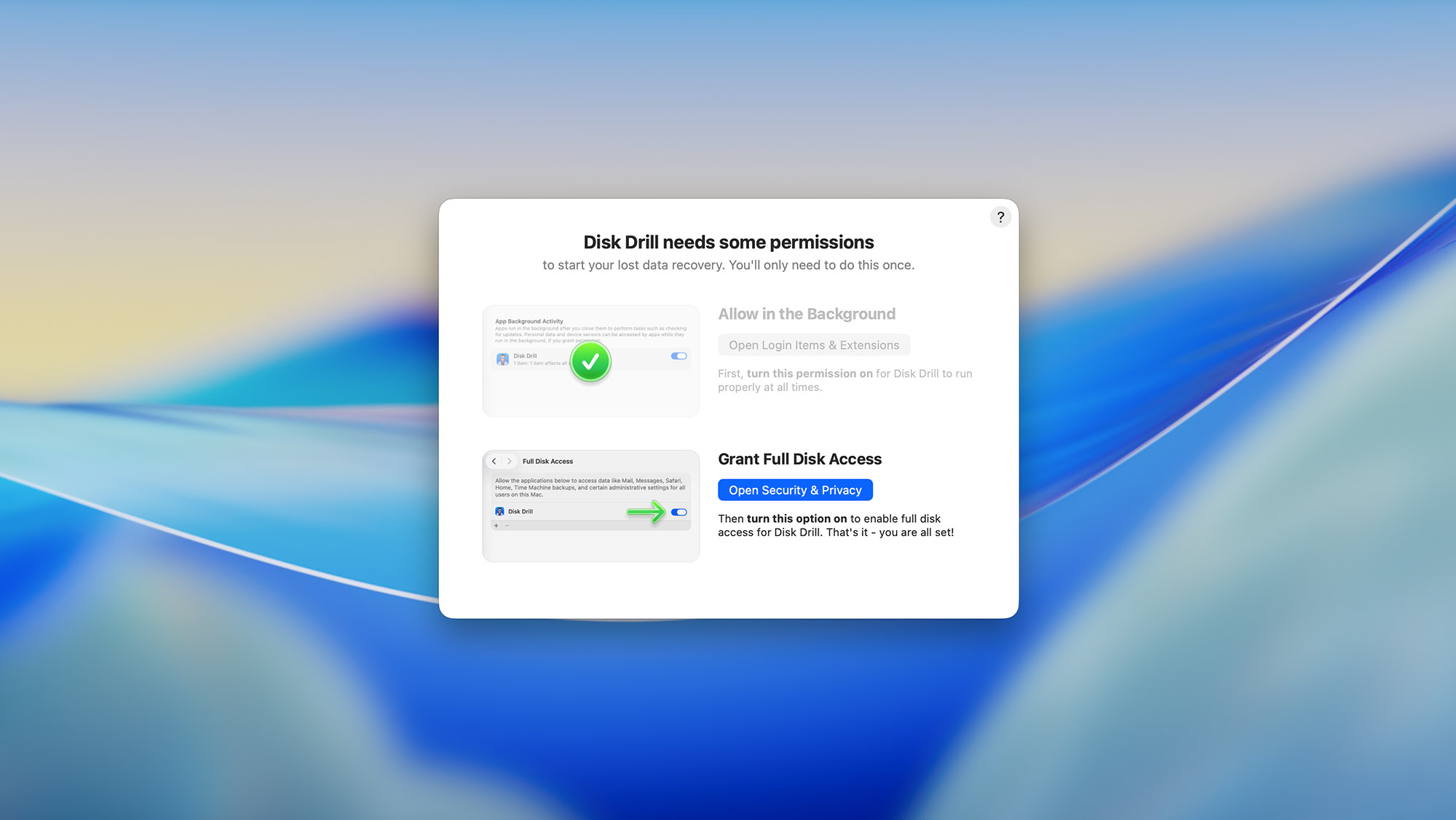
The installation process was relatively painless, but there were a few extra hoops we had to jump through to give the application the permissions necessary to scan both internal and external storage devices. Fortunately, Disk Drill provided helpful step-by-step instructions with illustrative screenshots, so we never felt lost or confused.
Source selection
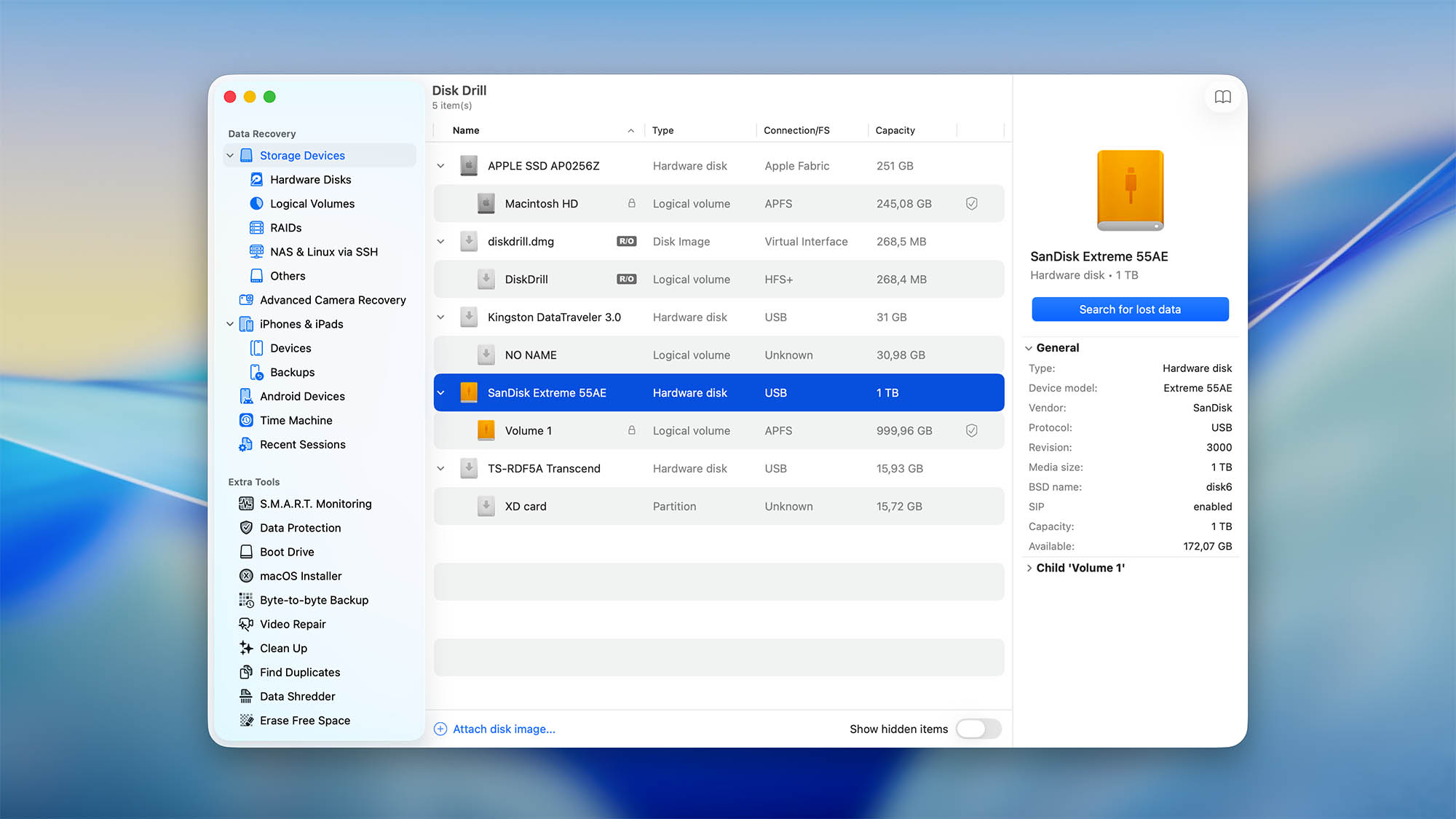
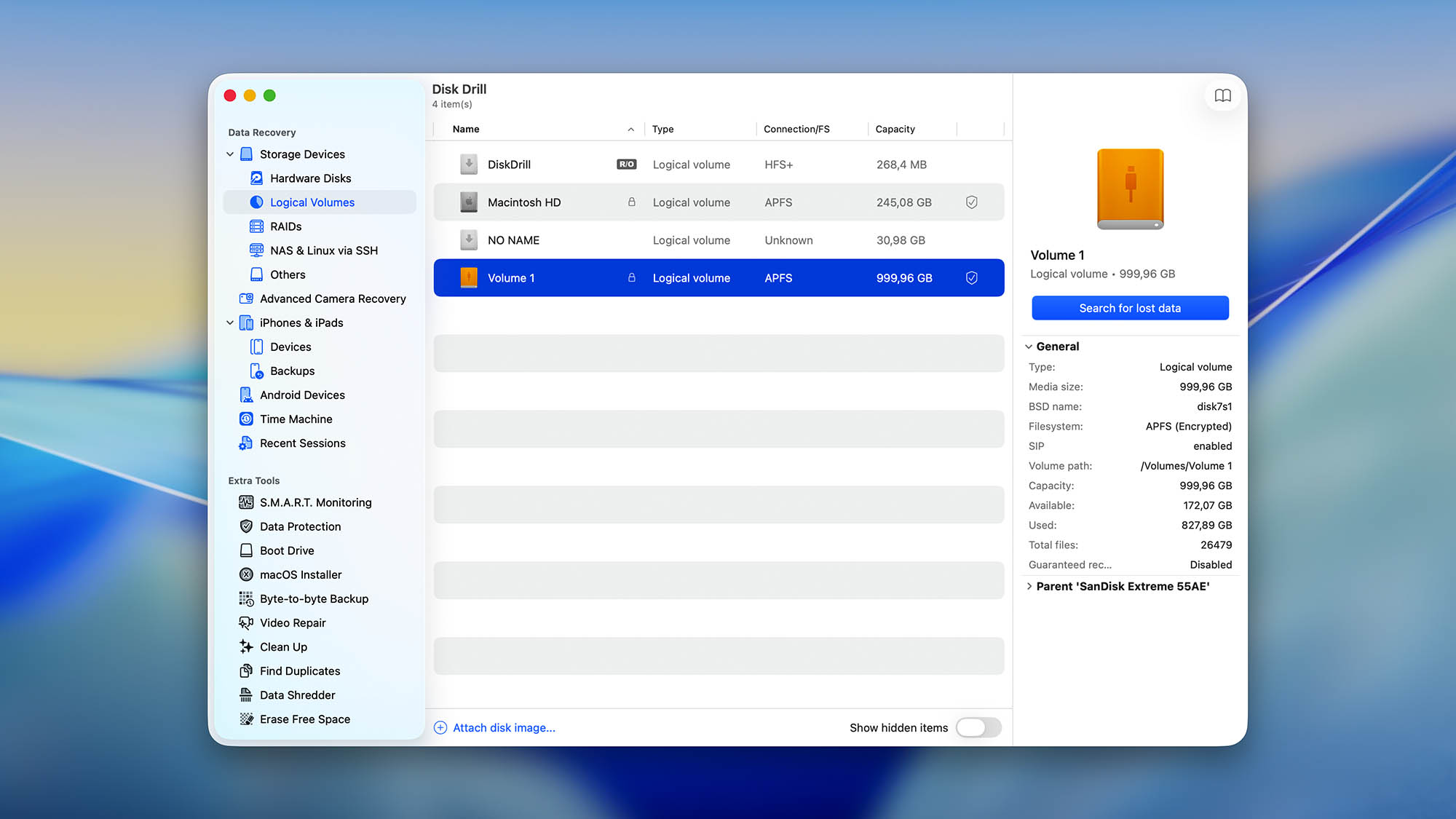
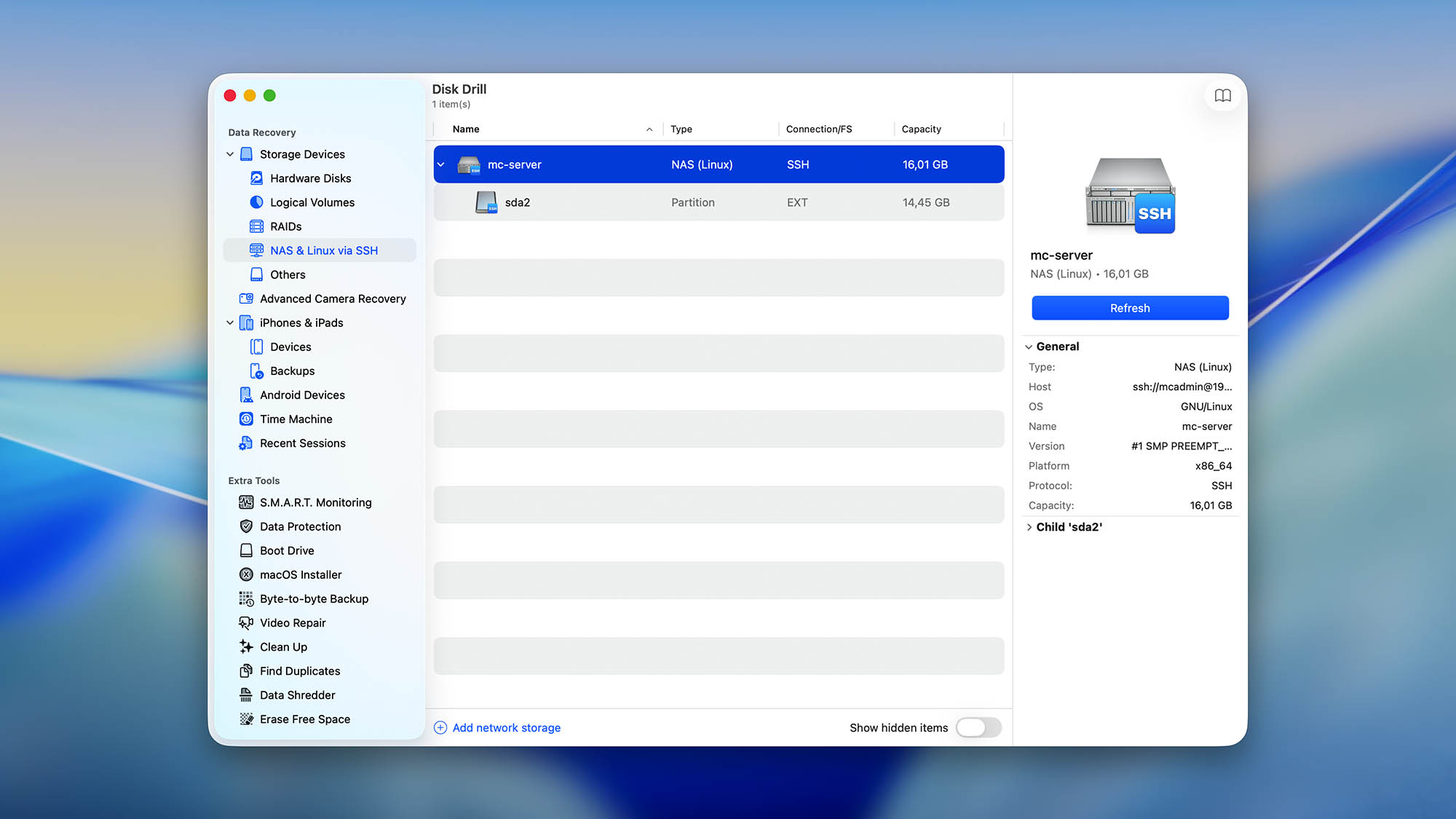
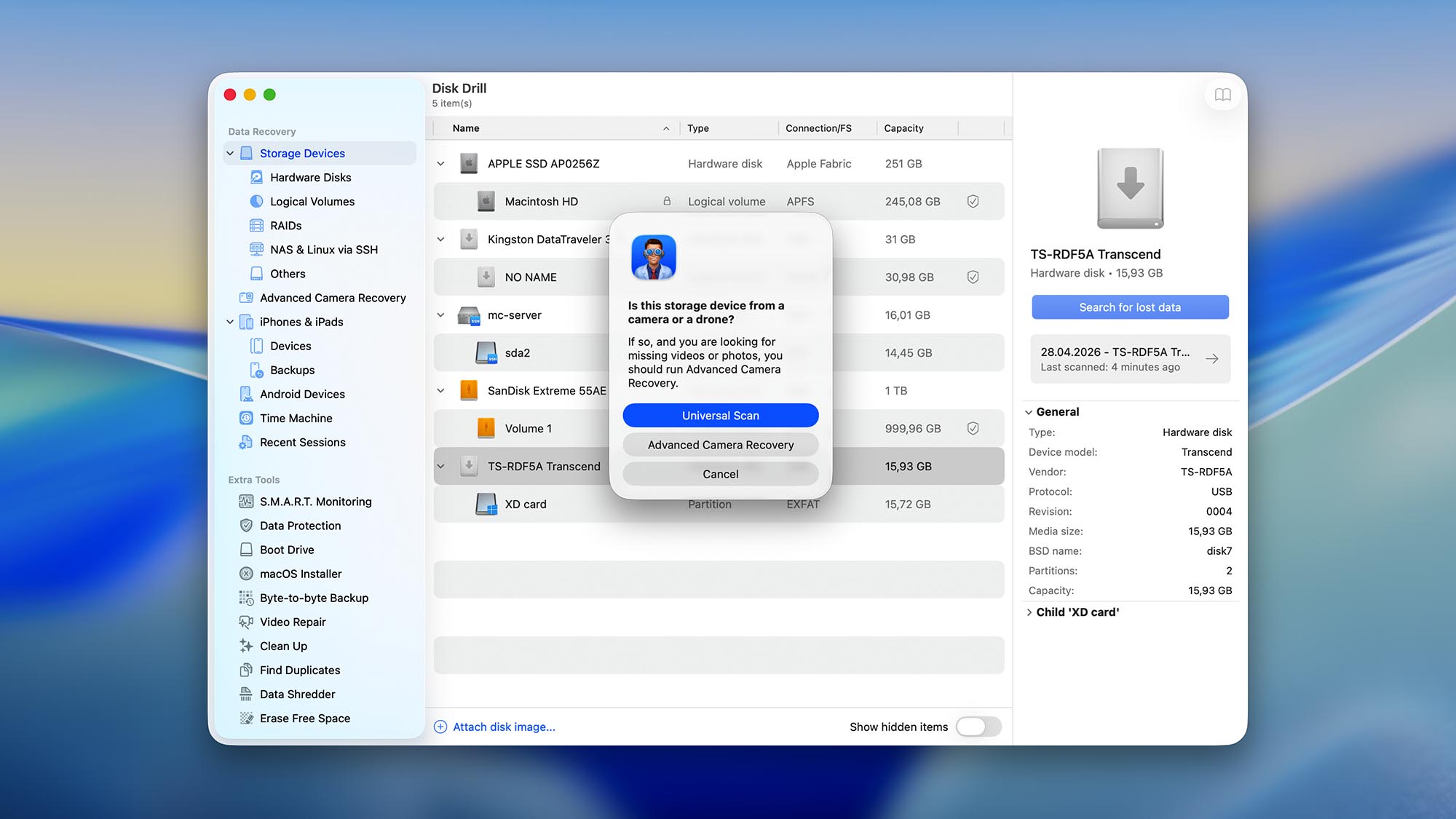
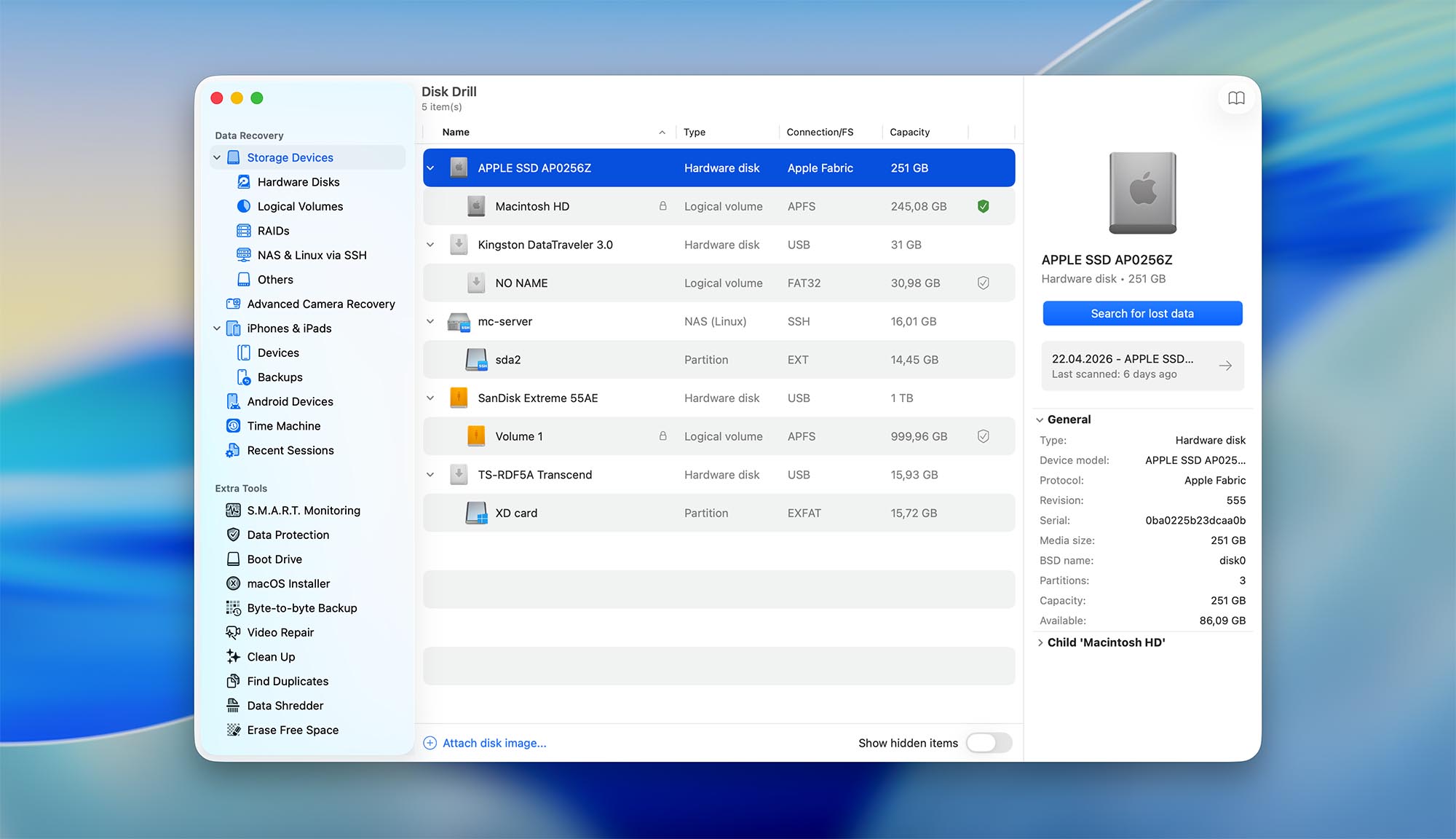
After installing Disk Drill and giving it all the necessary permissions, it was time to launch the application and tell it which storage device we wanted to scan. Thanks to Disk Drill's well-organized, modular user interface, choosing the right storage device was a breeze.
From there, launching the scan process was as simple as clicking the Search for lost data button. Since version 5, Disk Drill automatically uses the best recovery methods to deliver the most comprehensive results on the first try.
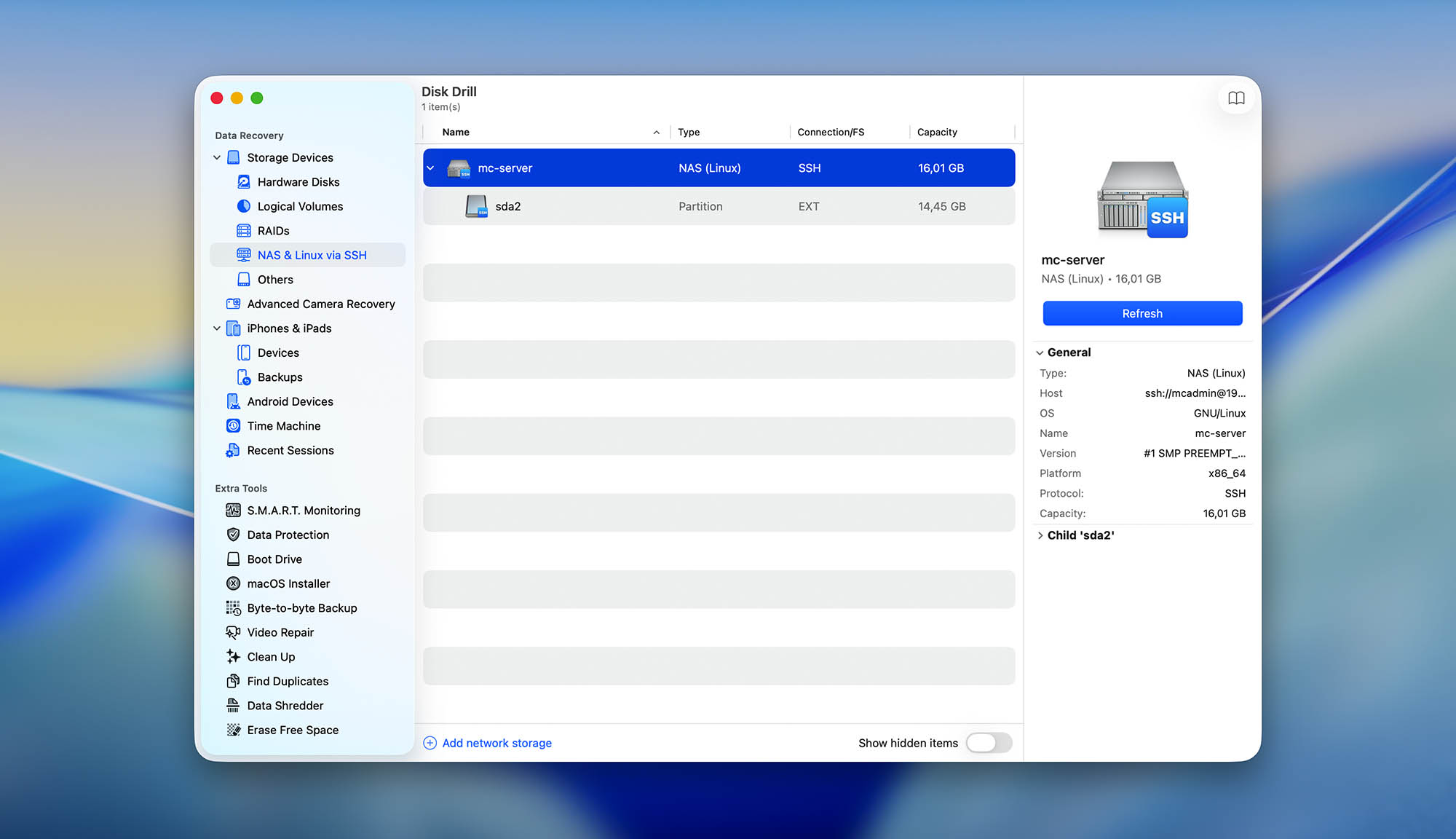
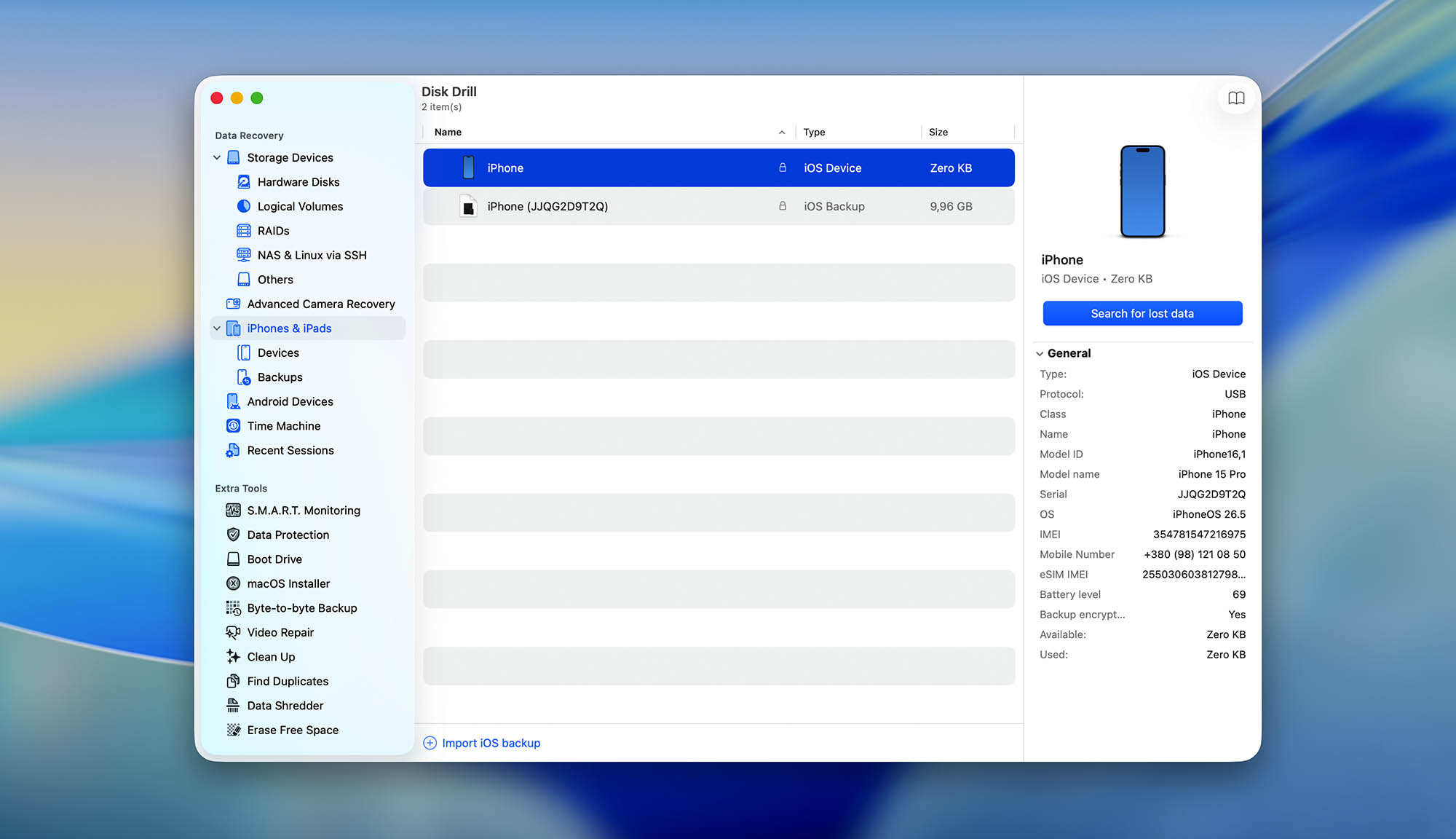
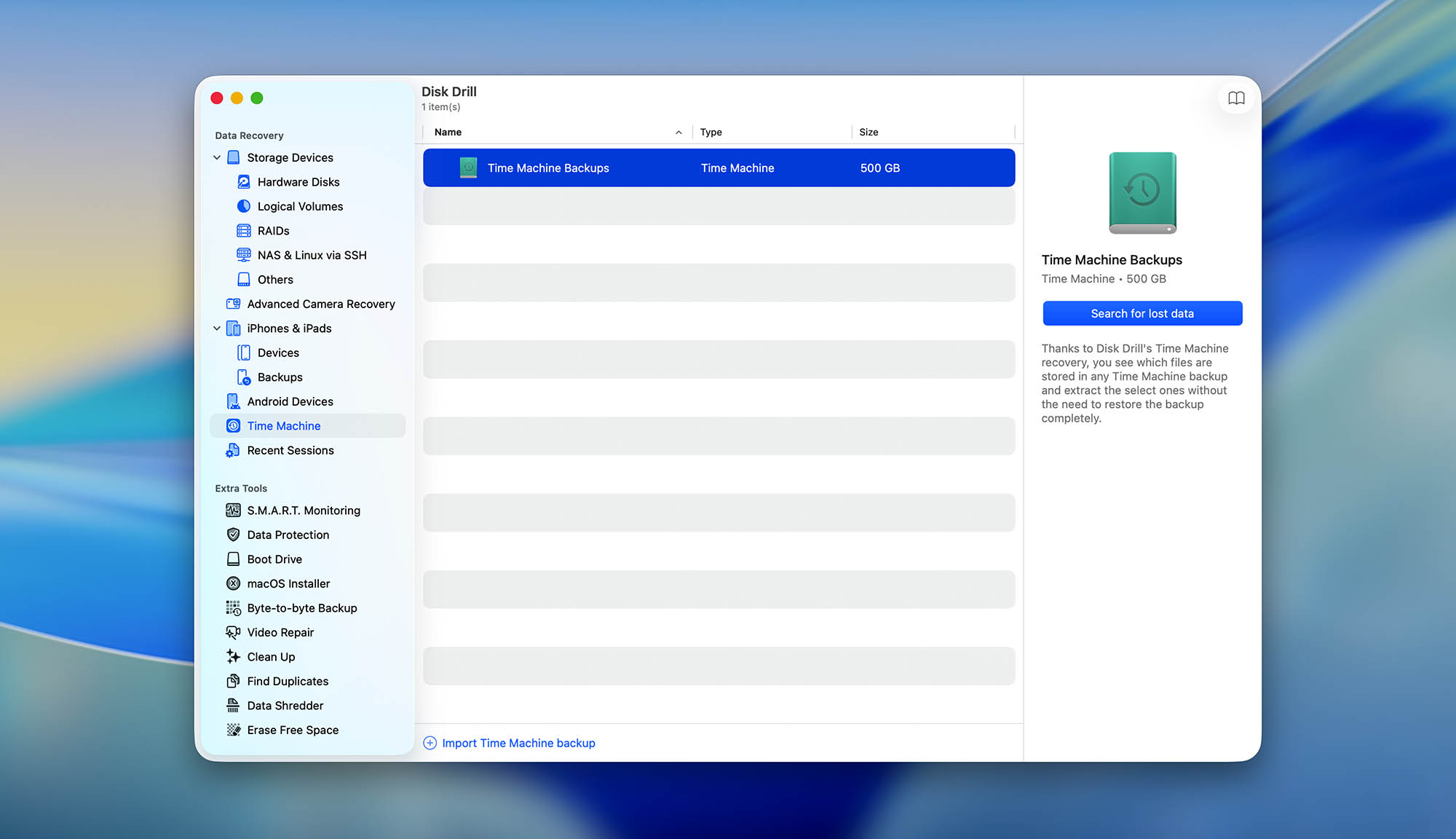
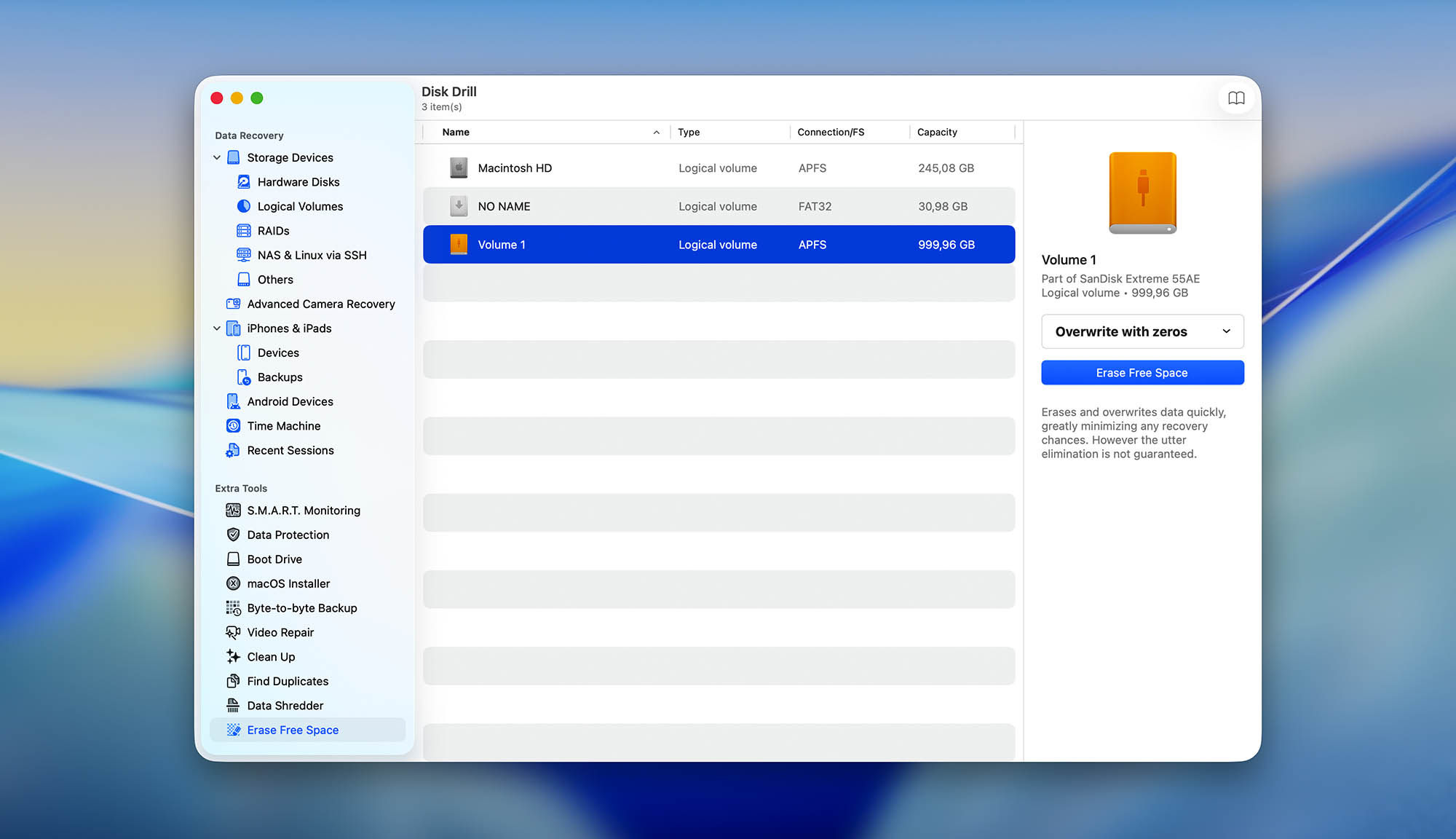
The latest version of Disk Drill organizes connected storage devices into five subcategories: Hardware Disks, Logical Volumes, RAIDs, NAS & Linux via SSH, and Others. In addition to internal and external storage devices, you can also scan mobile devices running iOS and Android, plus Time Machine backups.
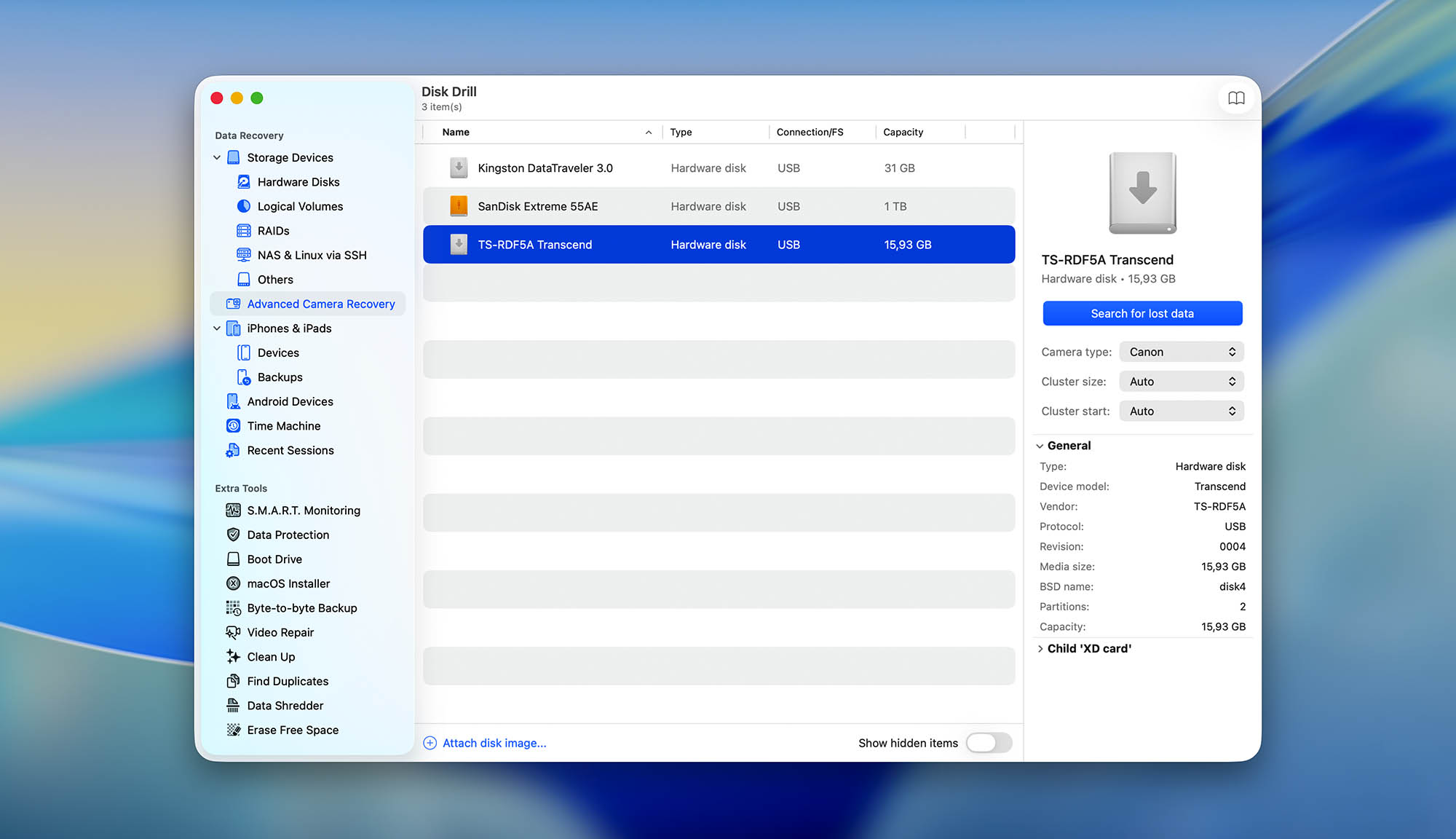
If you connect an SD card or memory chip from a camera or drone, Disk Drill will also give you the option to run Advanced Camera Recovery (ACR) instead of a Universal Scan. ACR is specifically built to reconstruct fragmented video files from devices like GoPros and DJI drones, so it's worth picking that mode when you're trying to recover camera footage. For everything else, the standard Universal Scan is the way to go.
Scanning process
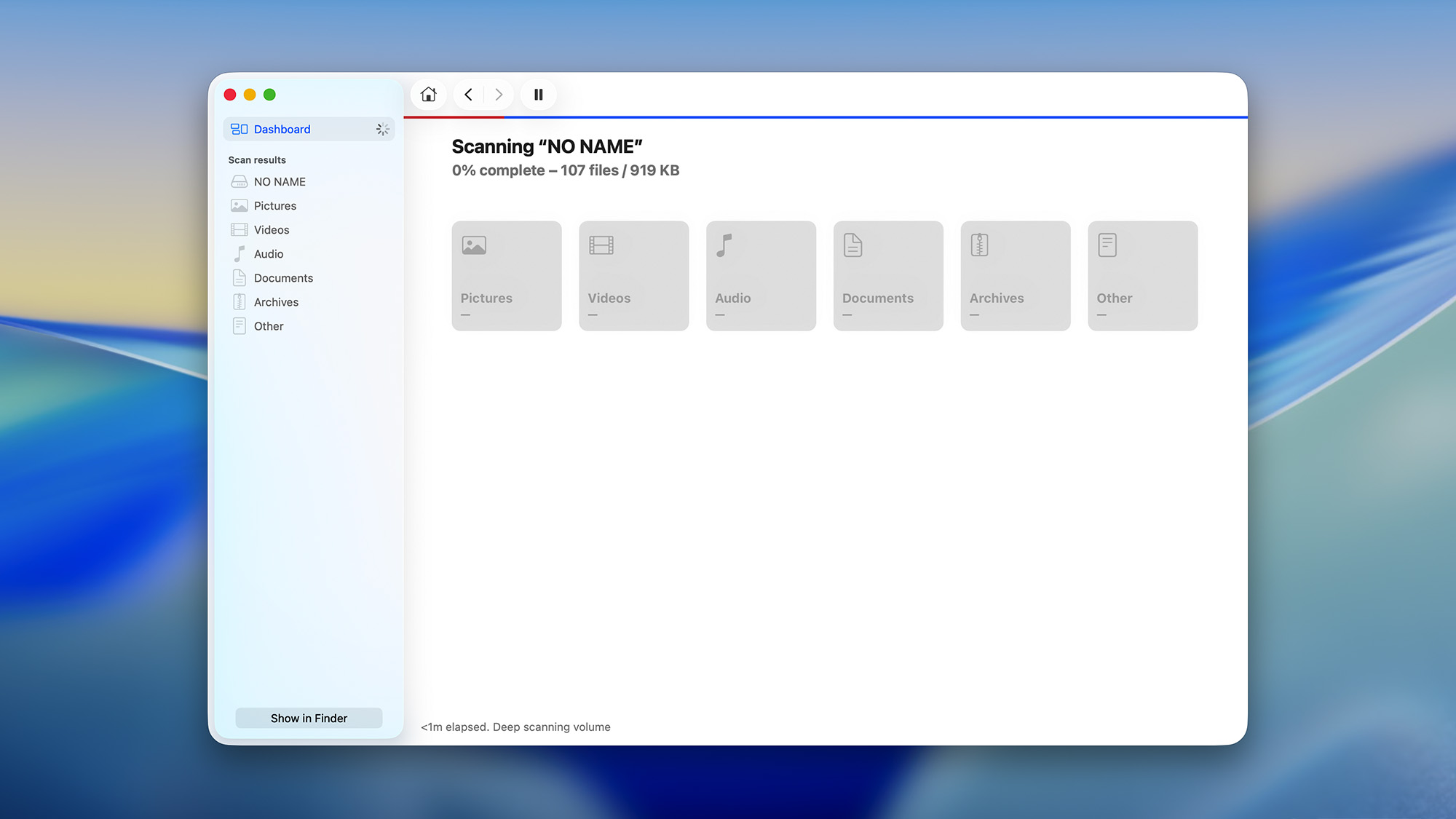
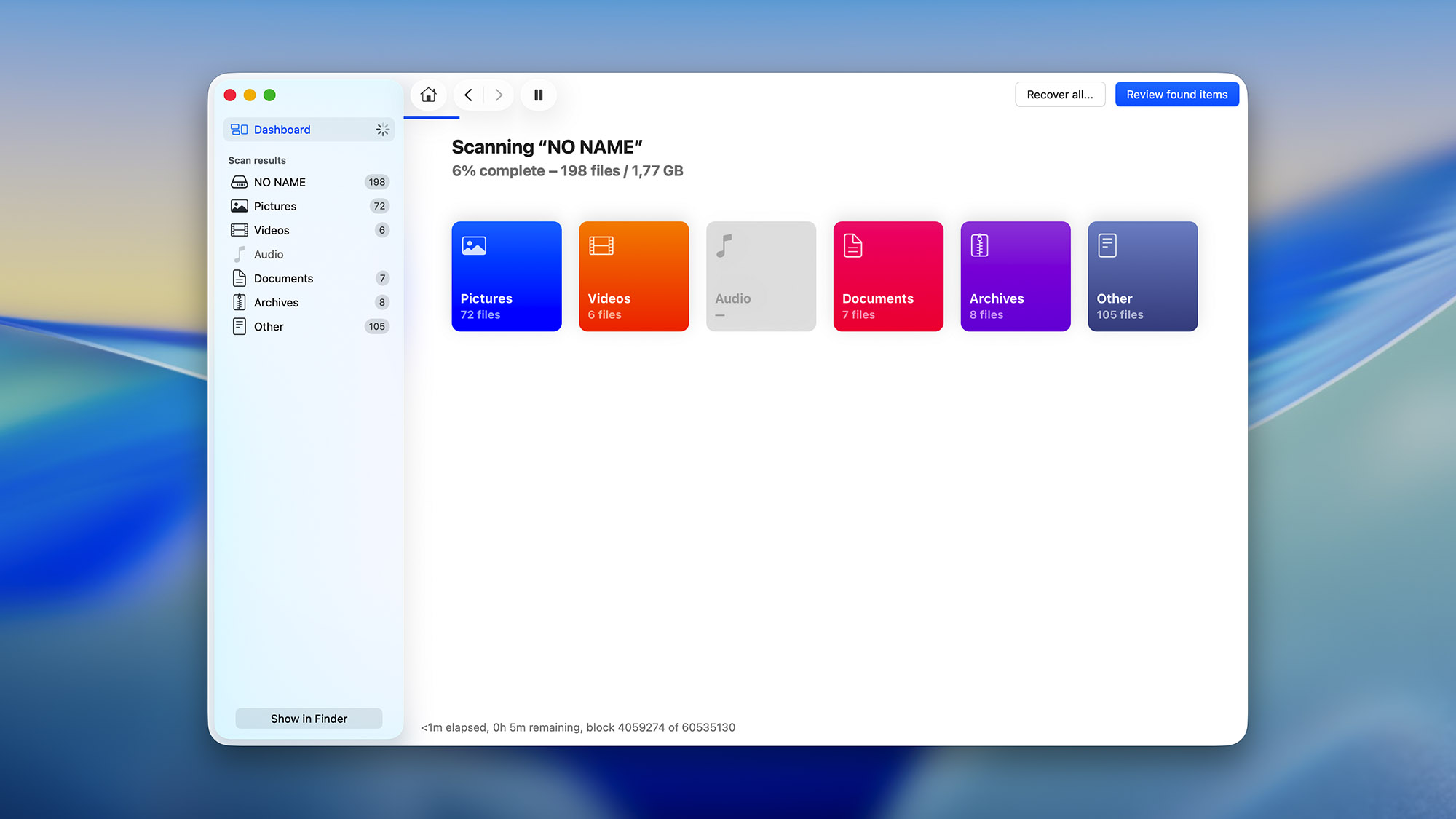
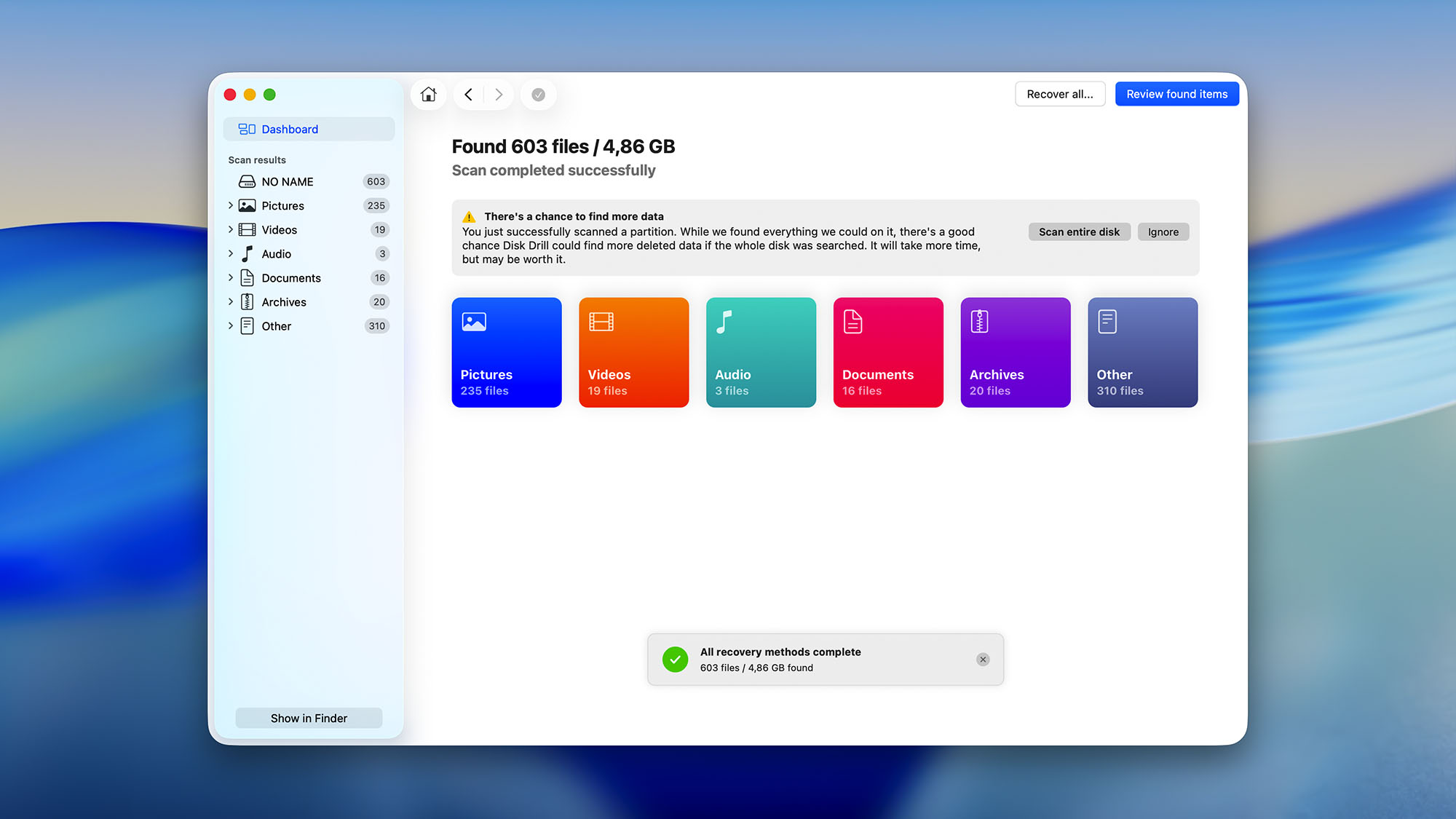
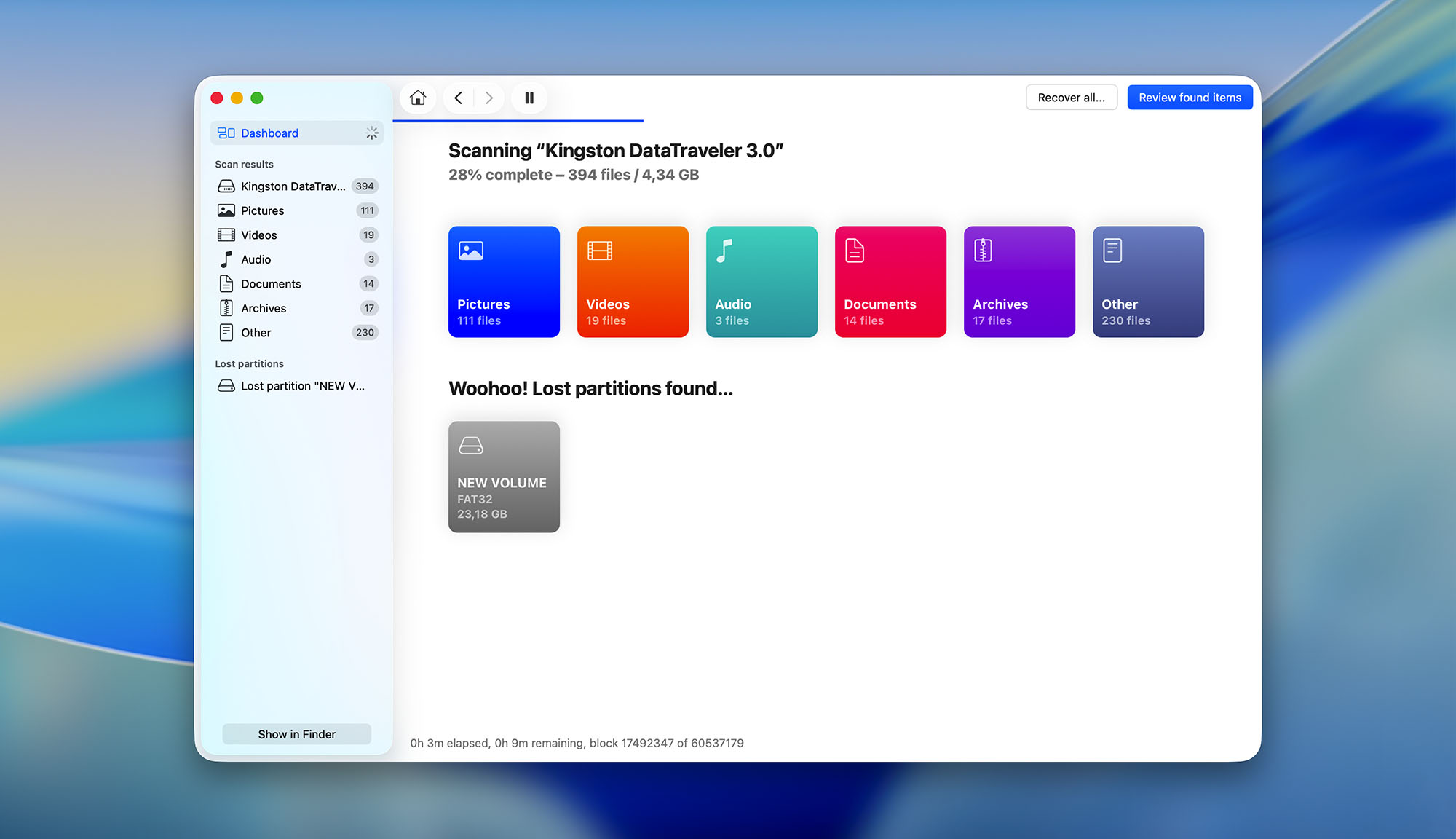
While the scanning process was running, Disk Drill did an excellent job of keeping us informed. The application separates found files into six categories (pictures, video, audio, documents, archives, and other), displaying the number of found files in each category.
If you're impatient, you can click the "Review found files" button even while Disk Drill is still performing a scan. We decided not to do that and let the application finish. We were then informed that there was a chance to find even more files by scanning the entire storage device. Helpful tips like this one make Disk Drill great, even for complete beginners who might otherwise not realize that more data can be recovered.
One thing to keep in mind: if you're scanning the internal SSD on a modern Mac (basically any model with a T2 chip or Apple Silicon), TRIM is enabled on a system level. TRIM tells the drive to wipe the actual data blocks shortly after a file is deleted, which can seriously limit what any recovery software can find. The sooner you scan after losing a file, the better your chances. For external drives and memory cards, this usually isn't an issue since most of them don't use TRIM.
Managing found files
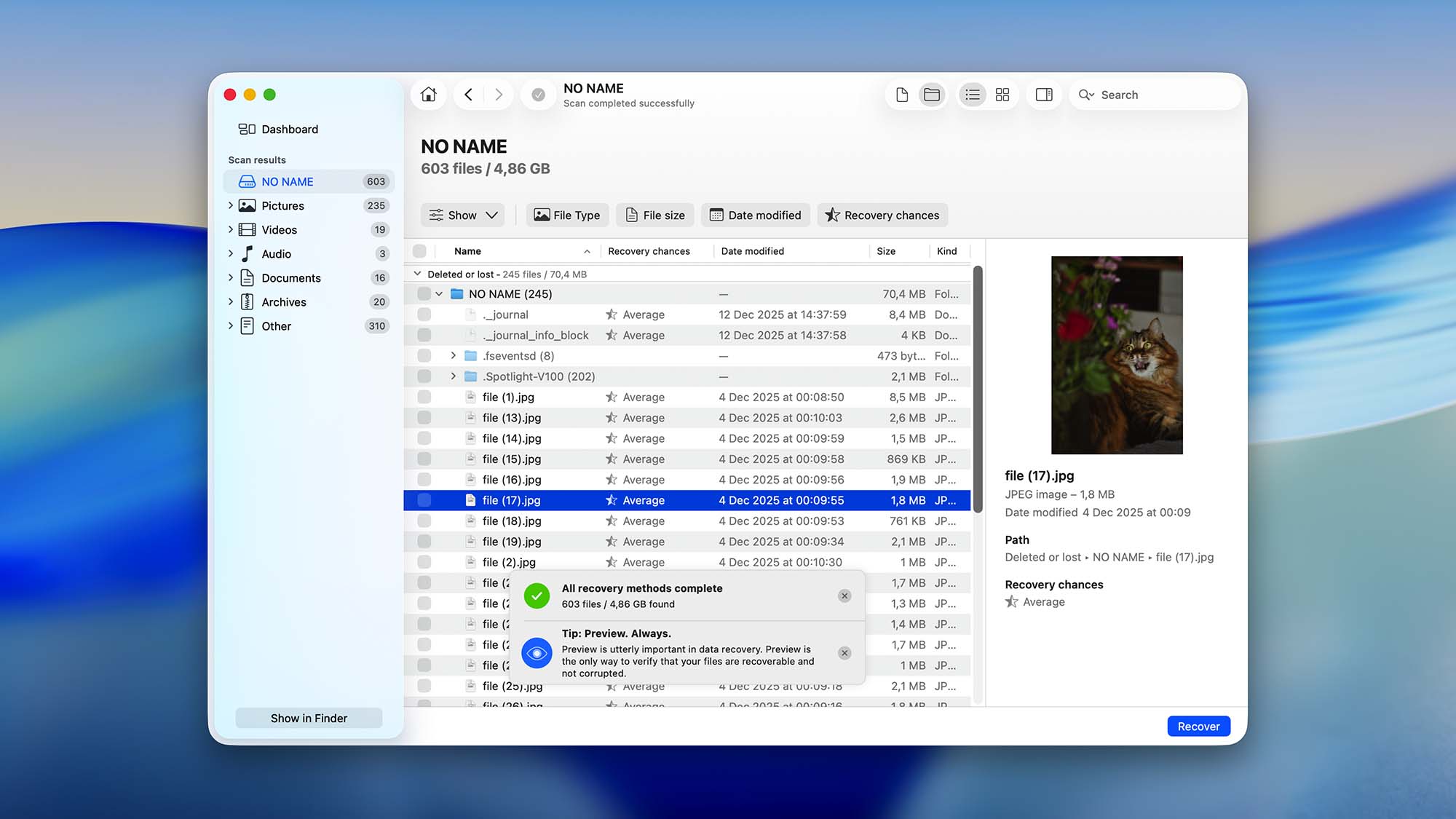
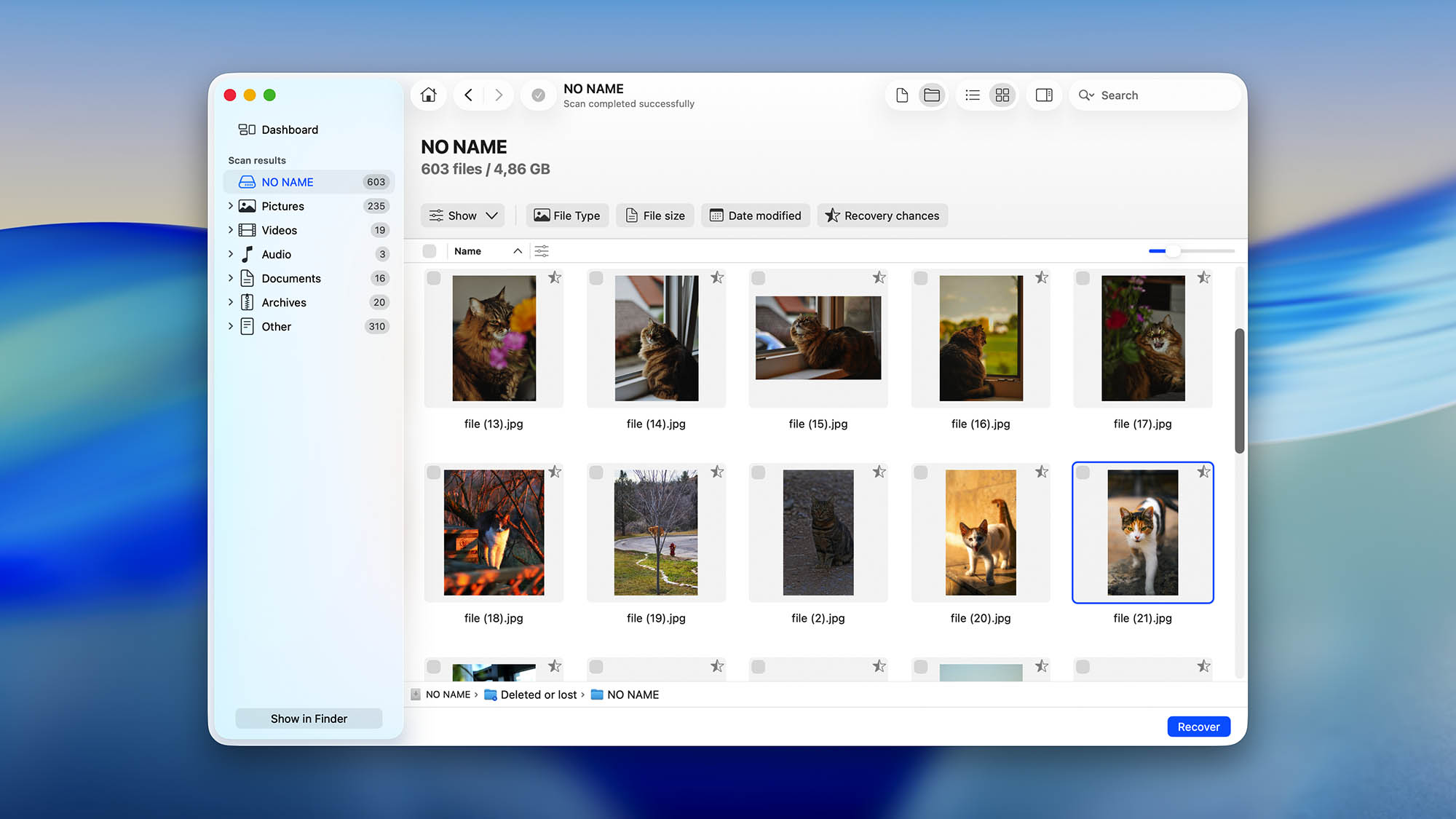

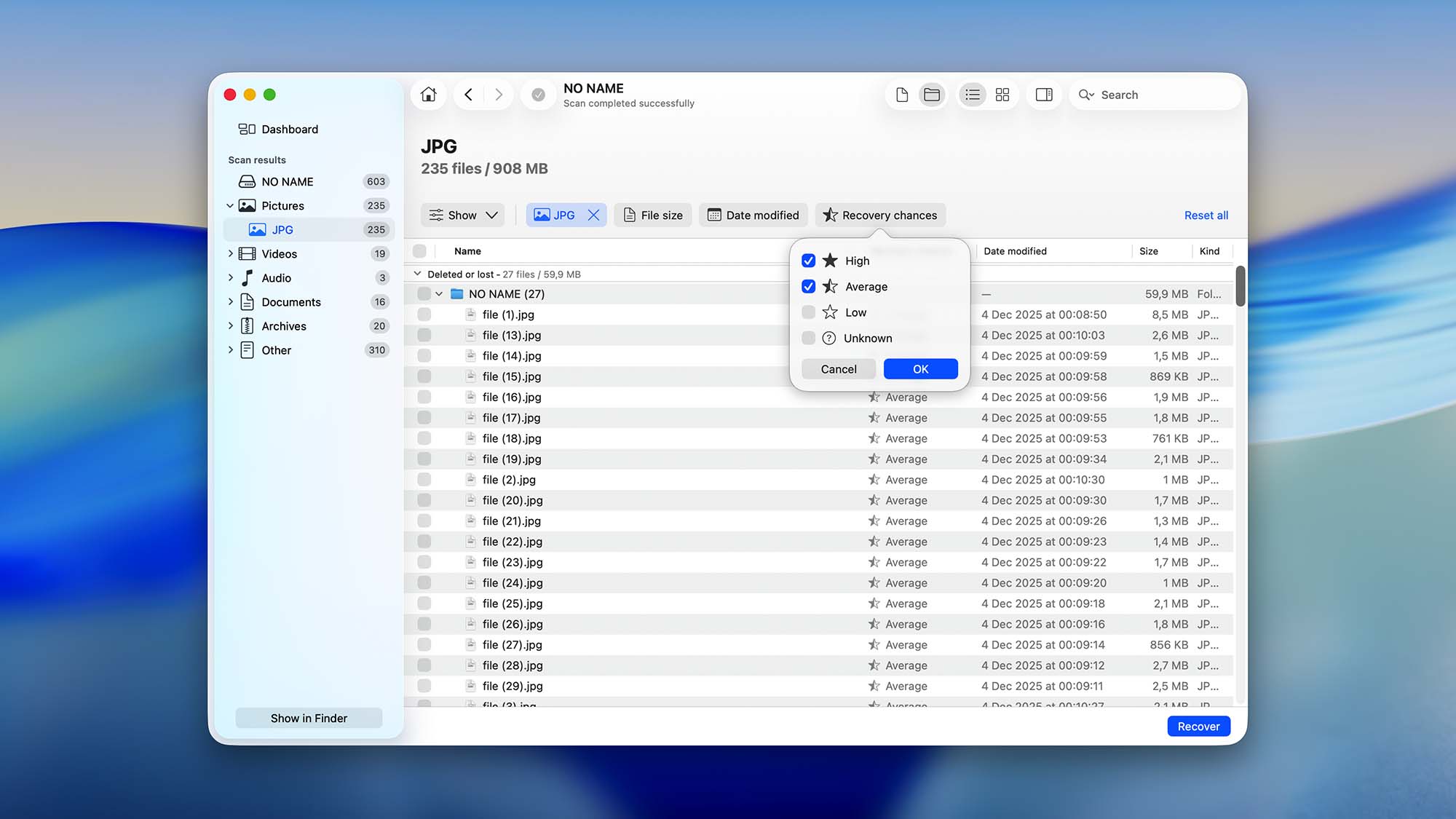
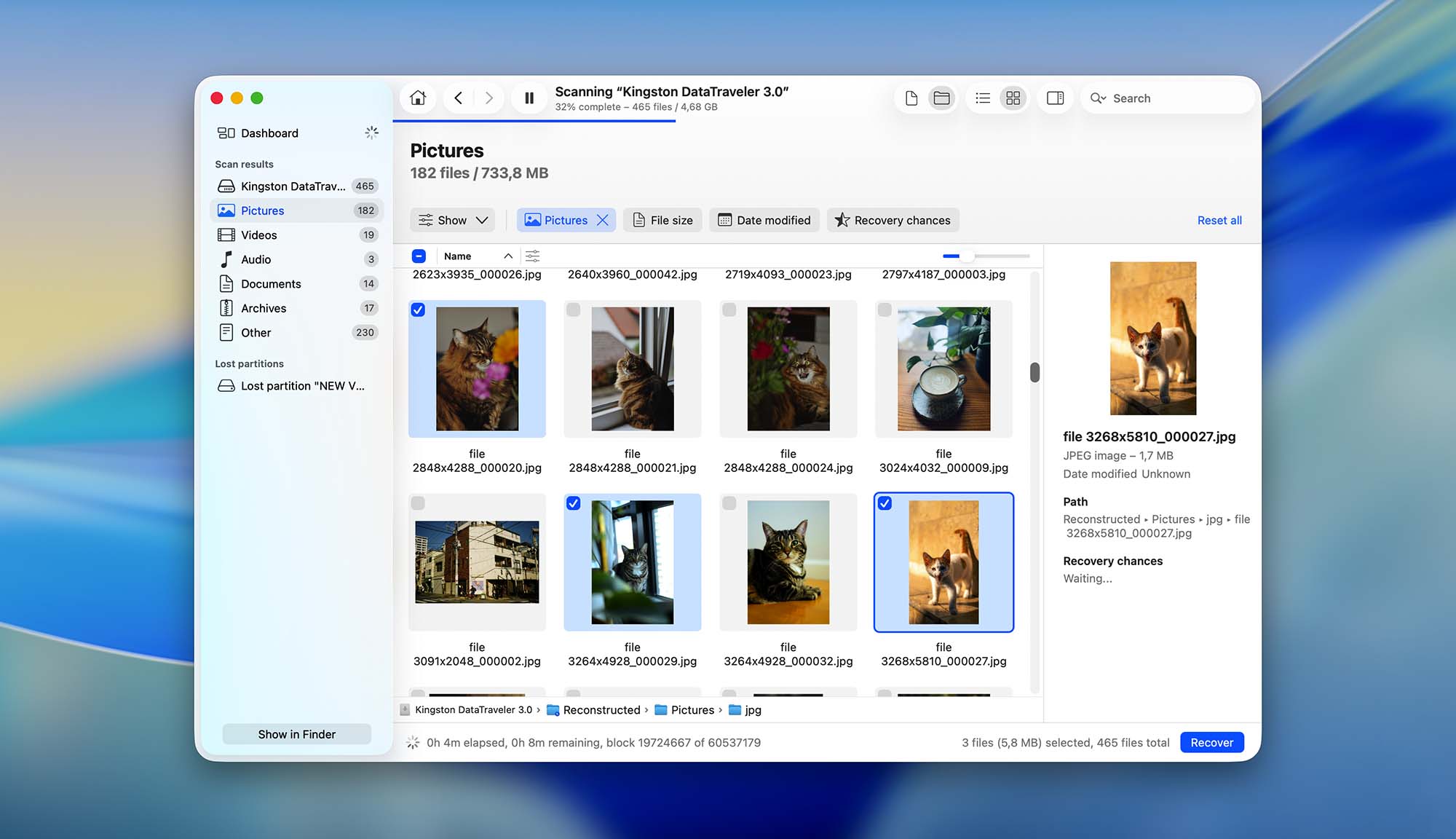
Where Disk Drill for Mac truly shines is the management of found files. The application can display found files as icons or in a list, and it can preview all file formats that are natively supported by macOS.
When dealing with a large number of found files (which is almost always the case when scanning larger HDDs and SSDs), you can use Disk Drill's filters to focus on specific file types, file sizes, or file modification dates.
It also helps that recoverable files are organized into the following three groups: Deleted, Existing, and Reconstructed. Disk Drill for Mac displays how likely each file can be successfully recovered, so you always know what to expect.
Recovery and post-processing
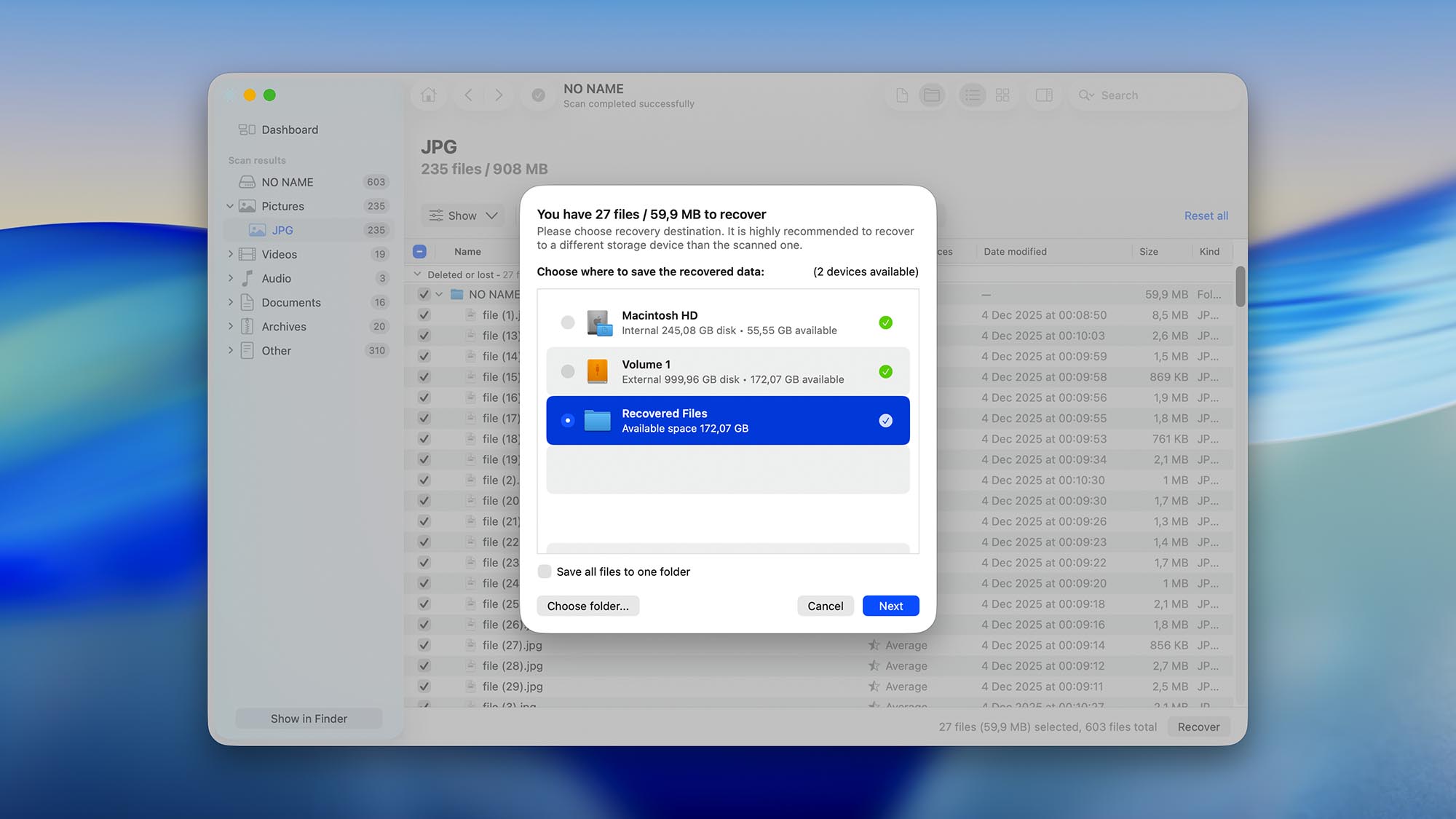
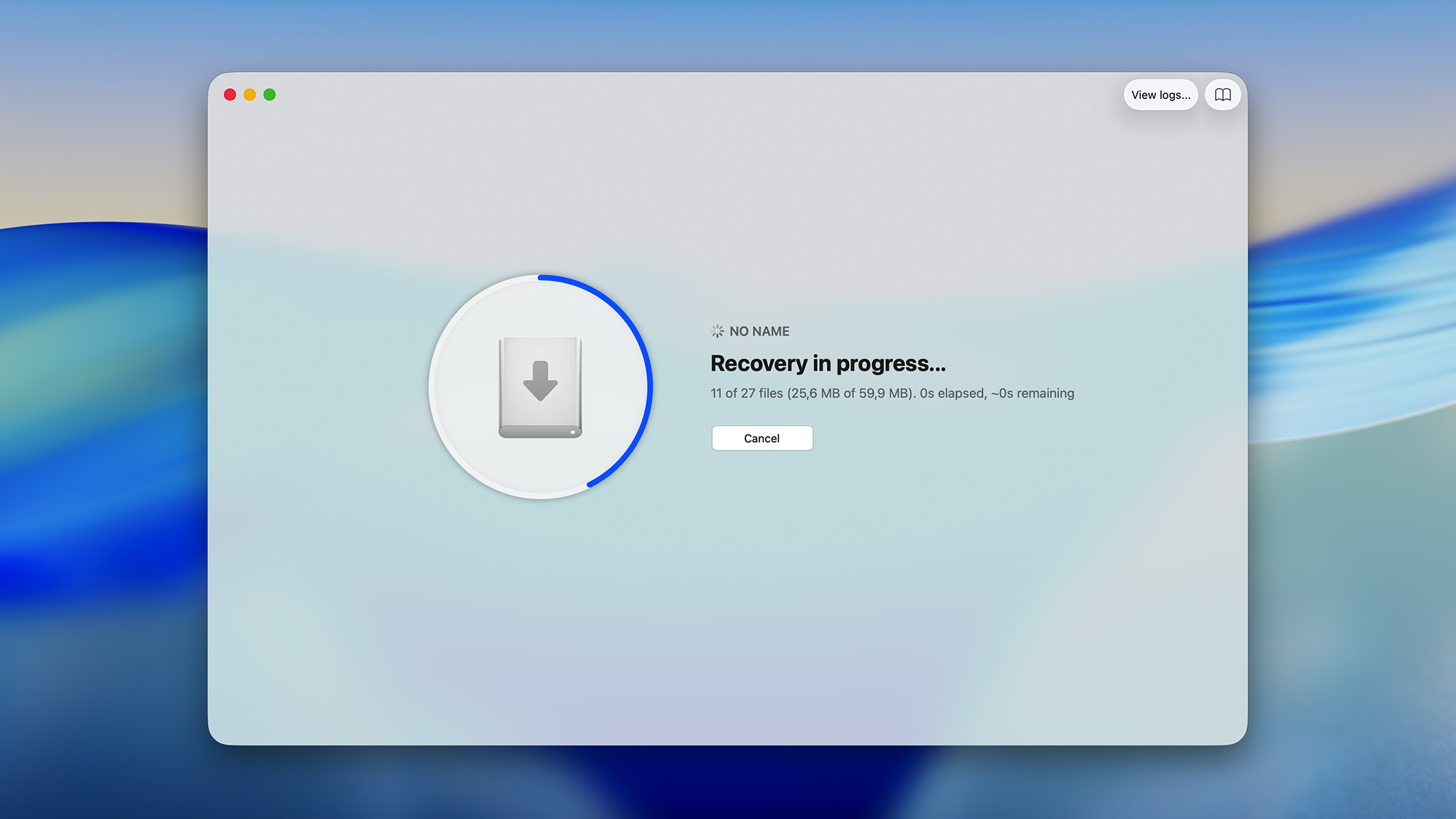
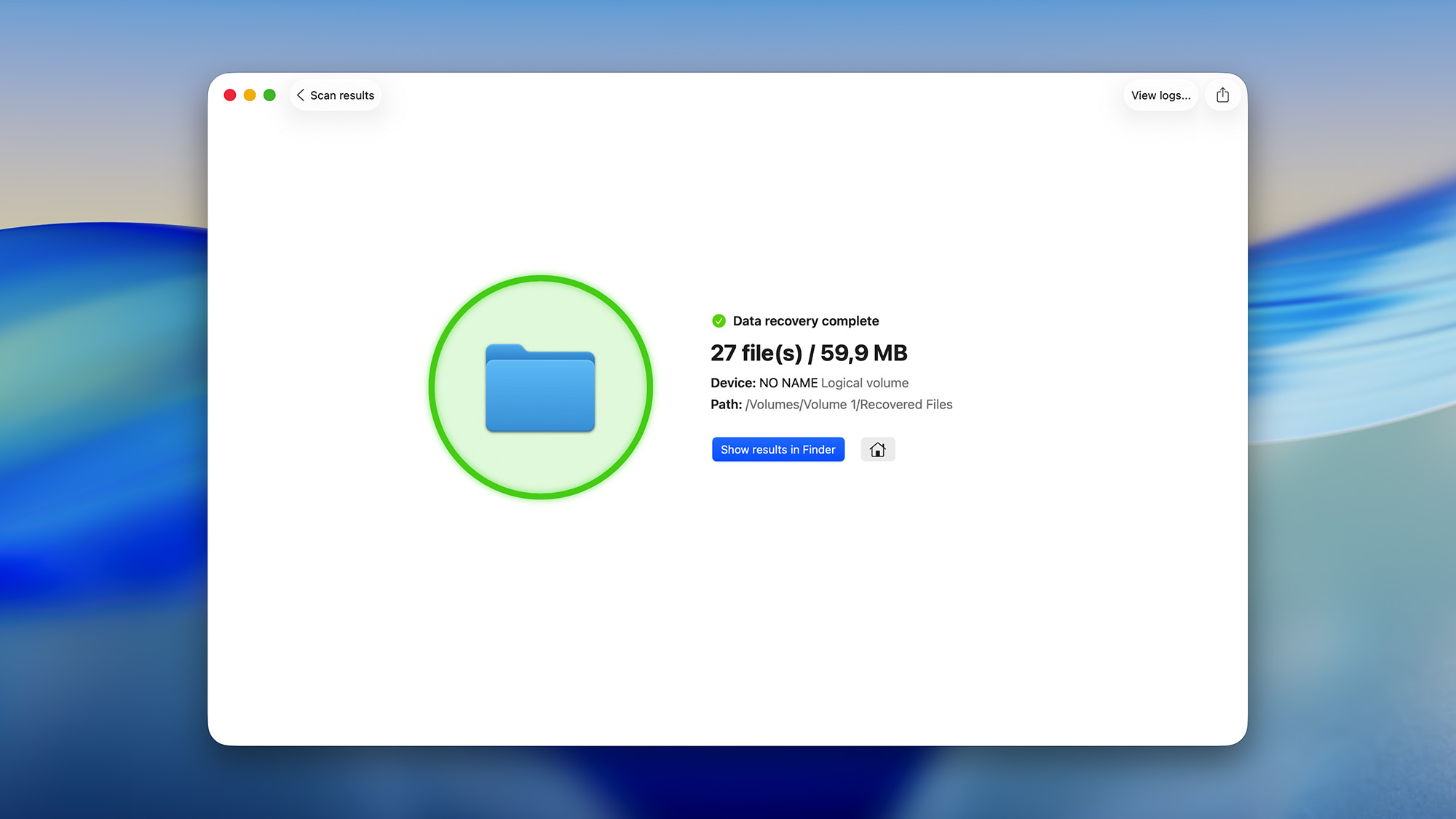
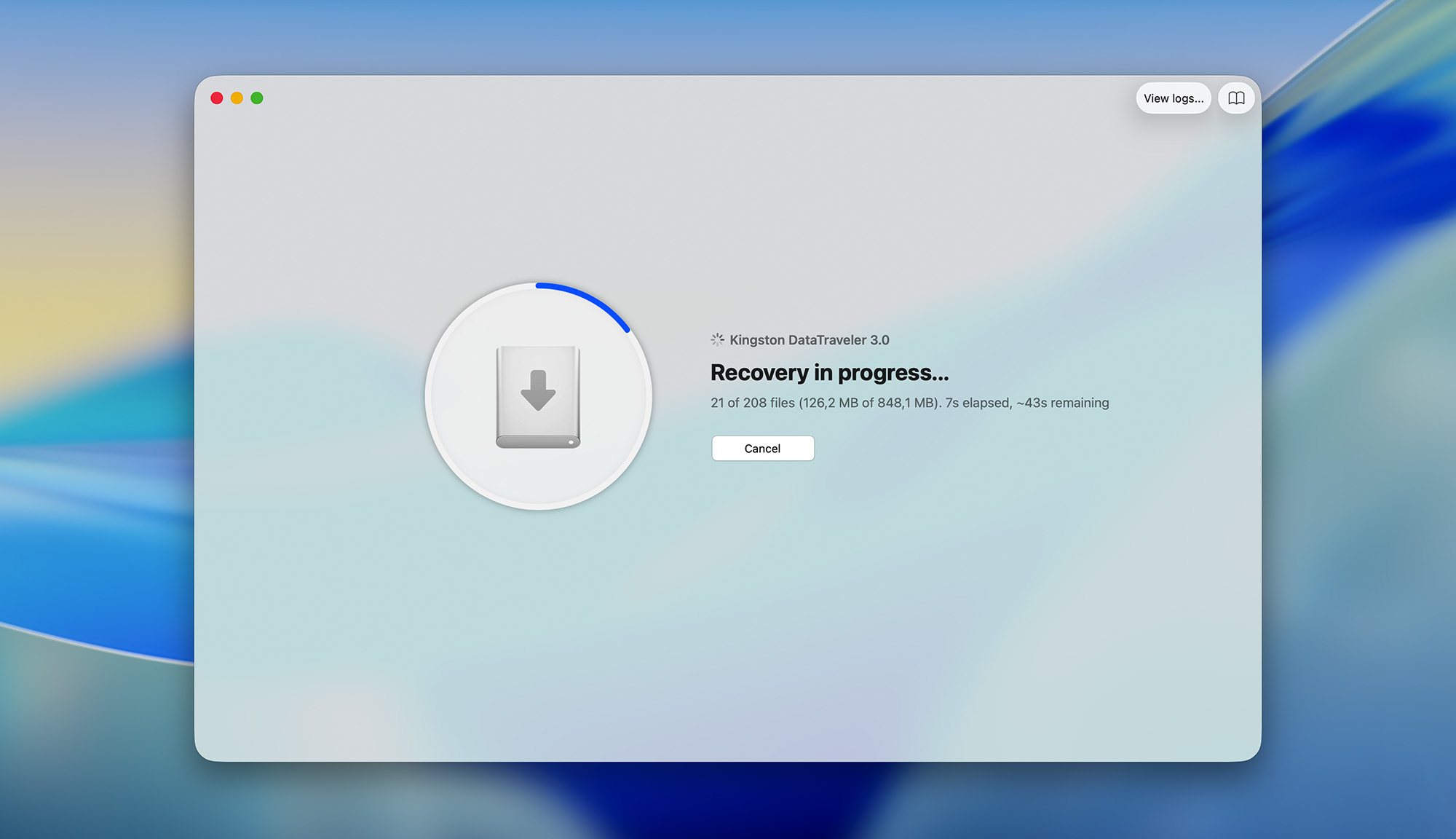
Thanks to the preview feature, we were able to easily identify and select all recoverable files we were looking for in no time, and begin their recovery by clicking the Recover button. Disk Drill for Mac prompted us to specify a suitable directory, and it confirmed that we made the right choice, which we found helpful.
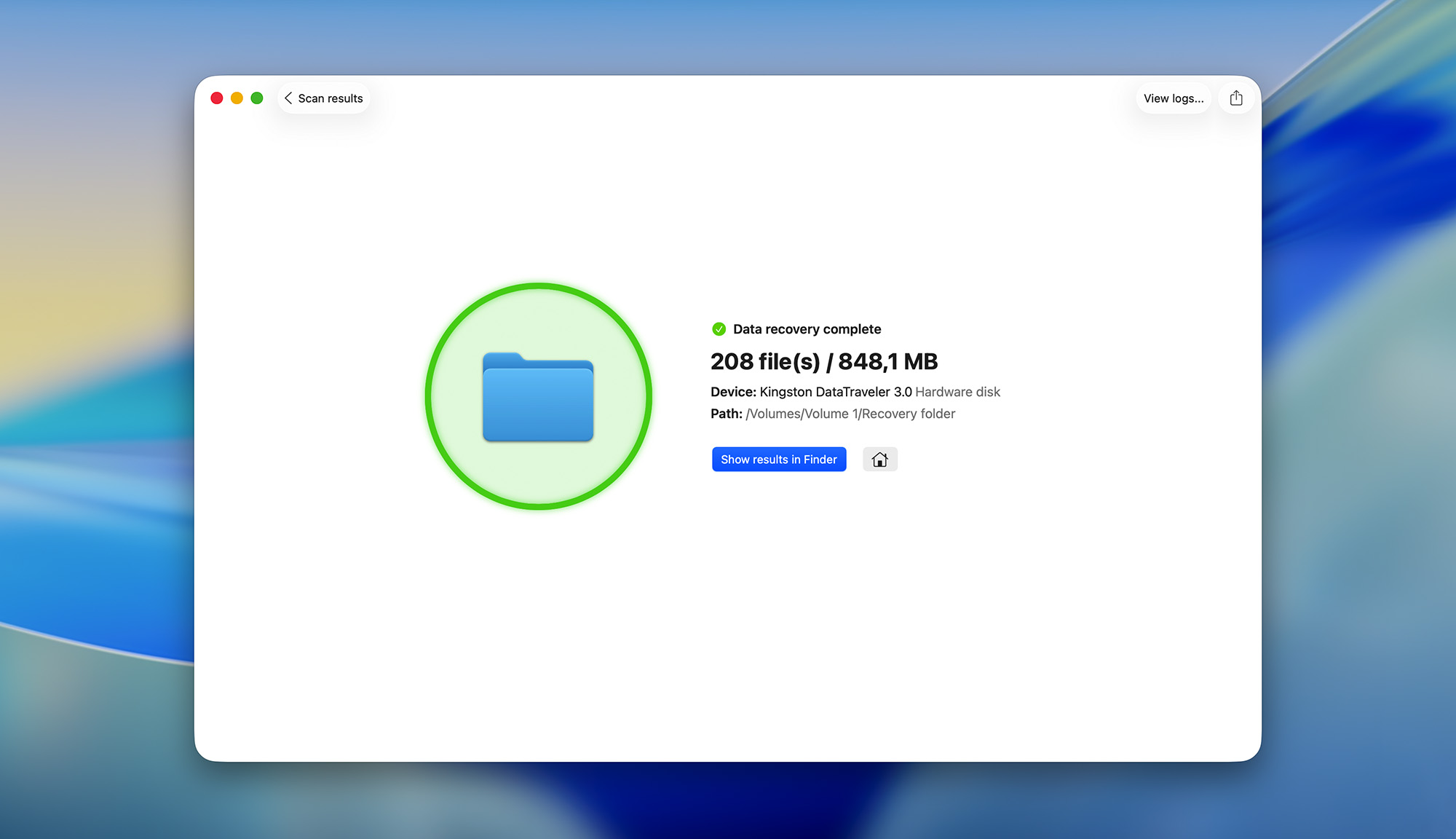
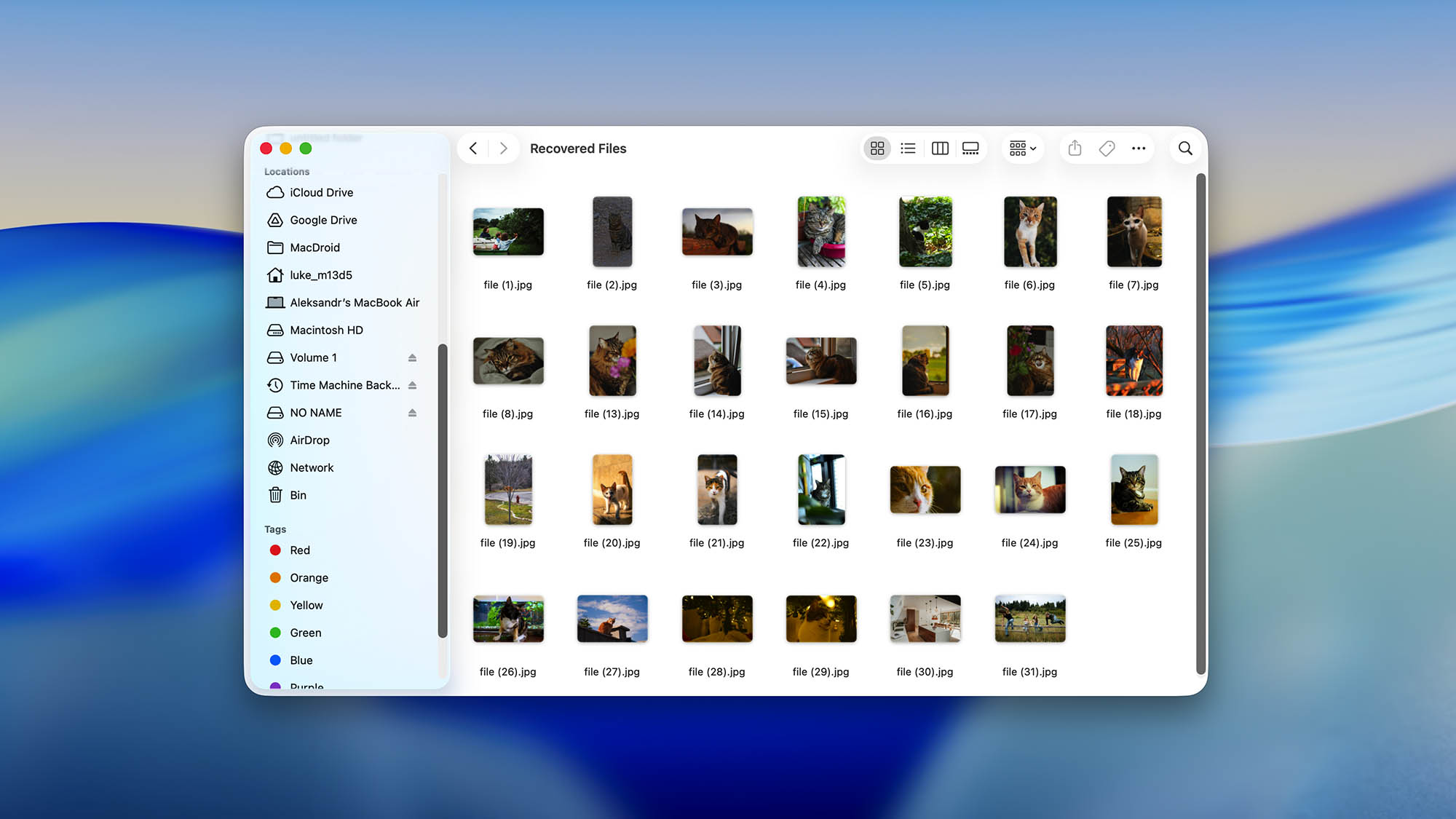
When the entire data recovery process was finished, we were given the option to view the recovered files in Finder, which we immediately took advantage of to confirm that the selected files were, indeed, in the specified recovery directory.
Disk Drill for Mac - Full Review and Performance
It took us some time to review Disk Drill for Mac because the data recovery software is packed with a ton of capabilities and extra features, so it was almost like reviewing multiple applications instead of just one.
How We Tested Disk Drill on Mac
When we review a data recovery software tool, we always begin by collecting detailed factual information about it and the company behind it. This helps us understand the product, as well as the company’s values, goals, and achievements better. From there, we move on to hands-on testing, which is where the real work happens.
Our testing process follows the methodology we use across all reviews on this site, which you can read about in full on our How We Test page. Here’s the short version:
- We prepare controlled data sets for each file type we want to test (RAW photos, videos, documents, and so on).
- Then, we copy the data sets to virtual hard drives formatted with different file systems.
- Once copied, we deliberately destroy the file system records to simulate real data loss, which gives us a clean, repeatable way to measure how well each application handles signature-based recovery without letting it “cheat” by reading intact file tables.
- We run Quick Scan and Deep Scan tests on partitions formatted with APFS, HFS+, FAT32, exFAT, NTFS, and EXT4 to evaluate how well the software recovers files when file system metadata is partially or fully available.
- Every recovered file is then manually checked. We compare file sizes against originals, verify that photos open correctly in Adobe Lightroom or Photoshop, confirm that videos play with their original codec and bitrate, and look for any duplicates, missing files, or format changes.
Beyond recovery performance, we evaluate each application across five categories:
- Karma (reputation, update frequency, support options)
- Bang for the buck (pricing, free version limitations, value)
- Recovery performance (scan results across file systems and file types)
- Usability (interface, workflow, features)
- Extras (additional tools like S.M.A.R.T. monitoring, backup, and cleanup)
Each category carries a weighted score, and together they produce the final rating you see at the top of this review.
Karma
13 rating criteria
Disk Drill for Mac is a reputable application with native support for Intel-based and Apple Silicon Macs (M1 through M5, at the time of writing this review). It is frequently updated to maintain compatibility with the latest version of Apple’s operating system, and a full changelog is available on the app’s website. Customer support is provided via chat, helpdesk, and knowledge base. Unfortunately, phone support isn’t available.
| # | Feature | Result |
|---|---|---|
| 1 | Update frequency | Every 3 months |
| 2 | Updated recently | Yes |
| 3 | Changelog available | Available (View full update history) |
| 4 | Latest macOS supported | Yes, all good |
| 5 | Runs natively on M-series Macs | Supports |
| 6 | Genuine or clone? | Genuine |
| 7 | Brand name popularity | Recognizable |
| 8 | Online market share | Excellent |
| 9 | Maturity | Mature |
| 10 | Extensive knowledge base | Available |
| 11 | Helpdesk support | Available |
| 12 | Live chat | Available |
| 13 | Phone support | No |
Bang for the buck
8 rating criteria
The value provided by the two paid editions of Disk Drill for Mac is excellent for two reasons. First, the software performs great even when presented with some of the most difficult data loss situations that can be encountered (including those involving RAID arrays). Second, the presence of many useful extra features eliminates the need to purchase other related applications.
The only major thing that holds the software back is the inability of the free version to recover any data. Instead, you can only preview recoverable data and verify that it can actually be retrieved.
| # | Feature | Result |
|---|---|---|
| 1 | Competitive pricing | Yes |
| 2 | Price-quality ratio | Great |
| 3 | Free trial | Yes (unlimited time, but limited features) |
| 4 | Is it free? | Paid license is required to recover files |
| 5 | Pricing policy | Annual or Perpetual |
| 6 | Unlimited recovery in full version | Yes |
| 7 | Free upgrades | Included |
| 8 | Commercial rights in the cheapest license | No |
Usability
18 rating criteria
The Mac version of Disk Drill is the first data recovery application to earn 100% for usability based on our 18 rating criteria, so the application leaves little to be desired when it comes to the user experience it provides.
Disk Drill’s developers have created a native application that’s optimized from the ground up for the hardware it runs on, including all Apple Silicon Macs from M1 through M5, and adheres to Apple’s user interface design guidelines. It also helps that Disk Drill has been around for over 15 years now, so many kinks and bugs have been ironed out since the early days.
Our 18 usability criteria cover everything from basic interface quality (dark mode, modern design, multilingual support) to workflow details that really matter during a stressful recovery situation. That includes things like automatic scan method selection so you don’t have to guess which mode to pick, auto-resuming scans and backups when a failing drive disconnects, the ability to preview and even recover files while a scan is still running, and the hex viewer added in version 6 for users who need to inspect raw data at the byte level. Disk Drill checks every single box.
| # | Feature | Result |
|---|---|---|
| 1 | Modern user-friendly interface | Yes |
| 2 | Dark mode | Yes |
| 3 | Easy-to-locate features | Yes |
| 4 | Automatic implementation of multiple appropriate scanning methods without user interaction | Yes |
| 5 | Auto-resuming scans of failing drives | Yes |
| 6 | Auto-resuming backups of failing drives | Yes |
| 7 | Convenient source selection on start | Yes |
| 8 | Convenient file-by-file preview of recoverable items | Yes |
| 9 | Convenient thumbnail preview of recoverable items | Yes |
| 10 | Mount recoverable items as disk | Yes |
| 11 | Built-in updater | Yes |
| 12 | Multiple view modes in scan results | Yes |
| 13 | Hex view for recoverable items | Yes |
| 14 | Filter recoverable items by type | Yes |
| 15 | Search recoverable items by file names | Yes |
| 16 | Sort results | Yes |
| 17 | Multilingual UI | Yes |
| 18 | Simple deployment | Yes |
Recovery performance
129 rating criteria
We were extremely pleased with the overall recovery performance of Disk Drill for Mac. Thanks to its powerful data recovery algorithms and numerous extra features, the data recovery software can effortlessly deal with some of the most challenging data loss situations that you can possibly encounter.
| # | Feature | Result | Description |
|---|---|---|---|
| 1 | Quick scan | Good | Recently deleted files can be quickly recovered from most partitions. |
| 2 | Deep scan | Good | Disk Drill for Mac has no problem with data and metadata recovery after formatting. |
| 3 | Signture scan | Good | The application has passed our signature-based recovery challenges with flying colors. |
| 4 | Additional scan features | Good | Disk Drill for Mac can deal with most data loss situations. |
| 5 | Device support | Good | Commonly used storage devices are supported, including RAID arrays, and iOS/Android devices. |
| 6 | Other notable recovery features | Good | Disk Drill for Mac has many other extra recovery features that make it well worth its price. |
Scan results
This table presents a quick summary of the scan results we gathered when testing the data recovery software
| # | Feature | Quick ScanRecovery of recently deleted files | Deep ScanThe ability to restore data upon file system reformatting or loss |
|---|---|---|---|
| 1 | HFS+ partitions | 5 | 5 |
| 2 | APFS partitions | 5 | 5 |
| 3 | FAT32 partitions | 5 | 5 |
| 4 | exFAT partitions | 5 | 5 |
| 5 | NTFS partitions | 5 | 5 |
| 6 | EXT4 partitions | 5 | 5 |
100% Quick Scan is designed to find recently deleted files on a device. This score reflects the overall software's effectiveness of recovering permanently deleted files across various file systems Average Score | 100% Deep Scan is primarily designed to recover data from formatted devices, and lost partitions. This score reflects the overall software's effectiveness of recovering data from various file systems after reformatting Average Score |
| # | Signature | Description | Scan Score |
|---|---|---|---|
| 1 | 3FR | Hasselblad 3F RAW Image File | 5 |
| 2 | ARW | Sony Alpha RAW File | 5 |
| 3 | BMP | Bitmap Image File | 5 |
| 4 | CR2 | Canon RAW Version 2 File | 5 |
| 5 | CR3 | Canon RAW Version 3 File | 5 |
| 6 | CRW | Canon RAW CIFF Image File | 5 |
| 7 | DCR | Kodak Digital Camera RAW File | 5 |
| 8 | DNG | Digital Negative Lossless RAW Image File | 5 |
| 9 | CinemaDNG | Adobe Industry-wide Standard File Format for Digital Video Files | 5 |
| 10 | ERF | Epson RAW File | 5 |
| 11 | EXR | High Dynamic-range File Format | 5 |
| 12 | FFF | Hasselblad RAW Image File | 5 |
| 13 | GPR | GoPro RAW Format File | 5 |
| 14 | HEIC | High Efficiency Image File Format | 5 |
| 15 | IIQ | Intelligent Image Quality RAW File | 5 |
| 16 | INSP | Panoramic Image Insta360 File | 5 |
| 17 | JP2 | Bitmap Image Format JPEG 2000 File | 5 |
| 18 | JPG | Joint Photographic Experts Group Compressed Image File | 5 |
| 19 | KDC | Kodak Digital Camera RAW Image File | 5 |
| 20 | MEF | Mamiya RAW Image File | 5 |
| 21 | MOS | Leaf and Mamiya RAW Image File | 5 |
| 22 | MPO | Multi Picture Stereoscopic Object File | 5 |
| 23 | MRW | Konica Minolta RAW Image Format File | 5 |
| 24 | NEF | Nikon RAW Image File | 5 |
| 25 | NRW | Nikon RAW Image File | 5 |
| 26 | ORF | Olympus RAW Format File | 5 |
| 27 | PEF | Pentax RAW Image File | 5 |
| 28 | RAF | Fujifilm RAW Image File | 5 |
| 29 | RAW | Native Digital Camera File | 5 |
| 30 | RW2 | Panasonic Lumix RAW Image File | 5 |
| 31 | RWL | Leica RAW Image Format File | 5 |
| 32 | SR2 | Sony RAW 2 Image File | 5 |
| 33 | SRF | Sony RAW File | 5 |
| 34 | SRW | Samsung RAW Image File | 5 |
| 35 | TIFF | Tag Image File Format | 5 |
| 36 | X3F | Sigma Camera RAW Picture File | 5 |
| 37 | X3I | Sigma Super Fine Detail Picture File | 5 |
100% Most modern digital cameras and an increasing number of mobile devices allow their users to capture raw image data in a variety of raw file formats. This score reflects the software's ability to recover photos in these formats using their unique signatures Average Score |
| # | Signature | Description | Scan Score |
|---|---|---|---|
| 1 | 360 | GoPRO 360 Degree Video File | 5 |
| 2 | ARI | ARRI Professional Digital Video Camera File | 5 |
| 3 | ARX | ARRI Professional Digital Video Camera File | 5 |
| 4 | AVI | Audio Video Interleave Multimedia Container with GoPRO CineForm Intermediate Codec | 4 |
| 5 | AVI | Audio Video Interleave Multimedia Container with MJPG, H.264, MSMPEG4 v2 Codecs | 5 |
| 6 | BRAW | Blackmagic RAW Video File | 5 |
| 7 | INSV | Insta360 Panoramic H.264 Video File | 5 |
| 8 | INSV | Insta360 Panoramic HEVC or HVC1 Video File | 5 |
| 9 | MOV | QuickTime File Format with Apple ProRes 422 Proxy, LT or HQ Codec | 5 |
| 10 | MOV | QuickTime File Format with Apple ProRes 4444 Raw or HQ Codec | 5 |
| 11 | MOV | QuickTime File Format with H.264 Codec | 5 |
| 12 | MOV | QuickTime File Format with CineForm HD Codec | 5 |
| 13 | MOV | QuickTime File Format with HEVC or HVC1 Codec | 5 |
| 14 | MP4 | Digital Multimedia Container Format with H.264 Codec | 5 |
| 15 | MP4 | Digital Multimedia Container Format with HEVC, HVC1 or Apple ProRes Codec | 5 |
| 16 | MXF | Material Exchange Format for Professional Digital Video and Audio Media with H.264 Codec | 5 |
| 17 | MXF | Material Exchange Format for Professional Digital Video and Audio Media with DVCPRO HD Codec | 5 |
| 18 | MXF | Material Exchange Format for Professional Digital Video and Audio Media with ARRI RAW or Apple ProRes Codec | 5 |
| 19 | MXF | Material Exchange Format for Professional Digital Video and Audio Media with XDCAM HD422 or HD35 MPEG2 Codec | 5 |
| 20 | R3D | Red Digital Camera Company RAW Video File | 5 |
| 21 | WMV | Windows Media Video Image with Pro RAW 9 Codec | 5 |
99% Video file formats have undergone significant evolution during the past decade. This rating assesses the software's effectiveness in recovering various video files using its signature scanner Average Score |
| # | Signature | Description | Scan Score |
|---|---|---|---|
| 1 | ACCDB | Microsoft Access 2007+ Database File | 0 |
| 2 | KEY | Apple Keynote Office Application File | 4 |
| 3 | PAGES | Apple Pages Office Application File | 4 |
| 4 | NUMBERS | Apple Numbers Office Application File | 4 |
| 5 | DJVU | Scanned Document File Format Intended For Scanned Images | 5 |
| 6 | DOC | Microsoft Word 97 – 2003 Document File | 5 |
| 7 | DOCX | Microsoft Word 2007+ Document File | 5 |
| 8 | FB2 | FictionBook 2.0 eBook File | 5 |
| 9 | MDB | Microsoft Access 97 - 2003 Database File | 5 |
| 10 | ODP | OpenDocument Presentation File Format | 5 |
| 11 | ODS | OpenDocument Spreadsheet File Format | 5 |
| 12 | ODT | OpenDocument Text Document File Format | 3 |
| 13 | Portable Document Format File | 5 | |
| 14 | PPT | Microsoft Powerpoint 97 - 2003 Presentation File | 5 |
| 15 | PPTX | Microsoft Powerpoint 2007+ Presentation File | 5 |
| 16 | RTF | Rich Text Format File | 5 |
| 17 | XLS | Microsoft Excel 97 - 2003 Spreadsheet File | 5 |
| 18 | XLSX | Microsoft Excel 2007+ Spreadsheet File | 5 |
89% Documents are among the most commonly recovered file formats because their importance can be tremendous, especially when they're related to work or school. This score indicates the software's proficiency in recovering different document types based on their signatures Average Score |
Feeling puzzled by terms like "Quick scan" and "Deep scan"? This link explains the different scan modes and their specific purposes.
With Disk Drill for Mac, you can recover files from all commonly used storage devices and even from more complex storage systems like RAID arrays and Windows Storage Spaces. The application achieves the same perfect partition recovery results when recovering deleted files from intact partitions as well as those that have been formatted or otherwise compromised almost across the board.
Equally impressive are its signature scanning capabilities, which shine when it comes to recovering lost image and video file formats, including RAW files. Disk Drill’s document file format recovery performance is slightly worse than its multimedia file recovery performance, but it’s still miles above most other data recovery software applications (only Microsoft Access 2007+ database files are not supported at all).
What makes Disk Drill’s fantastic scan results even better is how easy it is to achieve them. You just need to scan your device, and the software automatically applies all of its recovery algorithms in the optimal order, so there’s no need to manually specify if you want to recover them based on file system metadata or file signatures, for example.
Additional scan features
| # | Feature | Score |
|---|---|---|
| 1 | The number of file types supported by signature scan | 4 |
| 2 | Native deep scan on Mac computers with Apple Silicon | 5 |
| 3 | Native deep scan of system drives on T2-encrypted Macs | 5 |
| 4 | Native data recovery from local Time Machine snapshots | 5 |
| 5 | Scan for lost partitions | 5 |
| 6 | HFS+ directory rebuild | 5 |
| 7 | Recovered files' labeling | 5 |
| 8 | Partial file recovery | 5 |
| 9 | Disk images: scan and recovery | 5 |
There’s virtually no data loss situation that Disk Drill for Mac can’t handle thanks to its advanced recovery algorithms and broad set of additional scan features. The software runs natively on Macs with Apple Silicon, and one of its standout capabilities is the ability to perform a native deep scan of internal system drives. Most competing tools can’t do this, but Disk Drill handles it without issue.
With Disk Drill, it’s also possible to directly scan local Time Machine snapshots, so you have another path to recover recently deleted or changed files without needing to dig through Time Machine’s own interface. On top of that, Disk Drill supports scanning for lost partitions, HFS+ directory rebuilds, labeling of recovered files for easy identification, partial file recovery from corrupted data, and the ability to create and scan disk images for safe, non-destructive recovery.
Device Support
| # | Feature | Score |
|---|---|---|
| 1 | Internal and external HDD | 5 |
| 2 | Internal and external SSD | 5 |
| 3 | Advanced Camera Recovery (ACR) | 5 |
| 4 | USB thumb drives / Classic iPods (non-iOS) / FireWire devices | 5 |
| 5 | Memory cards | 5 |
| 6 | NAS (Network-attached storage) RAID devices | 5 |
| 7 | Remote SSH (secure shell protocol) Linux-based devices recovery | 5 |
| 8 | iOS devices | 5 |
| 9 | iOS backups | 5 |
| 10 | iCloud | 0 |
| 11 | Android devices | 5 |
| 12 | Recovery from RAID arrays | 5 |
| 13 | Encrypted device support | 5 |
| 14 | Unmountable partitions | 5 |
Disk Drill for Mac is an exceptionally versatile data recovery application that can recover data from internal and external storage devices, Android (rooted) and iOS smartphones, RAID 0, 1, 5, 6, 10, 1E, JBOD arrays, and Windows Storage Spaces. In its current version, Disk Drill reconstructs RAID arrays automatically, but its developers are working on a manual RAID reconstructor module for advanced users.
For iOS recovery, you unlock your iPhone or iPad, connect it by cable, and tap “Trust This Computer,” then enter your passcode. Disk Drill then performs a backup-based recovery, which can retrieve both first-party data (messages, contacts, call history) and third-party app data (WhatsApp, Viber, Kik, and others). For Android devices, full low-level scanning of internal storage requires root access since Android doesn’t expose raw file-system data without it. If the device has a removable microSD card, you can skip the root requirement entirely by popping the card out and connecting it through an external card reader.
Version 6 also introduced Advanced Camera Recovery (ACR), a specialized module built specifically for reconstructing fragmented multimedia files from camera memory cards. The way it works is fundamentally different from a standard scan. ACR reads every sector of the card, identifies individual video frames, audio tracks, and metadata (like GPS coordinates), and then pieces them back together in the correct sequence.
The ACR module first identifies file signatures and extracts photos and audio, then it confirms camera type and cluster parameters, and finally it reconstructs both low-resolution preview files and full high-resolution video. Around 150 camera models are supported, including brands like GoPro (Hero 4 through Hero 13), DJI, Canon, Sony, Panasonic, Insta360, and others. It’s one of the most technically impressive features in Disk Drill 6, and in our testing, it consistently produced fully playable videos with synchronized audio.
Other notable recovery features
| # | Feature | Score |
|---|---|---|
| 1 | Non-intrusive read-only algorithms | 5 |
| 2 | Network recovery | 5 |
| 3 | Effectively filters out corrupted scan results | 3 |
| 4 | Byte-to-byte device backups | 5 |
| 5 | Bootable recovery drive creation | 0 |
| 6 | Runs in macOS native recovery mode | 5 |
| 7 | Convenient scan session management | 5 |
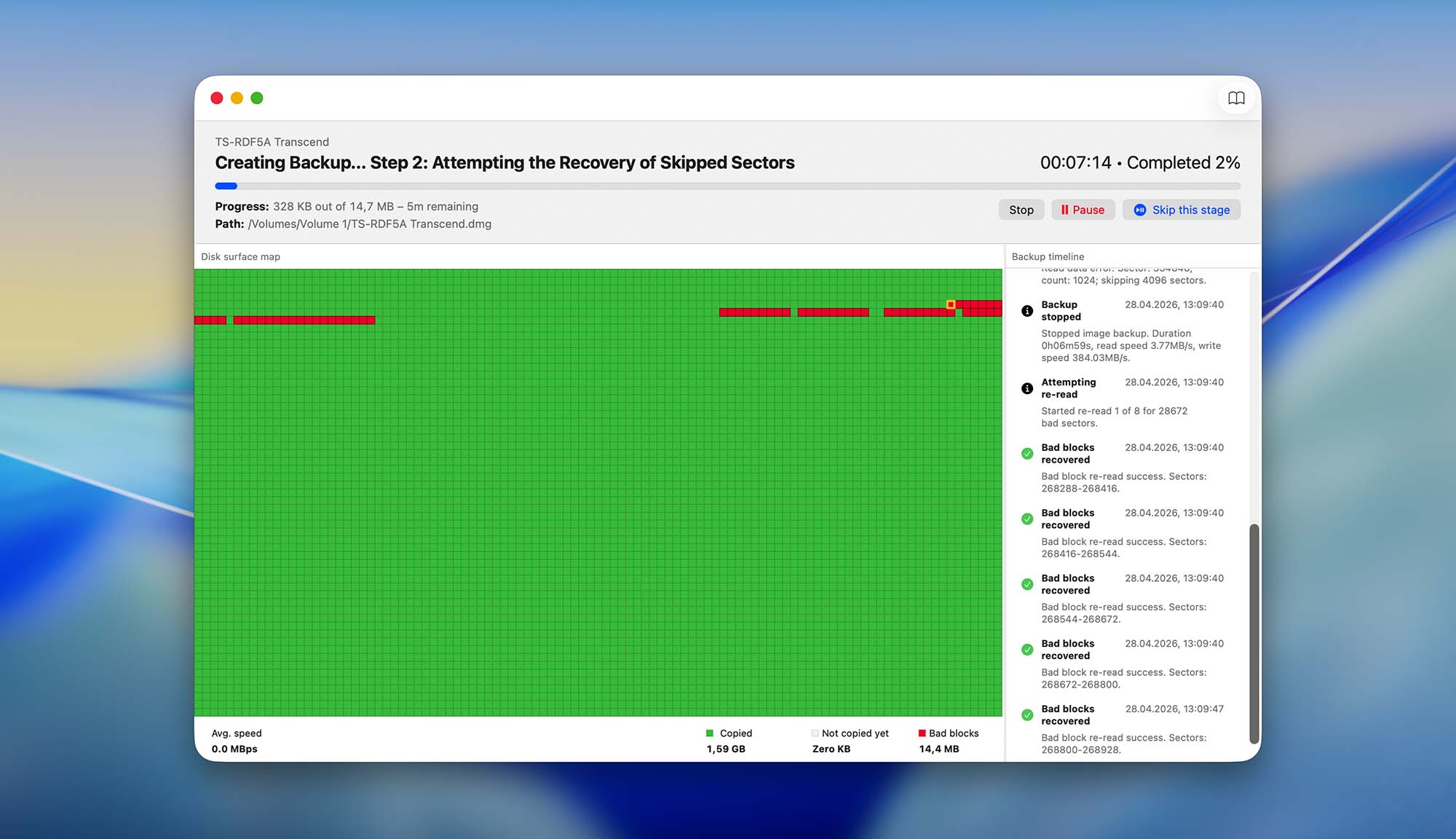
| 8 | Bad sector management | 5 |
| 9 | Recovery chance prediction | 5 |
| 10 | RAID reconstructor | 3 |
| 11 | Disk vitals monitoring and tracking during scan | 5 |
| 12 | Data protection | 5 |
| 13 | Links to in-lab recovery service for physically damaged devices | 5 |
| 14 | Scan speed | 5 |
| 15 | Scan free space only | 5 |
| 16 | Start file recovery without interrupting the scan | 5 |
| 17 | Preview recoverable items without interrupting the scan | 5 |
| 18 | Forensic features | 5 |
Disk Drill for Mac scores a perfect 5/5 on 15 out of 18 recovery feature criteria, and the breadth of what it offers here is hard to overstate. First and foremost, the software uses strictly non-intrusive, read-only algorithms throughout the scanning and recovery process, so your original data is never modified or put at risk. Before you even start recovering files, Disk Drill’s recovery chance prediction tells you how likely each file is to come back intact, which saves you from wasting time on data that’s already been overwritten.
Another feature worth calling out is the ability to run Disk Drill directly from macOS Recovery Mode, without installing anything on the system drive. This option is available on Macs without Apple Silicon or a T2 chip, and it’s a big deal when you’re trying to recover data from a Mac’s internal drive, since installing software onto that drive could overwrite the very files you’re trying to get back. It’s also useful for backing up unstable drives, as running outside the main OS limits its influence on the disk. You can also preview and start recovering files while a scan is still running, manage scan sessions so you can pause and resume later, and monitor disk vitals in real time during the process. For cases where the drive itself is physically failing, Disk Drill links you directly to CleverFiles’ in-lab recovery service.
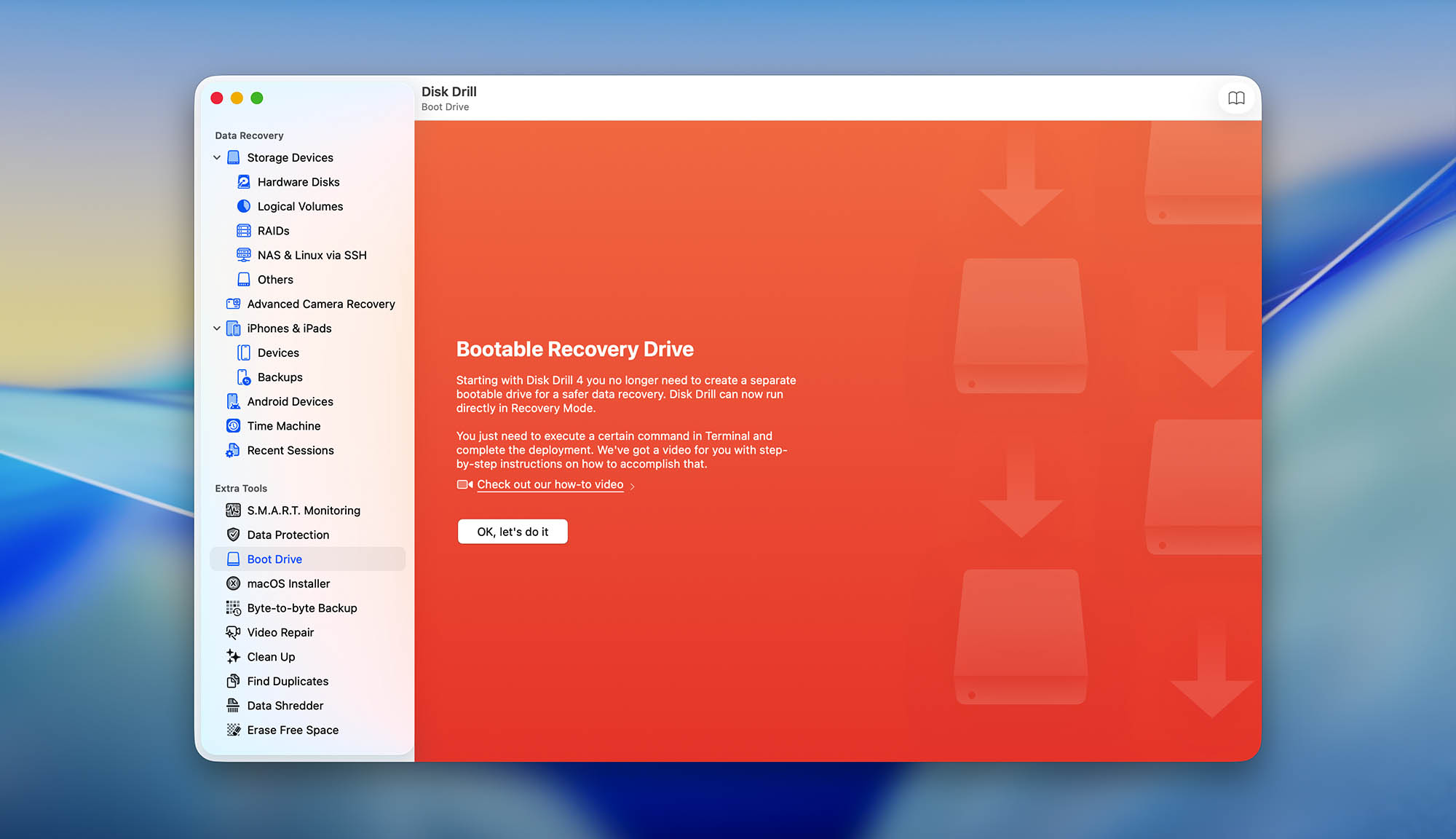
The only areas where the software doesn’t score a perfect mark are corrupted scan result filtering (3/5), RAID reconstruction (3/5), and bootable recovery drive creation (0/5, since it relies on macOS Recovery Mode instead).
Extras
12 rating criteria
When a data recovery software application is loaded with extra features to help users manage and protect their data, its overall value increases. In this regard, Disk Drill for Mac may just be the most cost-effective data recovery software currently available.
| # | Feature | Result | Description |
|---|---|---|---|
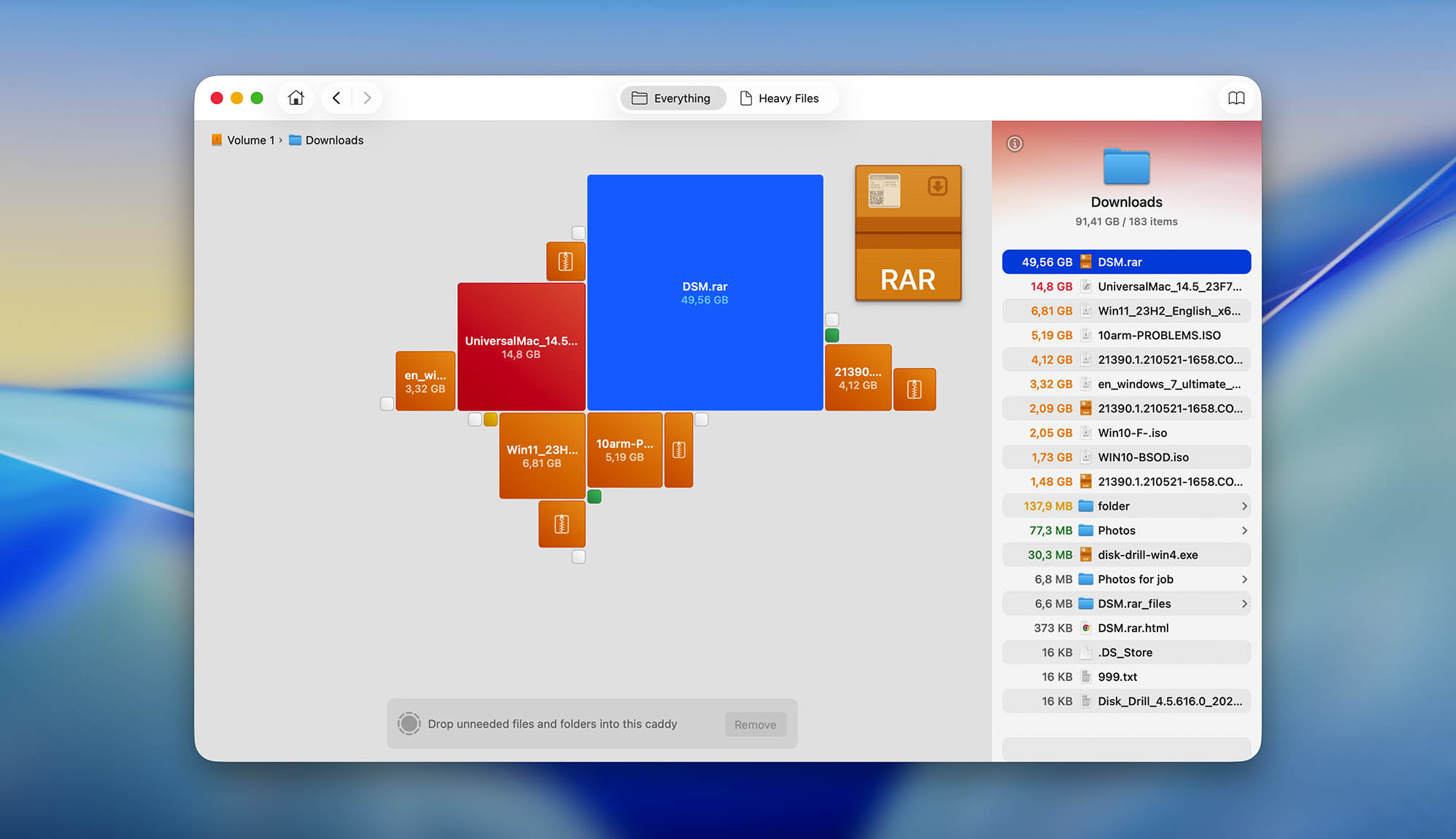
| 1 | Disk space mapping | Yes | Disk Drill for Mac can analyze any storage device and create a map that shows which files and folders occupy the most. |
| 2 | Disk clean up | Yes | You can perform disk clean-up with Disk Drill for Mac to get rid of files you no longer need. |
| 3 | Corrupted video repair tool | Yes | Disk Drill for macOS can fix corrupted video files (in supported formats) to restore normal playback. |
| 4 | Corrupted photo repair tool | No | Not supported. |
| 5 | Time Machine backups parser | Yes | It’s possible to restore directly from Time Machine backup using this software. |
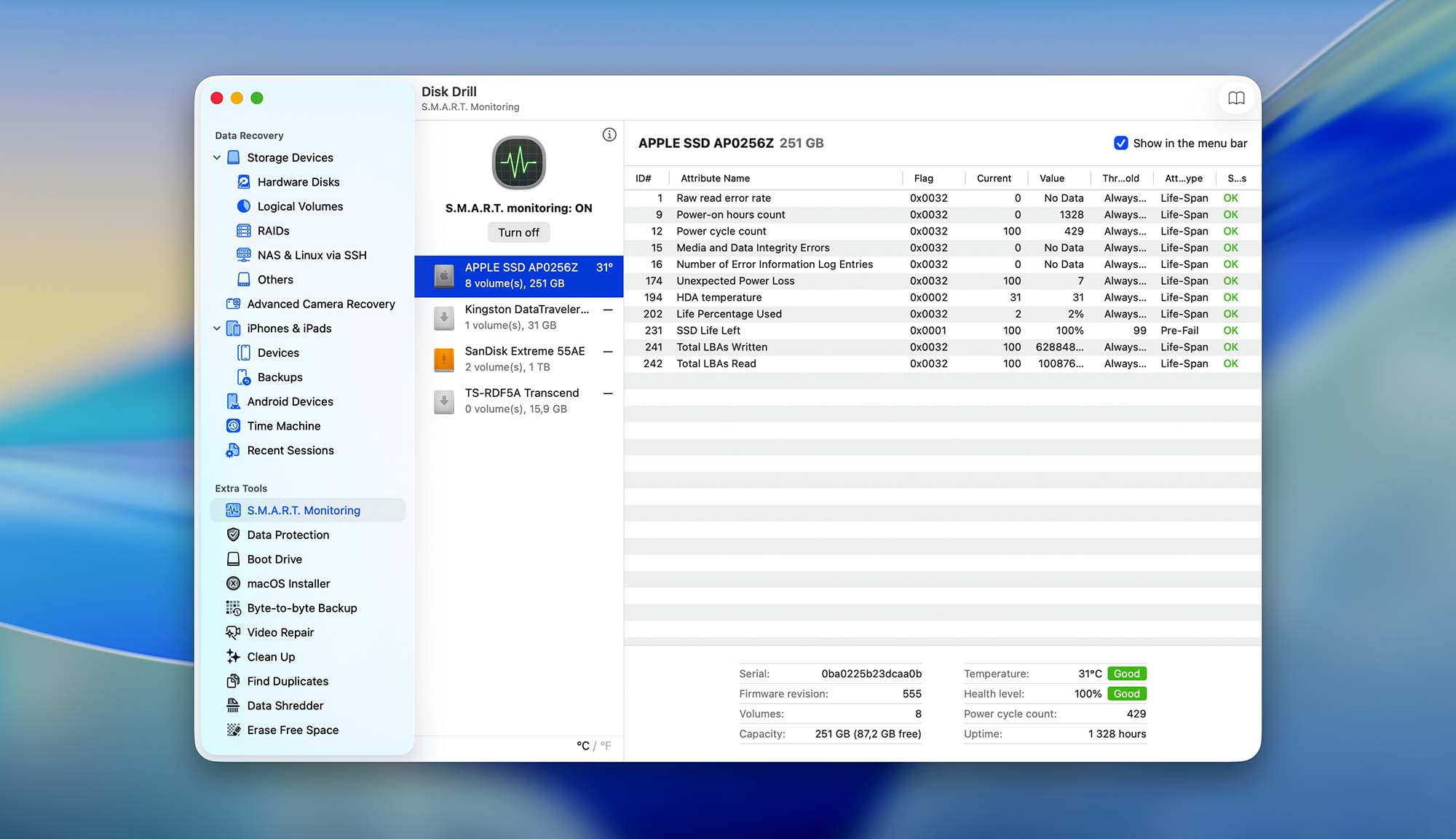
| 6 | S.M.A.R.T. | Yes | Disk Drill for Mac can read and interpret disk health monitoring data of internal and external HDDs and SSDs. |
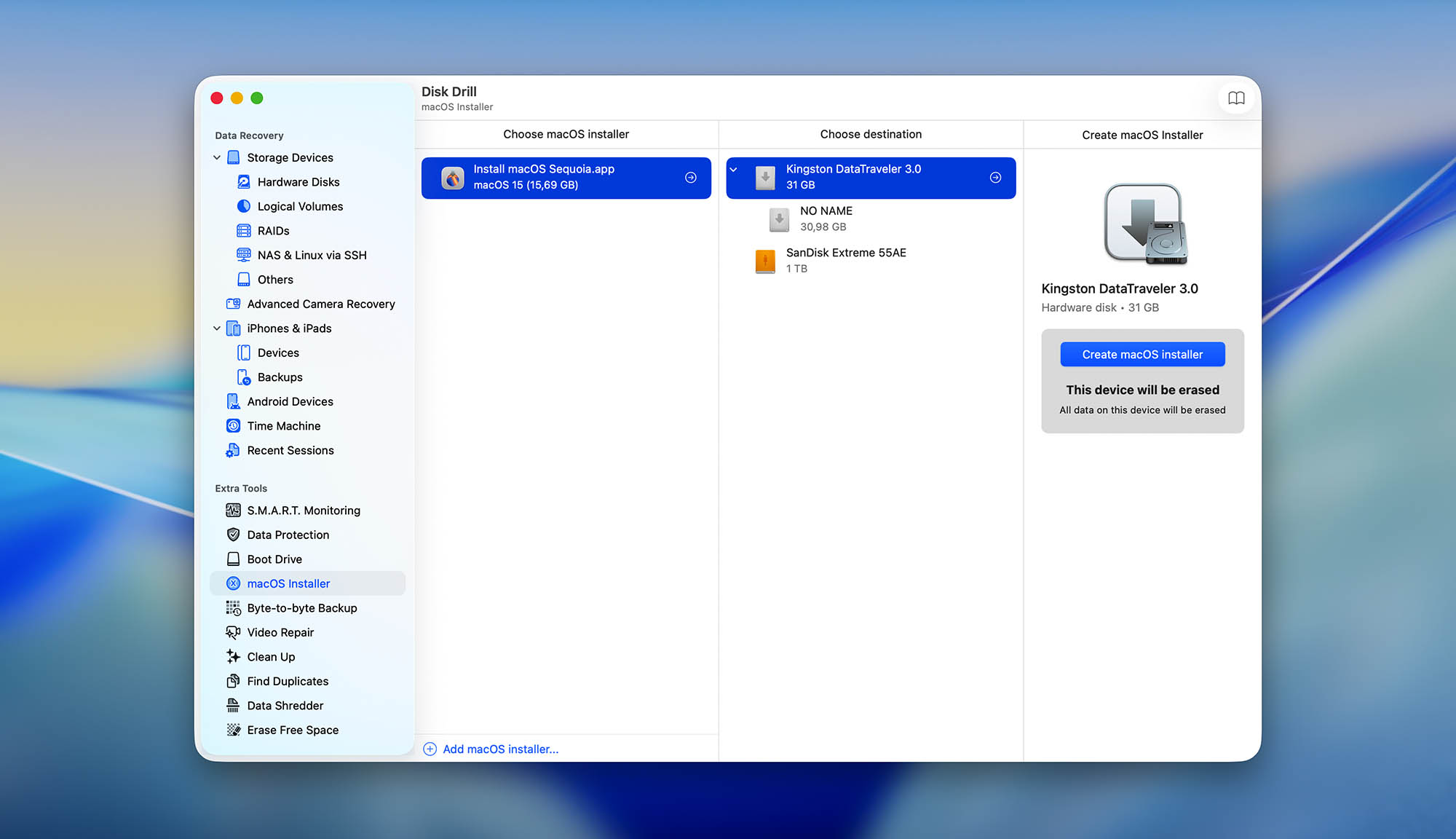
| 7 | Bootable macOS installer | Yes | You can create a bootable macOS installer using Disk Drill for Mac. |
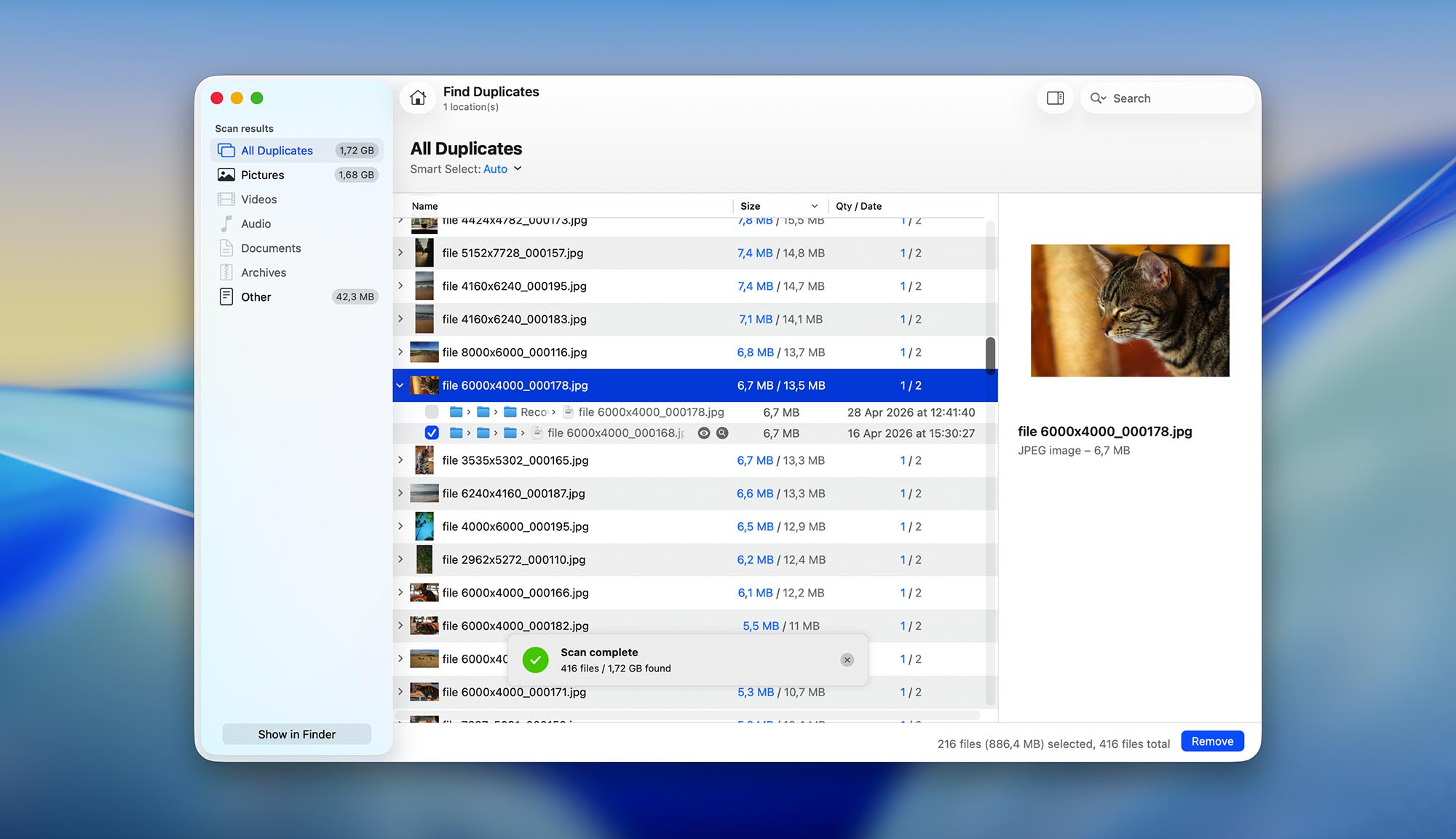
| 8 | Duplicate finder | Yes | The Find Duplicates feature helps locate the extra copies of the same files to get rid of them. |
| 9 | Built-in disk space secure eraser | Yes | Disk Drill for Mac can securely erase empty disk space to make data recovery impossible. |
| 10 | Disk cloning | No | Not supported. |
| 11 | Disk surface test | No | Not supported. |
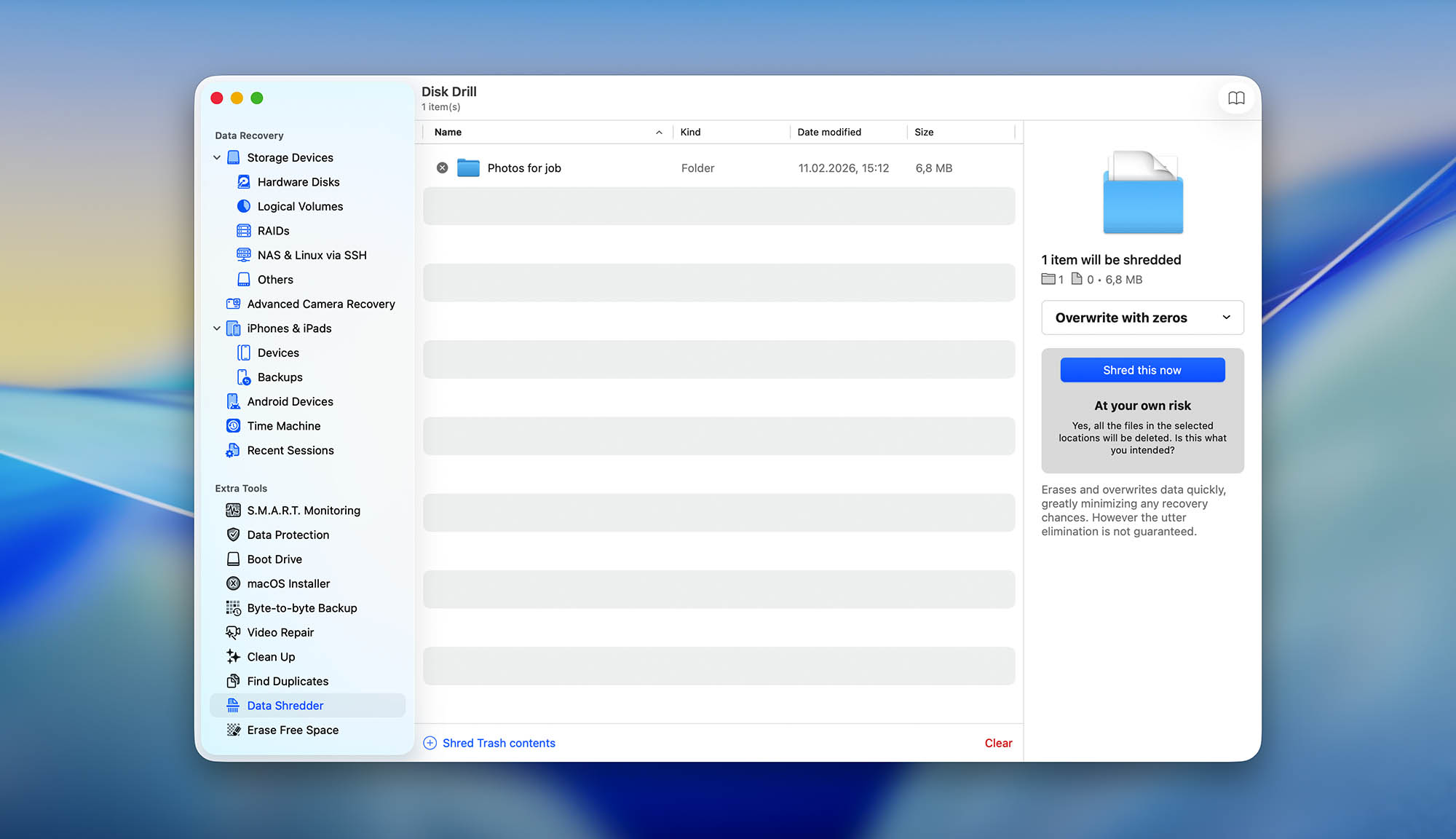
| 12 | Secure data shredding | Yes | You can use Disk Drill for Mac to securely shred sensitive data. |
With only a few relatively minor omissions, Disk Drill for Mac provides a complete set of data management features, making it well-worth keeping around even if your data backup strategy is so good that you don’t worry about losing important data at all.
Disk Drill is an awesome free file recovery program, both because of its long list of features and its exceptionally simple-to-use interface.
Tim Fisher (lifewire.com)
I honestly like this application. I work with lots of devices. I am a software tester, so I have an iPhone, Android phone, iPad, Mac, and a Windows computer. Sometimes it is really hard to manage all the data I need. Even a free version of Disk Drill helps me with that.
kojimah9 (macupdate.com)
I work as a photographer. I have a lot of photo sessions during the week. After I took photos, I have to upload them to my laptop and edit them. I use a special adapter to upload photos from a camera memory card. Last month Disk Drill saved me and my reputation.
koltzvonsteiner (macupdate.com)
Final Verdict
Disk Drill for Mac is one of the best data recovery tools we’ve tested, and it’s hard to imagine anything closer to perfection. Across hundreds of recovery tests spanning six file systems, 37 RAW photo formats, 21 video codecs, and 18 document types, the software has consistently delivered results that no other Mac application has matched.
What really sets it apart is that you don’t have to be an IT professional to get those results. One click launches the scan, and Disk Drill figures out the rest on its own, choosing the right recovery methods and applying them in the right order. Version 6 raised the bar even further with Advanced Camera Recovery, an improved backup module, and scanning speeds that are noticeably faster than before.
Best of all, a single license covers both Mac and Windows, and the software comes loaded with extra tools (S.M.A.R.T. monitoring, disk cleanup, duplicate finder, video repair, data shredder, and more) that would cost extra with just about any competitor. If you need to recover lost files on a Mac, Disk Drill is the first tool you should reach for.
Tutorials and Setup Guides for Disk Drill for Mac
To help you better understand how Disk Drill for Mac works, we’ve put together a collection of useful video tutorials.
Frequently Asked Questions
Here are the answers to some of the most frequently asked questions about Disk Drill for Mac.
Is Disk Drill for Mac free or paid?
Both, depending on what you need. The free version of Disk Drill lets you run a complete scan of any storage device and preview every recoverable file the software finds. This means you can verify that your lost data is actually there before spending anything. You also get access to several built-in tools at no cost, including byte-to-byte backups, disk cleanup, a duplicate finder, and a data shredder. The only thing the free version won’t do is perform the actual file recovery beyond files already protected by Recovery Vault or Guaranteed Recovery. For that, you need Disk Drill PRO, which is available as an annual subscription at $89/year or a one-time lifetime license at $149. Both options cover Mac and Windows on up to 3 devices.
Where are recovered files saved in Disk Drill for Mac?
Disk Drill doesn’t save recovered files to a default location. When you select your files and click Recover, the app asks you to choose a destination folder. This is intentional because saving recovered data back to the same drive you’re recovering from can overwrite the files you’re trying to get back. That’s why you should always pick a different drive as your destination, like an external USB or a secondary disk. After recovery finishes, Disk Drill offers to open the destination folder in Finder so you can confirm everything came through.
Can Disk Drill for Mac remove duplicate files and clean up storage?
Yes, the Find Duplicates feature can scan any folder you point it at and group identical files together. You can then choose which copies to keep and which to remove (it works with all file types, not just photos). The Clean Up module maps your entire disk usage and highlights the biggest space hogs, like forgotten downloads, old cache files, or oversized media you no longer need. Both tools are included in the free version, so you don’t need a PRO license to use them. Between the two, you can usually reclaim a surprising amount of storage without installing a separate cleanup app.
Does Disk Drill for Mac support SMART monitoring for drive health?
Yes. Disk Drill includes a built-in S.M.A.R.T. monitoring tool that reads health data from both internal and external drives, including SSDs in Apple Silicon Macs. Once enabled, it tracks temperature, lifetime remaining, and overall disk health, displaying the status in your menu bar for quick reference. It runs in the background and alerts you at the first signs of drive failure, giving you time to back up before things get worse. You can toggle it on or off anytime from Disk Drill’s sidebar.
Can I trust Disk Drill's preview before purchasing?
In most cases, yes. The preview is designed to show you exactly what the software can recover before you pay for a license, so you’re not buying a surprise box. If a file opens correctly in the preview panel, it will almost certainly recover in the same condition. There are rare edge cases where a file’s header looks fine but the underlying data is partially overwritten, which could result in a damaged file after recovery. But as a general rule, if the preview looks good, the recovered file will too.
Can Disk Drill recover data from an external drive on Mac?
Yes, Disk Drill fully supports external drives connected via USB, Thunderbolt, or FireWire, along with SD cards, microSD cards, CF cards, and other removable media. Plug the device in and it will show up in Disk Drill’s device list, ready to scan. One thing worth knowing: if you’re connecting a memory card from a camera or drone, Disk Drill gives you a choice between a standard Universal Scan and Advanced Camera Recovery (ACR). The Universal Scan handles general file recovery well, but ACR is purpose-built for reconstructing fragmented video files from devices like GoPro cameras and DJI drones, so it will deliver much better results with camera footage. For anything that isn’t camera media, stick with the Universal Scan.
How long does Disk Drill take to scan on a Mac?
It depends on the drive’s size, connection speed, and condition. A quick scan of a USB drive or SD card usually wraps up in under a minute. A full deep scan of a 1TB external hard drive over USB 3.0 can take anywhere from 20 minutes to a couple of hours. Internal SSDs on modern Macs tend to scan faster thanks to higher read speeds, and version 6 improved scanning performance by about 25% across the board. You don’t have to wait for the scan to finish, either. You can click “Review found items” at any point and start previewing or recovering files while it continues in the background.
Can Disk Drill recover data from internal SSDs?
Yes, and Disk Drill is one of the few recovery tools that can perform a native deep scan of internal system drives on modern Macs, where hardware-level encryption makes this particularly difficult for most competitors. That said, there’s an important caveat. All modern Macs have TRIM enabled by default, which tells the SSD to wipe the underlying data blocks shortly after a file is deleted. This means the recovery window on internal SSDs is much shorter than on traditional hard drives or external storage. The sooner you scan after losing a file, the better your chances. If time has passed, it’s still worth trying, but don’t expect the same results as with a hard drive.
Is Disk Drill only for Mac?
No. Disk Drill is available for both macOS and Windows, and the two versions share a nearly identical interface. Every PRO and Enterprise license works on both platforms with up to 3 simultaneous activations, so you can install it on a Mac and a Windows PC using the same key. Version 6 even lets you start a scan on one platform and finish it on the other, which is handy if you work in mixed environments or need to hand a drive off to a colleague.
Does Disk Drill support the newest macOS versions?
Yes. Disk Drill is compatible with macOS 10.15 Catalina and every release since, including Big Sur, Monterey, Ventura, Sonoma, Sequoia, and macOS 26 Tahoe. CleverFiles typically updates the app within days of a new macOS release, and they maintain a public changelog where you can track every update. The software runs natively on Apple Silicon with no Rosetta translation, so performance is the same on M1 through M5 Macs as on any Intel model. Older editions of Disk Drill are still available if you’re running an older macOS.
Where is Disk Drill located on Mac?
After installation, Disk Drill lives in your Mac’s Applications folder. You can get there by opening Finder and pressing Shift + Command + A, or by searching for “Disk Drill” in Spotlight (Command + Space). If you use it often, drag the icon to your Dock for quick access. If you installed it but can’t find it, check your Downloads folder. Occasionally, macOS security settings require you to approve the app in System Settings before it shows up.
🏅 Highly recommended
Out of 5 Total score
No. 1 Among all macOS solutions
Disk Drill for Mac is the best data recovery solution for Mac we’ve tested so far. By combining an easy-to-use interface with powerful features, it has a lot to offer to casual and experienced users alike.
Disk Drill for Mac combines ease of use with excellent data recovery capabilities and many extra features that greatly increase its overall value.

Thanks to its generous free data recovery limit, EaseUS Data Recovery Wizard for Mac is worth trying despite its shortcomings.

Cisdem Data Recovery is a white-label copy of EaseUS Data Recovery Wizard that shares all of its shortcomings without making any improvements.
There’s a good reason why R-Studio for Mac is loved by professionals, but regular home users have different priorities.
Even though the software doesn’t look like it, it’s actually a one-trick pony that can be recommended mainly to those who want to recover damaged video files.

David Morelo is a professional content writer with a specialization in data recovery. He spends his days helping users from around the world recover from data loss and address the numerous issues associated with it.
When not writing about data recovery techniques and solutions, he enjoys tinkering with new technology, working on personal projects, exploring the world on his bike, and, above all else, spending time with his family.
- Klennet Recovery Review (Formerly Zero Assumption Recovery)
- iBeesoft Data Recovery Review – A Likable Clone With Limited Features
- DMDE Review – A Data Recovery Powerhouse or a Usability Nightmare?
- Cisdem Data Recovery for Mac Review – A Clone in Disguise
- Tenorshare 4DDiG Review – All That Glitters Is Not Gold

- Houston, Texas, United States
Nikolay Lankevich has over 15 years of strong experience in various fields and platform includes Disaster Recovery, Windows XP/7. System analysis, design, application (Inter/Intranet) development, and testing. Provided technical supports on desktop and laptops on Win-XP and Macintosh for about 2000 employees.
What Real Users Say about Disk Drill for Mac